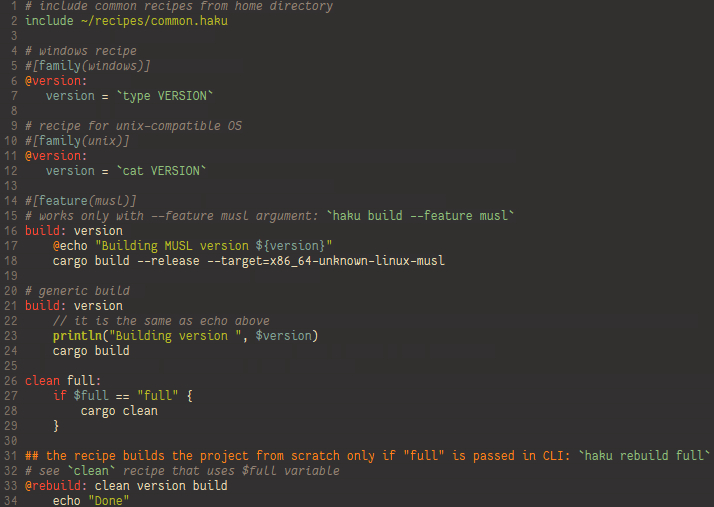
# Table of Contents
- [Command line usage](#command-line-usage)
- [Run a recipe](#run-a-recipe)
- [List recipes](#list-recipes)
- [List custom features](#list-custom-features)
- [Show recipe content](#show-recipe-content)
- [Extra options](#extra-options)
- [Known issues, pifalls, and gotchas](#known-issues-pifalls-and-gotchas)
- [Windows: using cmd.exe as a shell and quoted arguments](#windows-using-cmdexe-as-a-shell-and-quoted-arguments)
- [Windows: executing binaries in Powershell when path contains spaces](#windows-executing-binaries-in-powershell-when-path-contains-spaces)
- [Linux: execution result in haku differs from executing the same command in bash](#linux-execution-result-in-haku-differs-from-executing-the-same-command-in-bash)
- [Windows: `cd` command does not work sporadically](#windows-cd-command-does-not-work-sporadically)
- [CD command is successful but it does not change current directory](#cd-command-is-successful-but-it-does-not-change-current-directory)
- [Quick start](#quick-start)
- [Hakufile syntax](#hakufile-syntax)
- [Basics](#basics)
- [Identifiers](#identifiers)
- [Script header](#script-header)
- [Recipe](#recipe)
- [Recipe flags](#recipe-flags)
- [Recipe name collision resolution](#recipe-name-collision-resolution)
- [Types](#types)
- [Numbers](#numbers)
- [Strings](#strings)
- [External command execution result](#external-command-execution-result)
- [Lists](#lists)
- [Variables](#variables)
- [Variable usage](#variable-usage)
- [Expressions](#expressions)
- [Conditions](#conditions)
- [Assignments](#assignments)
- [External command execution](#external-command-execution)
- [Command execution result](#command-execution-result)
- [Built-in commands](#built-in-commands)
- [Comments](#comments)
- [Attributes](#attributes)
- [IF statement](#if-statement)
- [Loops](#loops)
- [WHILE statement](#while-statement)
- [FOR statement](#for-statement)
- [BREAK statement](#break-statement)
- [CONTINUE statement](#continue-statement)
- [CD command](#cd-command)
- [RETURN statement](#return-statement)
- [ERROR statement](#error-statement)
- [IMPORT statement](#import-statement)
- [PAUSE statement](#pause-statement)
- [Built-in functions](#built-in-functions)
- [System info](#system-info)
- [Environment variables](#environment-variables)
- [User info](#user-info)
- [Filesystem paths](#filesystem-paths)
- [String manipulation](#string-manipulation)
- [Numbers](#numbers-1)
- [Semantic versioning](#semantic-versioning)
- [Miscellanea](#miscellanea)
## Command line usage
`haku` command has the following structure:
haku [RECIPE_NAME] [RECIPE_ARGS] [extra options]
By default it executes a file in the current working directory with name `Hakufile` or `Taskfile`.
### Run a recipe
`haku [RECIPE_NAME] [RECIPE_ARGS]`
It looks for the first active recipe with name `RECIPE_NAME` and starts from it. If the recipe is
not found or is disabled, the error "Recipe not found" is shown. If recipe name is omitted, it
executes a recipe with name `_default` if it exists.
A script can contain a few recipes with the same name, but only the first available one is executed.
Only one recipe can be run at a time. All other free arguments are treated as recipe arguments.
If a recipe has no arguments, all command line free arguments are ignored.
Examples:
`haku` - run the script header, and try executing the default recipe `_default`. If there is no
active recipe with name `_default`, `haku` displays a warning but the result is success(`$?` is `0`)
`haku build` - run the first recipe with the name `build`
`haku build v1.0` - run the first recipe with the name `build` and pass `v1.0` as its first argument
### List recipes
`haku --list` or `haku -l`
Displays a list of available recipes. With extra option `--all` or `-a` it shows
disabled recipes as well. For disabled recipes the command shows when they become active ones.
Example (the command is run on Windows, so recipe `install` is disabled):
```shell
$ haku --list --all
Available:
test
publish: build test
build (version)
Disabled:
install #[os(linux)]
```
### List custom features
`haku --list-features`
Displays a compact list of custom features found in a script. It is not very useful command, but
it may come handy if you want to remember what custom features a script supports without
careful reading the script(with all script that are imported).
Example:
```shell
$ haku --list-features
Features: zip,rar,7z
```
### Show recipe content
`haku --show RECIPE_NAME`
Displays the content of a recipe and where it is located. The output format is: the first line is
the file name where the recipe is(this seems not very useful, but if you include one or few
scripts, it is good to know which script has the recipe that would be executed); the second line
is the recipe state(active/disabled) and its name; the rest is the recipe content. The command
always looks for the first active recipe, and only if nothing found, it shows a disabled one.
Example (since the script is in the current directory, the shown path is short - only filename):
```shell
$ haku --show build
Hakufile
Active recipe: build
@build:
cargo buile --release
```
### Extra options
- `-h` or `--help` - show help
- `-v` or `--verbose` - sets the verbosity of output while running a script. The option can be used
a few times: the more times it is used the more detailed output is. Default is `0`, it outputs
only shell commands that are executed(unless they are silenced) and output of those commands.
The maximum number of `-v` arguments is 4 (increasing the number does not make output more
detailed)
- `--version` - show application version
- `-f` or `--file`[PATH_TO_SCRIPT] - run a script from this file. If this option is omitted,
the application looks for files `Taskfile` or `Hakufile` and runs the first found one
- `--feature` - set a comma separated list of custom features for a script
- `--time` - show time taken by every recipe (recipe time includes the time taken by its dependencies).
In verbose mode `haku` always shows how much time every recipe has taken
## Known issues, pifalls, and gotchas
### Windows: using cmd.exe as a shell and quoted arguments
Since `cmd.exe` has distinctive rules to escape quotes in a command, use this shell with care:
any command that includes quotes fails when running with `cmd.exe`. `Powershell` works fine in
this case. So, a possible workaround may be: switch shell before executing a command with quoted
arguments to `powershell` and set it back to `cmd.exe` after the command is finished.
### Windows: executing binaries in Powershell when path contains spaces
`Haku` is unable to detect the correct path to a binary inside a string, so it does not escape
anything. It results in that the script:
```
zip7="c:/Program Files/7-Zip/7z.exe"
${zip7}
```
fails with the error `c:\program : The term 'c:/Program' is not recognized as the name of a cmdlet, ...`.
To fix the problem, a command with spaces in powershell must be escaped with `&`. The fixed script:
```
zip7="c:/Program Files/7-Zip/7z.exe"
& ${zip7}
```
Note: if you want to use slashes instead of backslashes, you have to escape them for powershell:
```
zip7="c:\\Program Files\\7-Zip\\7z.exe"
& ${zip7}
```
Another workaround is to change temporary system PATH(until the script finishes):
```
set-env("PATH", "$PATH;c:\Program Files\7-zip")
7z
```
### Linux: execution result in haku differs from executing the same command in bash
Some commands works differently in `sh`. E.g., `echo -e "1\2"` in `bash` prints:
```
1
2
```
but in `sh` it prints:
```
-e 1
2
```
It may result in an error in a following command. Workaround: switch to `bash` in the script, add this at the top
of the script:
```
shell("bash", "-cu")
```
### Windows: `cd` command does not work sporadically
Be careful when using paths with slashes in Windows: since `haku` interpolates escaped characters it may generate
invalid path. Example:
```
cd c:\project\test
ls
```
It raises an error `Invalid directory c:\project est`. It happens because `\t` was translated to TAB character.
To avoid translation, either use backslashes: `cd c:/project/test` or double slashes: only "bad" ones -
`cd c:\project\\test` or all - `cd c:\\project\\test`
### CD command is successful but it does not change current directory
As of version 0.3, `cd` command is kind of dumb: it checks only if the directory exists but it does check whether
the directory is accessible (e.g., a user does not have permissions). It results in that `cd` command finishes
successfully, but the following command either fails.
## Quick start
Create in a directory a file names `hakufile` or `taskfile`(capitalized names are supported as well).
Here is the quick example with comments:
```rust
// This is comment
# This is also comment
// All indentations in this example are just for readability, haku does not care about the number
// of TABs or spaces. You can even write witout any indentation and the script will just work.
// the following two line are "header", they are executed for any recipe
make = "make"
version = "1.0"
// Haku execute a script one by line. So, if you need to execute a long command, you have either
// to write it as one long line:
cmake -bbuild -G "NMake Makefiles" ..
// or you can use `\` to divide the long line for readabiliy. This one does the same as above:
cmake -bbuild \
-G "Nmake Makefiles" \
..
// recipe starts with an indentifier followed by ':'
show-path:
// '${}' are substituted with real variable values. If a variable with this name does not exist,
// the script looks for environment variable with the same name(as in this example - it prints
// the value of the environment variable 'PATH')
echo ${PATH}
// recipe can have dependencies that are executed before the main recipe. All dependencies go after ':'
// This recipe first prints the value of 'PATH' and then builds the project
build-release: show-path
${make} build release
// recipe can have arguments - they are between recipe name and ':'. Arguments are free command-line
// arguments assigned to recipe argumetns in order of appearence. The last recipe argument can
// start with '+' that means that the argument is kind of "list" and gets all yet unused command-line
// arguments. Let's assume, the command line is:
// $ haku display arg1 arg2 arg3
// This recipe assigns v1="arg1", v2="arg2", v3="arg3", v4=""
display v1 v2 v3 v4:
//
// This recipe assigns v1="arg1", v2=["arg2", "arg3"]
display v1 +v2:
// ## This is doc comment. When it goes before a recipe, it is displayed by command `--list` as recipe description
//
// You can declare a recipe enabled only if a certain feature is enabled. The first of the following
// recipes is executed only on Windows, and the second one only on Linux - that makes it possible to
// write a crossplatform scripts:
#[family(windows)]
info:
echo "Windows detected"
#[family(linux)]
info:
echo "Linux detected"
// script provides a set of control flow statements: while, for, if, break, continue. `If` example:
// a script uses the corrent makefile to build a binary depending on the OS:
build:
if family() == "windows"
makefile = "-f makefile.gnu"
else
makefile = ""
end
make ${makefile}
// A few examples of dvanced usage:
// Reading an environment variable and use default value if it does not exist or empty:
val = ${ENV_VAR} ? "default value"
// Execute an external comamnd and show its output line by line with line numbers
num = 1
for line in `ls *.txt`:
text = "${num}. ${line}"
echo ${text}
num = inc($num)
end
// Every external command is printed to standard output, unless it is silenced
// This is printed:
cd build
// This is not printed
@cd build
// Every failed external command aborts the script, but you can mark a command "always-OK" one:
// here, if the directory exists, it fails and aborts the scrpt and "make" is not called:
mkdir ${dir}
make
// here, the script continues execution and "make" is called in any case
-mkdir ${dir}
make
```
## Hakufile syntax
### Basics
A script file contains up to two optional sections: header - lines from the first top of the file
up to the first recipe; and recipes - everything starting from the first recipe. Header is the common
code, it runs before any recipe (even if you launch `haku` without recipe name, the header is
executed).
Execution is on per line basis, so every line must 1) be a complete statement, 2) contain only
one statement. If the line is very long, it can be divided into a few smaller ones, and each line,
except the last one, must end with `\` symbol(to escape a line ending).
Examples:
Correct:
```
if $cmd == "ping" && $count == 10:
end
```
This is also correct and does the same:
```
if $cmd == "ping" && \
$count == 10:
end
```
This is incorrect - `if` statement is broken:
```
if $cmd == "ping" &&
$count == 10:
end
```
Another incorrect example - more than one statement per line (`if` and `end` statements):
```
if $cmd == "ping" && $count == 10: end
```
There are no strict indentation rules for hakufiles. Indentation is arbitrary and used only to
improve readability: all leading whitespaces are ignored.
All built-in statements and functions are case-insensitive. But variable names are case-sensitive.
The latter is done because of environment variable names are case-sensitive on some operation systems.
So, `IF $a == 10:` and `if $a == 10:` are the same, but `if $a == 10:` and `if $A == 10:` are not.
A line with statement that starts a block (`if`, `for`, and `while`) may end with any of:
- no extra text after the if/loop condition (the most compact case: `if $a == 10`)
- `{` (C style: `if $a == 10 {`)
- `:` (Python style: `if $a == 10:`)
- `;then` (sh style: `if $a == 10; then`)
- `;do` (sh style: `while $a != 10; do`)
- `then` (Pascal style: `if $a == 10 then`)
A block must end with any of:
- `}` (C Style)
- `end` (Pascal style)
- `done` (sh style)
### Identifiers
Identifier is a single word used to define or use a recipe or variable. Identifiers can include
Unicode characters and must start with a Unicode letter. Besides Unicode letters identifiers can
contain ASCII digits, and characters `-` and `_`.
`Haku` supports Unicode: variable and recipe names can contains Unicode letters, ASCII digits, and
symbols `_`(underscore) and `-`(minus sign). The names must start with a Unicode letter. So,
`para-mañana` or `wstrząs_тест-42` are valid identifiers.
### Script header
All lines between script beginning and the first recipe are a script header.
All headers are executed before a recipe starts in the order of imports (see
[Import statement](#import-statement) section about order of script execution.
### Recipe
A recipe starts with optional documentation comment(See [comment section](#comments)).
Recipe declaration follows the comment. A body of a recipe is all lines between
this recipe documentation comment and the next recipe's one or until the end of
file. Declaration syntax:
```
[flags]recipe-name arg1 +arg2: dep1 dep2
```
- `[flags]` is optional flags for the entire recipe
- `recipe-name` is a valid identifier
- `arg1`, `+arg2` are recipe local variables. They are removed after the recipe finishes. Initial
values of the variable are assigned using free arguments passed in command line in the same
order. If a variable starts with `+` it collects all free arguments that are left after all
previous variables values are set. Only the last variable can start with `+`. E.g., if a recipe
declared as `rec v1 +varr:` and the command line is `haku rec val1 val2 val3`, the variable
`v1` gets value `val1`, and the rest goes to `varr` = list of two lines `val2` and `val3`
- `dep1` and `dep2` are recipe this recipe depends on. First, `dep1` and `dep2` are executed,
then this recipe local variables are initialized, and only after that `recipe-name` starts.
#### Recipe flags
As of version 0.3, only two recipe flags are supported:
- `@` suppress printing a shell command before executing it (suppressing echo);
- `-` do not interrupt execution if the external command failed. By default, if any command
executed via shell stops the script execution on failure. If this flag is provided, the failed
command just displays an error to standard error output and continues execution.
Flags can be written in any order.
Example:
```
-no-fail:
mv abc.txt backup/
tar -cvf bck.tar backup
@with-fail:
mv abc.txt backup/
tar -cvf bck.tar backup
```
`no-fail` recipe is always successful and it creates a tar-file even if `mv` fails. At the same
time it displays every executed line before running it.
`with-fail` does not display anything except the output of called utilities and won't create
a tar-file if `mv` fails.
#### Recipe name collision resolution
If a script and/or imported scripts contain a few recipes with the same name, only one recipe is
executed. It is the first available recipe. Recipes in main script have higher priority than
recipes in imported scripts. If you are not sure which one would be executed, run
`haku show <recipe-name>`. This command show the recipe that `haku` executes when you run
`haku <recipe-name>`.
Please, note that if you want to crate a generic recipe as a fallback one, and to have a few
recipes for a specific attributes, place the most generic recipe at the bottom. Example:
A script with generic recipe at the top:
```
info:
echo "generic"
[#os(windows)]
info:
echo "windows"
[#os(linux)]
info:
echo "linux"
```
It prints `generic` on any platform. But if you reorganize recipes:
```
[#os(windows)]
info:
echo "windows"
[#os(linux)]
info:
echo "linux"
info:
echo "generic"
```
It prints `linux` on any Linux OS, `windows` on any Windows machine, and `generic` on any other
OS(e.g., on MacOS or BSD).
### Types
`Haku` supports a limited set of variable types. Each type can be implicitly converted to boolean
value that simplifies variable usage in conditions. The variable is `false` if:
* `0` for numbers
* empty strings for strings
* non-zero exit code for an external command execution
* empty list or a list with one empty string item
#### Numbers
Supported number formats:
* positive and negative decimal numbers. Character `_` can be used to make number more readable: e.g., `65_536` is the same as `65536`;
* positive hexadecimal numbers. These numbers must start with "0x" or "0X" prefix.
#### Strings
`Haku` supports two types of strings but both work the same:
* in single quotes `'value'`
* in double quotes `"value"`
Some characters must be escaped to be used inside a string: `\n` - new line control code,
`\t` - tabulation, `\\` - a `\` symbol, and `\$` - a dollar sign `$`. Inside single quotes
character `'` must be escaped `\'`. Use `\"` to escape `"` inside double quotes.
For `$` there is an extra escape form `$$`.
All strings are interpolated before use: all substrings like `${var-name}` are replace with the
value of `var-name` variable. That is why `$` must be escaped.
#### External command execution result
The type contains the output of the external command, e.g.:
```
a = `ls *.txt`
```
#### Lists
Some commands generate a list of lines separated with new line character. E.g., external command
execution does it. The usage of lists is a bit tricky: their value may depend on context:
in a loop context, e.g.:
```
for v in `ls *.txt`
```
the list is processed line by line. But when the value is used as an argument for another external
command, all new lines are replaced with spaces to generate a long list of arguments, e.g.:
```
a = `ls *.txt`
rm ${a}
```
Let's assume, `a` contains `"1.txt\n2.txt"`. In this case the following line is expanded
to `rm 1.txt 2.txt`
### Variables
Variable name is any valid identifier.
All variables, except recipe-local ones that are listed
in a recipe declarations, are global. It allows recipes to interact: e.g., a dependency assigns
value to a variable depending on OS family, and then the parent recipe will use them.
There is no special syntax to declare a variable. A variable is created when the value is assigned
to it for the first time. When the variable is used in any expression, the engine looks for it
in the following places (in order of priority)
- local recipe variables
- global script variables
- environment variables
- if everything above fails, the engine uses a variable with default value (`0` or empty
string depending on context)
A variable from higher level shadows a variable of a lower level if it exists. It means, e.g.,
that if a recipe declares a local variable, the global script variable with the same name becomes
inaccessible until the recipe finishes.
#### Variable usage
The engine may require `$` before the variable name and it may require "bare" variable name. The
rule is simple: if it is an action that changes the variable value (left side assignment or it is
a variable of `for` loop) - the name must be a "bare" one (e.g., `name = 10` or `for name in 1..3`).
In all other cases a leading character `$` is required(e.g., `name = $name2`). To make a variable
name more readable and easier to parse, the name can be enclosed between curly brackets
(e.g., `name = ${name2}`).
Note: As of version 0.3, there is one more requirement for interpolated strings: all variable
names inside strings and external shell commands must be inside curly brackets. So, if you have
a variable `cnt` with value `5`, assignment `name = "Total: ${cnt}"` works as expected, while
`name = "Total: $cnt"` does not do substitution and variable `name` gets
value `Total: $cnt` instead of correct `Total: 5`.
### Expressions
Expressions in `haku` are kind of weak: no mathematic operators, except logical
ones, are supported. Round brackets for grouping is unsupported as well.
`Haku` is not a full-featured script language by design. It is just a command
runner. And I wanted to make as simple as possible. So, it even does not have
`+` to concatenate strings, you have to use string interpolation instead of it.
It may make script a bit longer due to string substitution does not support
expressions. E.g., with `+` for concatenation you can write in one line:
```
msg = time() + " Starting script on " + os()
```
While in `haku` you have to break it into 3 lines:
```
time = time()
os = os()
msg = "${time} Starting script on ${os}"
```
The priority of the supported operators (starting from the highest):
- negation: `!` or `not`
- comparison ones: `==`, `!=`, `<`, `>`, `>=`, and `<=`
- logical AND: `&&` or `and`
- logical OR: `||` or `or`
The engine uses shorthand evaluations: it stops evaluations of a `||` when the first truthy values
is met, and `&&` expression when the first falsy value is met. E.g.:
```
executes `dir *.log` only of `dir *.txt` fails.
#### Conditions
A condition is an expression of `while`, `elseif`, and `if` or any other expression that contains
one of logical operators. The final result of any condition is one of two values: `false`
(internally represented as integer `0`) or `true` (internally represented as integer `1`).
#### Assignments
Besides operator `=` to set a new value for a variable, assignments introduce two special operators:
`?` and `?=`.
Operator `?` assigns the first "truthy" value from the list. Shorthand evaluation is used:
```
a = $b ? $c ? "default"
```
The expression assigns to variable `a` the first non-zero value from `$b`, `$c` and `default`. This
operator works similar to `||` operator but the result of `?` is a real value while the result of `||`
is always `false` or `true`.
As of version 0.3, all values in the list must be single ones: expressions are not allowed. So,
`a = $b ? $c == 10` is invalid expression.
Operator `?=` assigns a new value to a variable only if the variable is falsy one. If the variable
has any non-zero value, the expression is not evaluated at all. Example:
```
a ?= `ls *.txt`
```
This expression executes `ls *.txt` and assigns its value to variable `a` only if the variable `a`
did not exist or had falsy value before the assignment.
At first sight `a ?= $b` looks like a syntax sugar for `a = $a ? $b`. But it is not true always.
In case of `?=` the right side of an assignment may be a full-featured expression (e.g.,
`a ?= $b == 10 || $b ==12`).
Both operators can be combined: `a ?= $b ? $c ? "default"`. This expression is a syntax sugar for
`a = $a ? $b ? $c ? "default"`.
### External command execution
The engine runs external command via shell when:
- an expression contains a text enclosed between backticks. In this case, the enclosed text is
executed and the result is used in expression. The script execution is never interrupted, even
if external command fails
- when `haku` fails to detect any statement or assignment, it falls back to command execution.
It means that if you make a typo, e.g., `while a < 10` - `$` is missing in variable name - you
will see a shell error like `'while' command not found` instead of syntax error. In this case
the script execution is interrupted on external command failure.
A command support the same flags as a recipe does. Note: command flags reverse the flags
for its recipe. So, you can, e.g., disable command echoing for the entire recipe. Example:
```
@-recipe:
@mkdir logs
cp old.log logs/
-cp new.log logs/
```
The recipe prints only `mkdir logs` to a terminal. And it executes all three commands always
because the recipe has flag `-`(ignore all errors). Only if the last command fails the script
execution is interrupted because `-cp new.log logs/` inverses recipe flag `-`.
Note: the engine always displays an error if a command failed even if it is executed
with flag `-`.
#### Command execution result
If the entire script line is an external shell command(i.e., there is no assignments,
conditions, comparisons etc), the engine just runs the command and displays its output.
For other external commands, the engine saves their exit codes and all the standard outputs.
Depending on context `haku` make use of both or only one value:
- assignment: a variable keeps both values;
- boolean context: zero exit code is `true`, other errors codes are `false`;
- string context(echoing, searching substring, compare with a string etc): the command output
is used as-is;
- integer context(e.g., comparing with a number): exit code is compared to the number;
- passing it to another external command: all new line characters(`\n`) in command output are
replaced with spaces and this long one line is passed to another command;
- compare two results: success is greater than failure, so zero exit code is always *greater* than
non-zero one. If both results have non-zero exit codes, simple math comparison is applied.
### Built-in commands
When `haku` executes a line, at first it tries to parse it as a built-in command: statement, comment,
function call, or attribute. If the line does not match any, the line is executed using the current
shell(default `cmd.exe` for Windows and `sh` for others). So, if you make a typo, you can see a
weird errors because instead of built-in statement, the line is executed as-is with a shell.
#### Comments
A line starting with `#`(see a special case in [Attributes](#attributes)) or
`//` is a comment. All comments are skipped when executing a recipe.
Double `#` starts a documentation comment. If it goes before a recipe, the text of the
comment is displayed as the recipe description in `--list` command output:
```shell
$ cat hakufile
## build with default flags
build:
make
$ haku --list
Available:
build # build with default flags
```
#### Attributes
A special case of comments. Attributes determine when a code block that follows the attribute
is "active". All disabled(non-active) blocks are ignored while running a script. It makes
possible to create cross-platform scripts by marking blocks specific to different platforms.
Code block is an entire recipe, `for` or `while` loop, `if`; or a single line.
Attributes is a list of rules enclosed between `#[` and `]`. The following block is "active" only
if all listed rules are `true`. A rule is `true` if any of its listed options matches the
system environment. For readability, attributes can be written on separate lines without using
escape character `\`.
Available attributes:
- `family` or `platform` - OS family (one of `unix`, `windows`);
- `os` - OS type (one of `window`, `linux`, `freebsd`, `macos`, `android`, `ios`, `netbsd`, `openbsd`,
`solaris`, `haiku`, `dragonfly`, `bitrig`, `emscripten`);
- `bit` - 32- or 64-bit architecture (on of `32`, `64`);
- `endian` - endianness (one of `little`, `big`);
- `arch` - architecture (one of `aarch64`, `arm`, `x86`, `x86_64`, `asmjs`, `hexagon`, `mips`,
`mips64`, `msp430`, `powerpc`, `powerpc64`, `s390x`, `sparc`, `sparc64`, `wasm32`, `xcore`);
- `feature` or `feat` - custom attribute that passed to a `haku` with `--feature` command line option.
Examples:
Recipe `build` is available only on `unix` platform and `linux` OS:
```
#[family(unix),os(linux)]
build:
```
The same as above but using a few lines:
```
#[family(unix)]
#[os(linux)]
build:
```
Recipe `build` is active only on 64-bit Windows or Linux:
```
#[os(windows,linux), bit(64)]
build:
```
Recipe `compress` is available only if a user passes `--feature zip` in command line:
```
#[feature(zip)]
compress:
```
Cross-platform build(depending on where the script is run, the command `haku build` calls
`make` with different makefiles:
```
// it is a recipe for Unix-like OS
#[os(linux)]
build:
make
// it is recipe for Windows OS:
#[os(windows)]
build:
make -f mingw.make
```
#### IF statement
The full syntax is (colons are optional - see [Basics](#basics) section)
```
if <condition>:
code_block
elseif <condition-2>:
code_block
else:
code_block
end
```
#### Loops
##### WHILE statement
The full syntax is (colons are optional - see [Basics](#basics) section)
```
while <condition>:
code_block
end
```
##### FOR statement
Use `for` to go through the list of numbers or strings in strict order. A loop variable value
can be changed inside the loop but the manually assigned value lives only until the next iteration.
The next iteration calculates the real next value and reassigns. The only exception is assigning a value
during the last iteration: in this case the custom value of the variable remains. Example:
```
for a in 1..2:
echo "In loop: ${a}"
a = 99
echo "In loop(shadowed): ${a}"
end
echo "After loop: ${a}"
```
The output is:
```
In loop=1
In loop(shadowed)=99
In loop=2
In loop(shadowed)=99
After loop: 99
```
If the value of the loop variable is not changed inside the loop, its value after the loop equals
the last used value. For the loop above, after removing line `a = 99` the last line outputs `After loop: 2`.
`For` comes in a few flavors:
Numeric loop. Only integer values are supported. The syntax is:
```
FOR variable-name IN intial..limit..step
```
`step` can be omitted, in this case it gets the default value `1`. So, `for a in 1..3..1` and `for a in 1..3`
are the same. A loop executes while the current value of a loop variable is less than the limit (or greater
than if step is negative). Because this form of `for` does not support variables, `for` condition is
checked before the first execution and an error raised if the condition is invalid (e.g., `step` is zero,
or `limit` is unreachable due to incorrect sign - `for a in 3..1..1` or `for a in 1..3..-1`).
Loop through a whitespace-separated list. There are two way of defining this kind of loop:
```
FOR a in word1 word2 word3:
```
This form is used if all words are constants and valid identifiers(contains only letters, digits, and
`-` and `_` symbols).
```
FOR a in "ident1 ${more_words}":
```
This form allows string interpolation(`${more+words}` in the example above) and the words are
whitespace separated ones that means that words can contain other symbols besides `-` and `_`.
Loop through external command output. It is line-based loop: the input is split at new lines:
```
FOR a in `ls *.txt`:
```
Loop through a string list. It differs from the previous ones: items can contain spaces. This loop can iterate only
a list that contains at least two items:
```
FOR a in "first item" "second item" 'third item: ${val}':
```
NOTE: all values are calculated at the time when FOR loop is initialized. So, e.g., if you modify `val` variable
inside this FOR loop, the last string value - `third item: ${val}` - won't change, it keeps using the value that `val`
had before the loop has started.
Loop using a variable. Its behavior depends on the variable value:
```
FOR a in $var:
# or
FOR a in ${var}
```
The following rules are applied:
- if variable `var` contains the result of an external command execution or it is a string with new line characters,
the loop is line based with input split at new lines;
- if variable `var` is a recipe list argument(one with leading `+` before its name), the loop goes through all
list values;
- if variable `var` is a number, the loop is run only once, as if it was defined as `for a in ${var}..${var}`;
- in other cases the loop is word-based one: it splits the input at whitespaces.
##### BREAK statement
Interrupts for/while loop. Raises an error if used outside a loop.
##### CONTINUE statement
Forces the next iteration, skipping any code between `continue` and the loop `end`. Raises an error if used outside a loop.
#### CD command
Haku provides a built-in command `cd` to change current working directory. It is not as powerful as
a shell `cd` command but it is very helpful when writing long scripts. Note that `cd` does not change
the current working directory for its parent process. So, you do not have to restore the current
directory when the script finishes. All change directory call are like "virtual" ones.
The command supports the following forms:
- `cd ..` - go up to the parent of the current working directory;
- `cd -` - every new `cd` command(except `cd -` remembers the current directory in an internal list
and `cd -` goes to the previously remembered command. If the internal list is empty, the command
does nothing, so the safe way to return to the initial directory after a few `cd` calls is just
call `cd -` for a few times in loop. Note, that the command works different from, e.g. bash one,
while bash `cd -` switch between two last used directories, every haku command keeps going back
in the `cd` history;
- `cd ~` - go to user's home directory;
- `cd ~/path` or `cd ~\path` - go to a subdirecrtory `path` inside user's home directory;
- `cd any-text` - everything after `cd` and until the end of line is considered a new directory name.
It can be either full path like `cd /tmp/dir1` or relative one(relative to the current working
directory like `cd dir/subdir`.
As of version 0.3, the command have a few limitations:
- special shortcuts like `~` for user's home directory and alike are not supported;
- `..` cannot be a part of a path, it must be a single value of a `cd`. So if you need to, e.g.,
do something like `cd ..\release`, you have to call `cd` two times: `cd ..` and `cd release`;
- `cd` command checks only if the directory exists but does not check that it is accessible;
so `cd` may work fine, but the following command would fail if the current user has no access
rights to this directory.
#### RETURN statement
Synonym: `finish`
Immediately finishes the current recipe. If it is a top level recipe, the execution finishes with
error code 0(success).
#### ERROR statement
Immediately interrupts script execution with non-zero error code (failure).
#### IMPORT statement
Synonym: `include`
Loads another script and imports all its recipes and variables. The statement can be used only in
a script header, `import` inside a recipe body generates an error. Syntax is:
```
import "path-to-another-script"
```
If the imported script does not exist or the engine fails to parse it, script execution is
interrupted. But `import` supports the same flags as a recipe does. Add `-` before the recipe
name and invalid import declarations will be ignored, the engine prints errors to standard
error output in this case and keeps running.
Statement `import` works a bit different from other statements: it is executed while loading the script
before any variable inside any script is initialized. It means that you cannot use any user-defined
variables in script as they are empty at this moment. At the same time, it is OK to use environment
variables since they are initialized by a caller of the script. So, you can declare import as
`import "${HOME}/scrpits/common_stuff.haku"`, and it will load the script from you home directory.
It does not make difference where `import` is inside a script header: `import` in the first line
and in the last line of a header works the same. But the order of imports is important. The later
scripts is imported, the more priority it has. E.g., if a few scripts are imported in the same header
and the scripts have a section with the same names(or they initialize the same variable), a recipe
is called from the last imported script(assuming it is not disabled). On the other hand, for nested
imports the opposite is correct: the deeper script the lower its priority. It makes possible to
create a common script with a few default recipe implementations, and them override any recipe in
a script that imports the common one.
#### PAUSE statement
The command interrupts a script execution and waits for Enter key to be pressed.
### Built-in functions
As of version 0.3, `haku` provides a fairly short but sufficient for every day tasks list of
functions. Most of them have aliased. Note, that if a function name includes dash
character(`-`), the function has an alias with the same name but with dashes replaced with
underscores(`_`). To minimize cluttering, function names with underscores are not mentioned
in the list below(e.g., instead of `time, format-time, time-format` it would be a long line
`time, format-time, format_time, time-format, time_format`).
If a function returns `true`, it means that the result is integer value `1`.
#### System info
NOTE: all function in this section return compile-time strings that are put into binary at
the time the `haku` binary is built. So, if you build a 32-bit binary on Windows, and run it
even on 64-bit Linux(e.g., with Wine), `bit` will return `"32"` and `family` will return `"windows"`.
- `os` - operation system: android, bitrig, dragonfly, emscripten, freebsd, haiku, ios, linux,
macos, netbsd, openbsd, solaris, windows
- `family` or `platform` - operation system family: unix, windows
- `bit` - architecture(pointer size in bits): 32, 64
- `arch` - CPU architecture: aarch64, arm, asmjs, hexagon, mips, mips64, msp430, powerpc,
powerpc64, s390x, sparc, sparc64, wasm32, x86, x86_64, xcore
- `endian` - endianness: big, little
#### Environment variables
Reading environment variables is transparent: they are used in the same way as variables defined
by a script(e.g., `echo ${PATH}` prints the content of the environment variable `PATH` if the script
has not defined its own variable with the same and has shadowed the environment variable making it
inaccessible). To change and remove environment variables, the engine provides the following functions:
- `set-env`, `setenv` - `set-env(var-name, new-value)` assigns the new value `new-value` to the
environment variable `var-name`;
- `del-env`, `delenv` - `del-env(var-name)` removes the environment variable `var-name` defined by the script;
- `clear-env`, `clearenv` - `clear-env()` deletes all environment variables defined by the script.
Note: all mentioned functions never change the system environment variables. All changes are local
to the running script. So, `del-env` does not remove a variable if it has existed before `haku` script
is executed. If you want to "delete" such variable, use workaround with empty value: `set_env(var-name, "")`.
#### User info
- `home`, `home-dir` - current user's home directory
- `temp`, `temp-dir` - current user's directory for temporary files
- `confid`, `config-dir` - current user's directory for configuration files
- `documents`, `docs-dir` - current user's document directory
#### Filesystem paths
- `isfile`, `is-file` - `isfile(path1[, path2, ...])` returns `true` if all paths refer to existing paths and they are regular files
- `isdir`, `is-dir` - `isdir(dir1[, dir2, ...])` returns `true` if all paths refer to existing paths and they are directories
- `exists` - `exists(path1, path2, ...)` returns `true` if all paths refer to existing paths
- `stem` - returns file or directory name without extension: `stem("/opt/doc/today.txt")` => `"today"`
- `ext` - returns path extension: `ext("/opt/doc/today.txt")` => `"txt"`
- `dir` - returns parent directory: `dir("/opt/doc/today.txt")` => `"/opt/doc"`
- `filename` - returns file or directory name: `filename("/opt/doc/today.txt")` => `"today.txt"`
- `add-ext` - appends extension to path. If the extension does not start with `.`, the dot is
inserted automatically: `add-ext("/opt/doc/today.txt", "bak")` => `"/opt/doc/today.txt.bak"`
- `with-ext` - replaces extension. If the path does no have extension, the new one is just appended
to the path. If the new extension is empty, the old extension, including `.` is removed:
`with-ext("/opt/doc/today.txt"[, "doc"])` => `"/opt/doc/today.doc"`
- `with-filename`, `with-name` - replaces file name in the path: `with-name("/opt/doc/today.log", "~today.log.bak")` => `"/opt/doc/~today.log.bak"`
- `with-stem` - replaces file or directory stem and keep existing extension: `with-stem("/opt/doc/today.log", "yesterday")` => `"/opt/doc/yesterday.log"`
- `join` - joins any number of path elements into one path using OS file path separator: `"join("/opt", "doc", "today.log")` => `"/opt/doc/today.log"`
- `invoke-dir`, `invokedir` - `invoke-dir()` returns the directory from which the script was executed. It maybe useful if you call `cd` a few time and want to return to the original directory or to build absolute path related to the current working directory.
- `glob` - `glob(pattern[,what])` returns a list of files and/or directories that match `pattern`in Linux shell style. `what` default value is `0`. When `what=1`, glob retuns only files; when `what=2`, glob returns only directories; otherwise glob returns both
#### String manipulation
Functions that accepts regular expressions follow the rules in [this doc](https://docs.rs/regex/1.3.5/regex/)
- `time`, `format-time`, `time-format` - `time([format])` returns current local date and time in a given
format. If format is omitted the default formatting string `"%Y%m%d-%H%M%S"` is used. There are
two shortcuts for formatting time as RFC2822 and RFC3339: `"2822"` and `"3339"`, or `"rfc2822"`
and `"rfc3339"` correspondingly. Example: `time()` => `"20200130-211055"`. See
[formatting date time](https://docs.rs/chrono/0.4.10/chrono/format/strftime/index.html)
- `trim` - `trim(where[, what])` removes `what` from both ends of `where`. If `what` is omitted
the function removes all whitespace
- `trim-left`, `trim-start` - the same as `trim` but removes `what` only from the beginning of `where`
- `trim-right`, `trim-end` - the same as `trim` but removes `what` only from the end of `where`
- `starts-with` - `starts-with(str[, substr])` returns `true` if `str` starts with substring `substr`.
If `substr` is omitted, its value is assumed an empty string and function returns `true`
- `ends-with` - `ends-with(str[, substr])` returns `true` if `str` ends with substring `substr`.
If `substr` is omitted, its value is assumed an empty string and function returns `true`
- `lowcase` - `lowcase(str)` returns a copy of `str` with all characters in low case
- `upcase` - `upcase(str)` returns a copy of `str` with all characters in upper case
- `contains` - `contains(str, substr1[, substr2...])` return `true` if the first string `str` contains
any of the following substrings: `contains("ab12cd", "zx", "12")` -> `true`
- `replace` - `replace(str, what[, with])` replaces all `what` substrings with `with` substring.
If `with` is omitted, it just deletes all `what` substrings
- `match` - `match(str, rx1[, rx2..])` returns `true` if the string `str` matches any of regular
expressions: `match("ab12cd", "def", "\d+")` -> `true` because the second regular expression `\d+`
matches `12` in the string
- `substr` - `substr("aabbccddee", "(a+).*(c+)"[, 0])` returns the substring from the first argument that
matches the regular expression - the second argument. Optional third argument defines which capture to
return - default is `0`. Zero capture is the entire match, separate capture indices start from `1`.
NOTE: if you need only the entire match, round brackets in regular expression can be omitted, so
`substr("aabbcc", "a+.*c+")` equals `substr("aabbcc", "(a+).*(c+)")`
- `pad-center` - `pad-center(str, padding, max_width)` appends padding from both ends of the string
`str` until its length reaches `max_width`. `max_width` is the length in characters, not in
bytes. If the number of characters to add is odd, left side gets more padding characters.
NOTE: `padding` can be string of any length, and if it is longer than 1 character, it is possible
that the result string would be less than `max_width` because the function extends an original
string by the whole `padding`. Example: `pad-center("0", "12", 8)` => `"1212012"` - the function
should add 7 characters but the length of `padding` is 2, so it adds only `7/2*2=6` characters,
making resulting string of 7 characters. Number of paddings = 6 / length of `padding` = 6/2 = 3.
It is odd, so 2 `paddings` are added to the beginning and only one at the end
- `pad-left` - the same as `pad-center` but the function adds `padding` only from the beginning
- `pad-right` - the same as `pad-center` but the function adds `padding` only from the end
- `field`, `fields` - `field(str, idx1[, idx2..])` treats the string `str` as a list of fields
separated with whitespaces, and returns fields by their numbers. Return value depends on the number
of fields to extract: one index - result is simple string, otherwise - result is the list of strings.
Index starts from `0`. If index exceeds number of fields, the empty string is returned. Example:
`field("NAME AGE\tHEIGHT WEIGHT", 1, 5, 2, 0)` => `List("AGE", "", "HEIGHT", "NAME")`
- `field-sep`, `fields-sep` - `field-sep(str, sep, idx1[, idx2...])` works similar to `field` but
splits the string by separator `sep` instead of whitespaces. Example:
`field-sep("2020-01-15", "-", 1)` => `"01`
- `rand-str` - `rand-str(count[, alphabet])` generate a string of length `count` that contains only
characters from `alphabet`. If `alphabet` is omitted the string will contain only ASCII digits and
low-case Latin letters.
#### Numbers
- `inc` - `inc(var[, add1..])` returns sum of `var` and all `add1`. If `add1` is omitted, the
variable is incremented by `1`. If the variable was not initialized, its value is set to `0`,
and then incremented. Example: `a = inc($a)` => `1` if `$a` was not declared, `$a+1` otherwise.
- `dec` - `dec(var[, dec1...])` subtracts all `dec1` from `var` and return the result. If `dec1`
is omitted, the `var` decreased by `1`.
#### Semantic versioning
To know more about semantic versioning and how match rules work, follow [this link](https://semver.org/).
- `ver-inc` - `ver-inc(version[, what-to-increment])` increments a semantic version and returns a new values
as a string. If `version` is omitted or empty string, the function returns `"0.0.1"`. The second argument
defines the part of version to increment: `0` - major, `1` - minor, `2`(default value if omitted) - patch.
Examples: `ver-inc("1.2.3") -> "1.2.4"`, `ver-inc("1.2.3", 1) => "1.3.0"`
- `ver-eq` -> `ver-eq(versionA, versionB)` returns if versions are equal
- `ver-lt` -> `ver-lt(versionA, versionB)` returns if `versionA` is less than `versionB`
- `ver-gt` -> `ver-gt(versionA, versionB)` returns if `versionA` is greater than `versionB`
- `ver-match` -> `ver-match(pattern, version)` returns if `version` matches a semantic version pattern.
Examples: `ver-match(">1.1", "1.2.3") => true`, `ver-match("2", "2.5.1-alpha") => false`, `ver-match("2", "2.5.1") => true`
#### Miscellanea
- `print` - `print(any1[, any2...]` prints all arguments to standard output without adding new
line after the last one. It is kind of `echo` substitute. Why to use `print` instead
of `echo`: 1) `echo` is a shell command, so it is slower than `print` that makes `print`, e.g.,
a good and fast tool to debug a script; 2) `echo` does string interpolation, so it supports
only variable names, `print` evaluates every argument, so it supports expressions and
function calls. Example: `print("a=",$a,". INC a=",inc($a))`, assuming `a` is uninitialized,
outputs `"a= . INC a=1"`
- `println` - the same as `print` but automatically prints a new line character after the last argument.
- `shell` - set the current shell to execute external commands.
Default value for Windows: `shell("powershell", "-c")`, for other OS: `shell("sh", "-cu")`.
If you want to use command prompt on Windows, add to your script header the line:
`shell("cmd.exe", "/C")`