<p align="center">
<h1 align="center">grafq</h1>
<p align="center">
<a href="https://github.com/dhth/grafq/actions/workflows/main.yml"><img alt="GitHub release" src="https://img.shields.io/github/actions/workflow/status/dhth/grafq/main.yml?style=flat-square"></a>
<a href="https://crates.io/crates/grafq"><img alt="GitHub release" src="https://img.shields.io/crates/v/grafq?style=flat-square"></a>
<a href="https://github.com/dhth/grafq/releases/latest"><img alt="Latest release" src="https://img.shields.io/github/release/dhth/grafq.svg?style=flat-square"></a>
<a href="https://github.com/dhth/grafq/releases"><img alt="Commits since latest release" src="https://img.shields.io/github/commits-since/dhth/grafq/latest?style=flat-square"></a>
</p>
</p>
`grafq` (short for "graph query") lets you query Neo4j/AWS Neptune databases via
an interactive console.
🤔 Motivation
---
I wrote `grafq` to make it easier to interact with the graph databases we use at
work from the command line. I use it to quickly experiment with queries and, at
times, benchmark them. It also lets me page through results or persist them to
the local filesystem.
💾 Installation
---
**homebrew**:
```sh
brew install dhth/tap/grafq
```
**cargo**:
```sh
cargo install grafq
```
⚡️ Usage
---
`grafq` operates in two modes: "console" and "query".
```bash
# open console mode with "page results" feature turned ON
grafq console -p
# open console mode with "write results" feature turned ON
grafq console -w
# execute a one off-query
grafq query 'MATCH (n: Node) RETURN n.id, n.name LIMIT 5'
# read query from stdin
# benchmark a query 10 times with 3 warmup runs
# write results to a local file in csv format
Console Mode
---
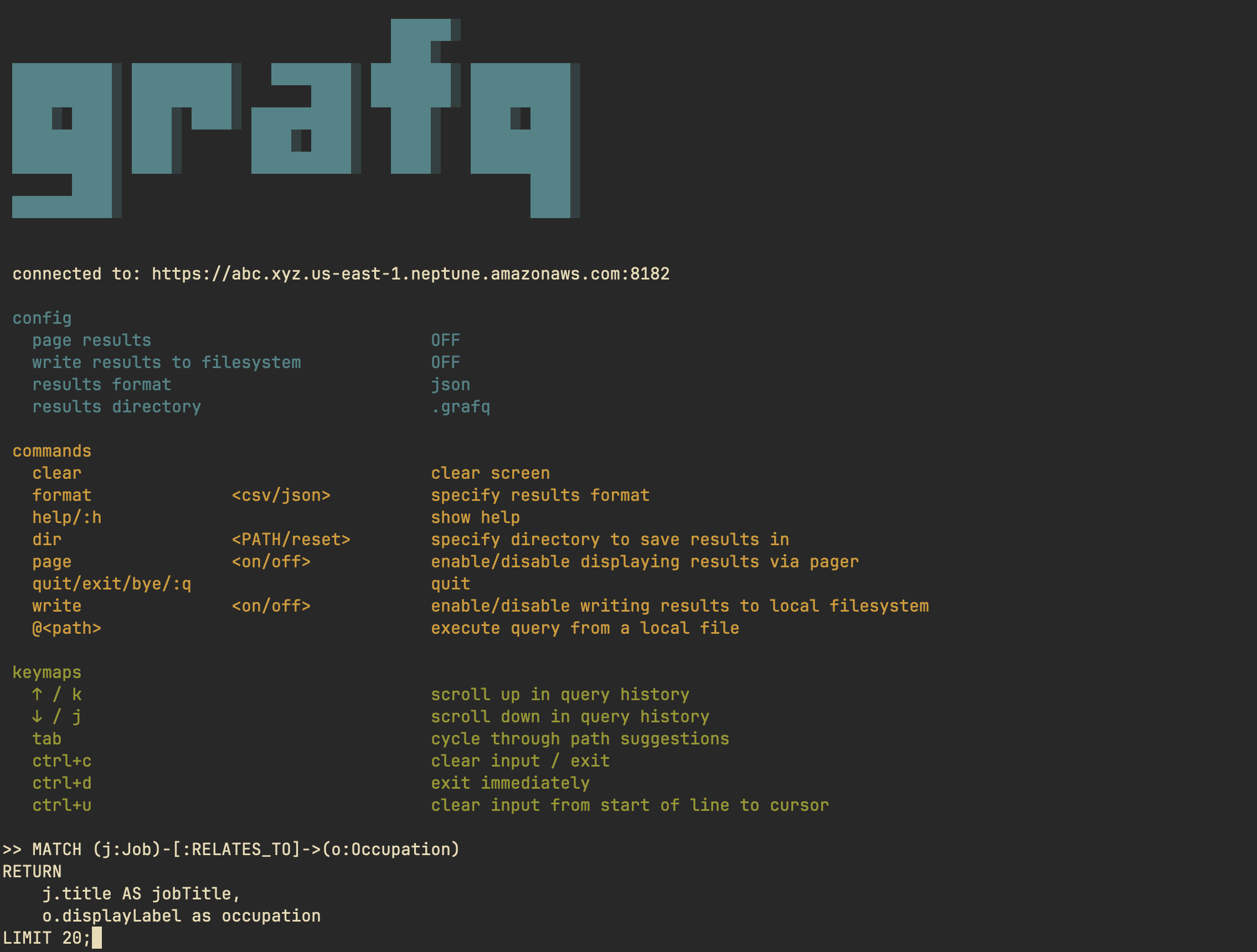
"console mode" lets you execute queries repeatedly via an interactive console.
You can either print the results in the console, or have them piped through a
pager. Additionally, you can also write the results to your local filesystem.
[](https://asciinema.org/a/Es0DuvbkhI6qzFr4c3fPRPpYF)
```bash
grafq console -h
```
```text
Open grafq's console
Usage: grafq console [OPTIONS]
Options:
-p, --page-results Display results via a pager ("less", by default, can be overridden by $GRAFQ_PAGER)
-w, --write-results Write results to filesystem
-d, --results-dir <DIRECTORY> Directory to write results in [default: .grafq]
--debug Output debug information without doing anything
-f, --results-format <FORMAT> Format to write results in [default: json] [possible values: csv, json]
-h, --help Print help
```
### Console Commands
| `clear` | | clear screen |
| `format` | `csv` / `json` | specify results format |
| `help` / `:h` | | show help |
| `dir` | `<PATH>` / `reset` | specify directory to save results in |
| `page` | `on` / `off` | enable/disable displaying results via pager |
| `quit` / `exit` / `bye` / `:q` | | quit |
| `write` | `on` / `off` | enable/disable writing results to local filesystem |
| `@<path>` | | execute query from a local file |
### Console Keymaps
| `↑` / `k` | scroll up in query history |
| `↓` / `j` | scroll down in query history |
| `tab` | cycle through path suggestions |
| `ctrl+c` | clear input / exit |
| `ctrl+d` | exit immediately |
| `ctrl+u` | clear input from start of line to cursor |
Query Mode
---
"query mode" is for running one-off queries or for benchmarking them.
[](https://asciinema.org/a/BVpLfCWiwVH4CL2X6bpqdplez)
```bash
grafq query -h
```
```text
Execute a one-off query
Usage: grafq query [OPTIONS] <QUERY>
Arguments:
<QUERY> Cypher query to execute
Options:
-p, --page-results Display results via a pager ("less", by default, can be overridden by $GRAFQ_PAGER)
-b, --bench Whether to benchmark the query
--debug Output debug information without doing anything
-n, --bench-num-runs <NUMBER> Number of benchmark runs [default: 5]
-W, --bench-num-warmup-runs <NUMBER> Number of benchmark warmup runs [default: 3]
-P, --print-query Print query
-w, --write-results Write results to filesystem
-d, --results-dir <DIRECTORY> Directory to write results in [default: .grafq]
-f, --results-format <FORMAT> Format to write results in [default: json] [possible values: csv, json]
-h, --help Print help
```
🎛️ Configuration
---
grafq uses environment variables for database connection settings. The `DB_URI`
variable determines which database type to connect to based on the scheme.
### AWS Neptune
For AWS Neptune databases, use the `https` scheme. Neptune uses IAM
authentication, so ensure your AWS credentials are configured (via [environment
variables](https://docs.aws.amazon.com/sdkref/latest/guide/environment-variables.html)
or the [AWS shared config
file](https://docs.aws.amazon.com/sdkref/latest/guide/file-format.html)):
```bash
export DB_URI="https://abc.xyz.us-east-1.neptune.amazonaws.com:8182"
```
### Neo4j
For Neo4j databases, use the `bolt` scheme and provide authentication details:
```bash
export DB_URI="bolt://localhost:7687"
export NEO4J_USER="neo4j"
export NEO4J_PASSWORD="your-password"
export NEO4J_DB="neo4j"
```
### Pager
You can pipe query results into a pager of your choice, which makes reading
large results ergonomic. By default, grafq uses `less` for paging results. This
can be used in both `query` and `console` modes. You can override this with the
`GRAFQ_PAGER` environment variable:
> [!TIP]
> Make sure the pager command you use doesn't exit unless manually prompted.
> This way the pager will stay open for as long as you need.
```bash
export GRAFQ_PAGER='bat -p --paging always'
export GRAFQ_PAGER="nvim"
```