glint is a friendly tool for creating commits in the [conventional] style.
[conventional]: https://www.conventionalcommits.org/en/v1.0.0-beta.4/
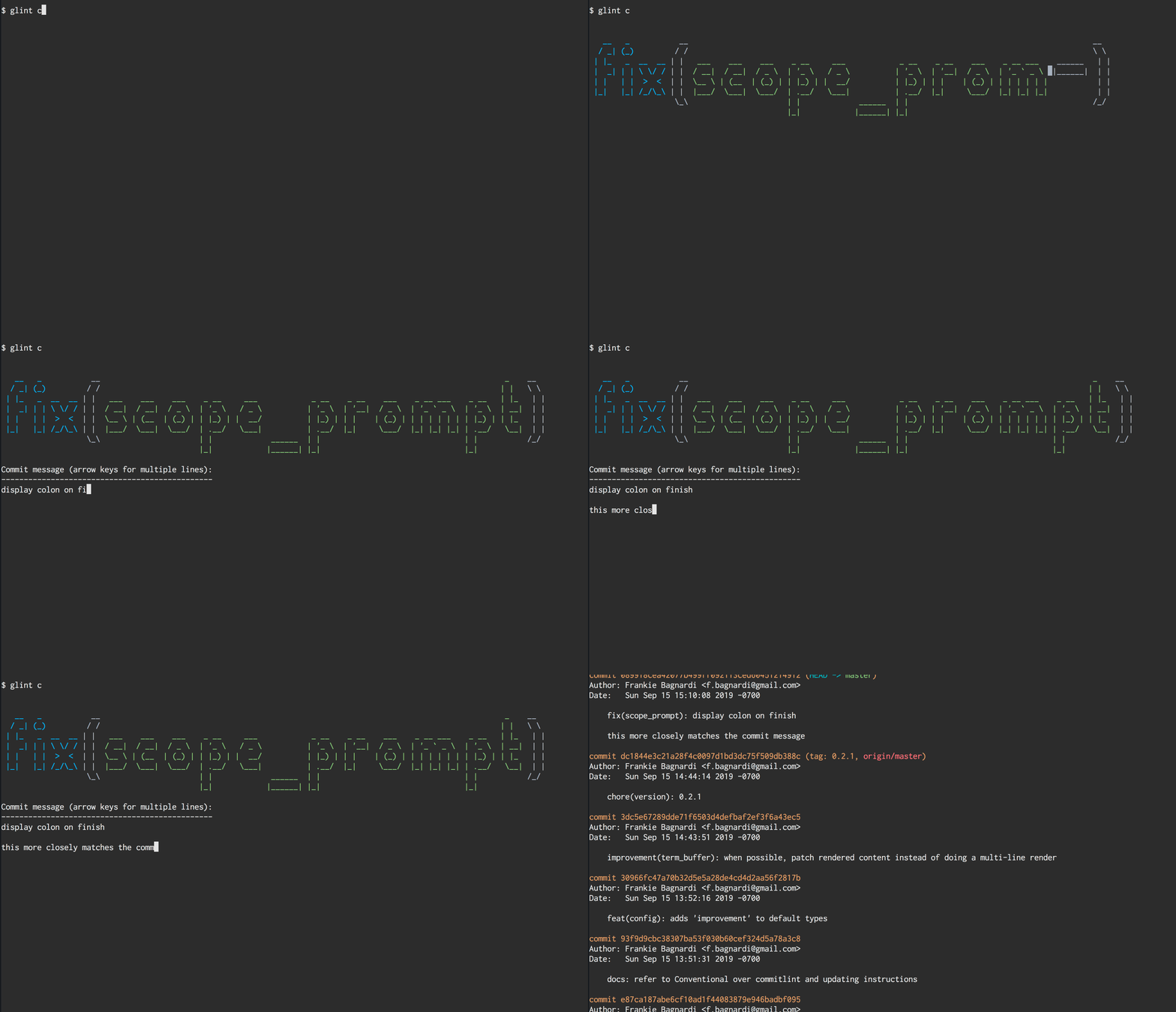
## Install
You can download OSX, Linux, and Windows binaries from the [releases] page. The archives have a file named 'glint' or 'glint.exe' which
you should place somewhere covered by your PATH.
Note: Windows binaries have only been tested in cmd.exe on Windows 10.
Alternatively [install the rust toolchain][rustup], restart your shell, and run the following:
```sh
cargo install glint --locked
```
Assuming ~/.cargo/bin is in your PATH (which the installer does by default), you should be able to run `glint` and get usage information.
[releases]: https://github.com/brigand/glint/releases
[rustup]: https://rustup.rs/
## Updating
To get a newer version, download it from the [releases] page and use `which glint` to see where you saved it previously. Simply replace
the binary with the new version.
If you installed with cargo then updating is easier:
```sh
cargo install glint --force
```
## Usage
The main command is `glint commit` which you can shorten to `glint c`.
If run with no other arguments, you'll receive each of the prompts in sequence.
To pass extra arguments to the final `git commit` command, use `--` to mark the end of glint's arguments.
```sh
# Set the commitlint type to 'docs', and also ask git to sign the commit
glint commit -t docs -- -S
```
### Prompt: Files
The first prompt allows you to select files to add to the commit. It will only appear if no files are already staged (e.g. by using `git add` before running glint).
It's a simple checkbox list where you use the up/down arrow keys to navigate and the Space key to toggle.
You may also toggle all files (even if some are hidden) by toggling the list item named "<all>".
Tapping the 'd' key will show a diff of the file(s) for the highlighted line, which you can exit by pressing 'q'.
Press Enter when you're ready to move to the next prompt.
### Prompt: Type
Each commit needs a type, which you can provide interactively or by using the `-t`/`--type` flag when running glint.
You may:
- press letters to filter the list, and it will submit when one option remains
- use arrow keys to navigate up/down in the list and press Enter to select one
If you need to use a type that isn't in the list, please use the `-t` flag when running glint, such as `glint c -t other-type`.
### Prompt: Scope
After a type is selected, the optional scope may be provided. You may simply type out the scope you want, and press Enter when you're done.
It's valid to not provide a scope, in which case the commit message will not include the parenthesis (e.g. "fix: some bug" might be the final commit message).
Press Enter when you're done, or Escape to return to the Type prompt.
### Prompt: Message
The final step is to write your commit message. A basic inline text editor is provided where you may enter input as usual.
There are a few extra features (and this will likely increase in the future):
- Ctrl-A, Ctrl-E to move to the start/end of a line
- Arrow keys to navigate, including navigating to positions where there's no text (e.g. pressing down will insert a new line)
When you're satisfied with your commit message, press Enter to submit it and finalize the commit. You may press Escape to return to the Scope prompt.