# FM: a file manager inspired by dired and ranger, written in rust
[![fm-tui on crates.io][cratesio-image]][cratesio]
[][docrs]
[cratesio-image]: https://img.shields.io/crates/v/fm-tui.svg
[cratesio]: https://crates.io/crates/fm-tui
[docsrs-badge]: https://img.shields.io/docsrs/fm-tui/0.1.35
[docrs]: https://docs.rs/fm-tui/0.1.35
## CLI arguments
### fm help
```
$ fm --help
FM : a file manager inspired by ranger and dired
Config files ~/.config/fm/
Documentation https://github.com/qkzk/fm
Usage: fm [OPTIONS]
Options:
-p, --path <PATH> Starting path. directory or file [default: .]
-s, --server <SERVER> Nvim server [default: ]
-A, --all Display all files (hidden)
-l, --log Enable logging
--neovim Started inside neovim terminal emulator
--input-socket <INPUT_SOCKET> UNIX Socket file used to send messages to FM
--output-socket <OUTPUT_SOCKET> UNIX Socket file used by fm to send messages
-h, --help Print help
-V, --version Print version
```
### fmconfig help
```
$ fmconfig --help
Welcome to Fm configuration application.
FM : a file manager inspired by ranger and dired
Config files ~/.config/fm/
Documentation https://github.com/qkzk/fm
Usage: fmconfig [OPTIONS] [COMMAND]
Commands:
plugin Plugin management. fm plugin -h for more details
help Print this message or the help of the given subcommand(s)
Options:
--keybinds Print keybinds
--cloudconfig Configure a google drive client
--clear-cache Clear the video thumbnail cache
--reset-config Reset the config file
-h, --help Print help
-V, --version Print version
```
`fmconfig plugin --help` :
```
$ fmconfig plugin -h`
Welcome to Fm configuration application.
Plugin management. fm plugin -h for more details
Usage: fmconfig plugin <COMMAND>
Commands:
add fmconfig plugin add <path_to_plugin.so>. Add a compiled plugin from its .so file
install fmconfig plugin install <author/repo>. Install a plugin from github fmconfig plugin install <https://hostname/author/repo>. Install a plugin from `hostname` (gitlab, codeberg etc.)
remove fmconfig plugin remove <name>. Remove a plugin by its name
list fmconfig plugin list. List all installed plugins
help Print this message or the help of the given subcommand(s)
Options:
-h, --help Print help
```
_fmconfig_ is still in early stages and may change a lot.
## Platform
X11-Linux is the only supported platform. It may be usable on MacOS or Wayland but I can't be sure since I can't test them.
It should work over ssh or without a GUI on any linux platform.
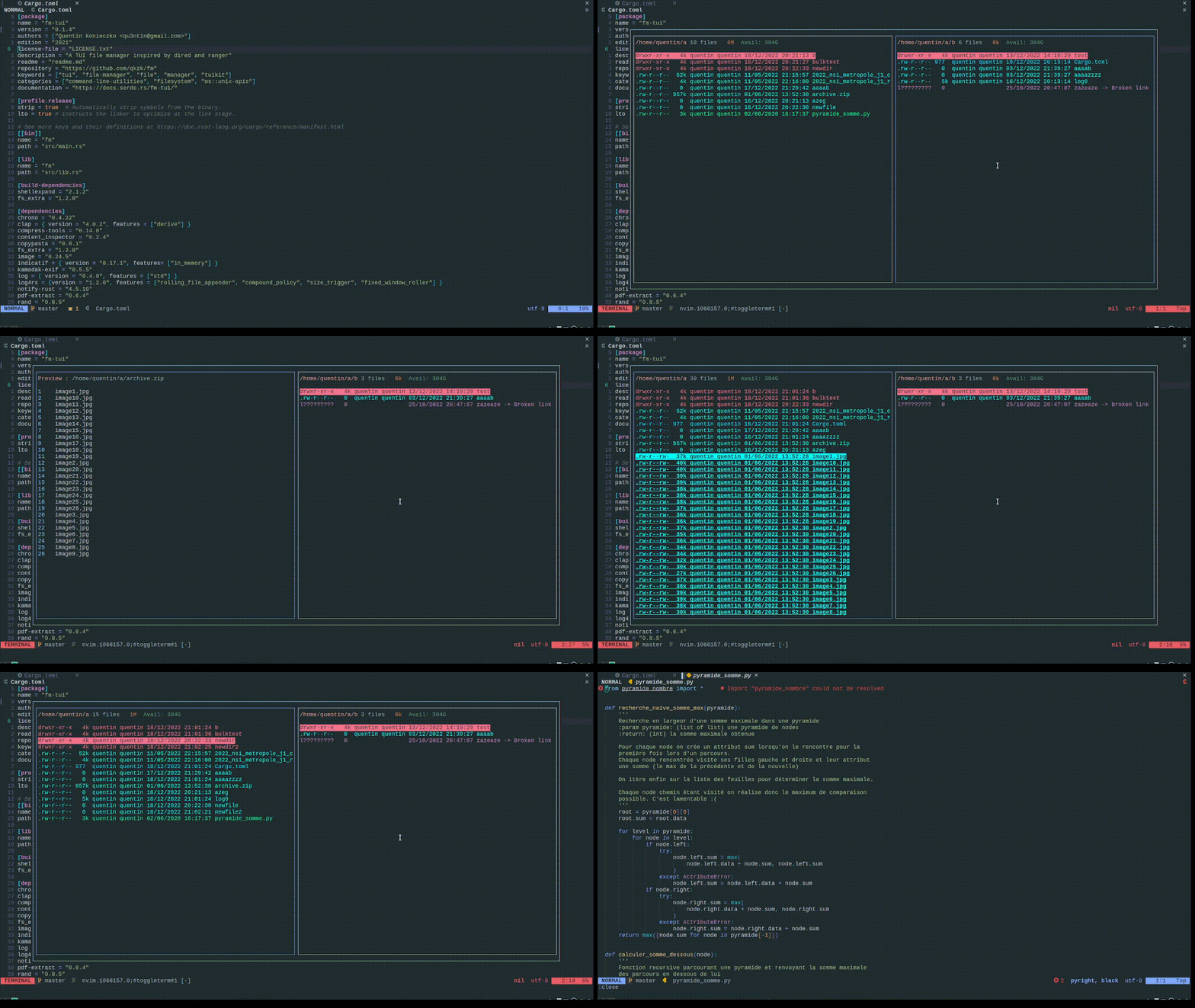
## Video
## Installation
```sh
cargo install fm-tui --locked
```
## Usage
Start it from command line with no parameters :
```sh
fm
```
or with a path :
```sh
fm -p ~/Downloads
```
If you added the [recommanded function](#cd-on-quit) to your bashrc/zshrc, simply use `f` and you will cd to the last visited directory when exiting.
## Features
Some features depends on external programs to keep fm from being really bloated.
I try to implement every feature I can think of.
### Session
Display settings (use two panes, display metadata, use second pane as preview) are saved and restored when restarting the application.
### Navigation
- Navigate with the arrows or the mouse (left select, right open, wheel)
Basic vim keys are supported by default: hjkl, gG, Ctrl+U Ctrl+D, JK
- Open a file with o, enter or right click
- Execute a file with a custom command with e
### Moving
Many ways to jump somewhere:
- Alt+g: type the full address (with completion enabled),
- Ctrl+g: a predefined shortcut (default root folders, home and mount points, gitroot, config folder),
- Alt+j: by jumping to a flagged file,
- ': by creating your own marks and jumping to them
### File manipulation
- Flag files with `space` (`*`: flag all, `v`: reverse, `u`: unflag)
- Copy / move / symlinks / delete / trash flagged files with c, p, s, x, X
- Create files, directory, rename with n, d, r
- Flag a bunch of file, change panel with TAB and move/copy them !
- Open the trash with Alt+o. x to remove permanently, enter to restore. Wipe the trash with Alt+x.
- Rename or create a bunch of file with alt-b. Flag files, alt-b, edit the names and save the file. The renaming is done.
You can create nested files with `a/b/c` which will create every intermediate folder if needed.
### Shell
- Open a new shell in this directory with s
- Start a configured TUI application with alt-s (like htop, ncdu etc.)
- Start a configured CLI application with alt-i (like diff, dragon-drop etc.)
- Execute a shell command with '!'. Expansions (%e ext, %n filename, %s filepath, %f flagged files, %d current directory) are supported.
pipes and redirections aren't supported.
### Display
- Change display, removing details with E or display a single pane with Alt+d
- Preview most of files (text, highlighted code, binary, pdf, exif details, image/video, audio details, archives, MS-office & OpenOffice documents) with P
- Toggle the tree view with t. Fold selected folder with z. Unfold every folder with Z, fold every folder with Alt+z.
- Enter preview mode with Alt+P. Every file is previewed in the second pane.
- Filter the view (by extension, name, directory only, all files) with F
- Find files with / (with completion: Tab, enter to search),
- flag files matching a regex with w
### Preview
You can preview a file directly (Shift-p) or by toggling preview mode in the right tab (Alt-p). While in this mode, navigating will update the display.
A lot of different file kinds can be previewed directly withing fm:
- images, pdf, videos, office document and fonts are displayed as an image using Inline Image Protocol from iterm2 or ueberzug,
- structured text (code) is highlighted,
- simple text and epub are displayed without formating,
- executable with read_elf,
- binary files are displayed with something looking like hexdump (endianness may be wrong),
- metadata of audio files,
- file content of archives is listed. It supports many formats (zip, xz, gz, 7z, iso, torrent etc.)
Most of this previewing is done externaly through shell commands. They require the appropriate software to be installed.
Note: previewing a LARGE directory of videos may be really slow.
### Plugin system for previews.
You can install (with some help from `fmconfig`) previewer plugins. They should specify their extensions and return a Preview. The plugin itself is a .so file.
fm ships with "bat_previewer" which relies on `bat` to generate highlighted previews. It must be installed by the user otherwise we use the default highlighted text previewer which is fine too. It's just a demo.
### How to install a plugin ?
3 ways.
1. Edit your config and add this :
```yaml
# Plugins
# Plugins are external libs, written in rust.
# ATM only previewers plugins are supported.
plugins:
# previewer plugins able the preview some extensions.
# give them a name (what ever you want) and the path to "libplugin_something.so".
# Under normal circonstances, the file should be in `crate_your_plugin/target/release/libcrate_your_plugin.so`
# If you only avec sources and nothing in target, try `cargo build --release` from the crate directory.
previewer:
'bat previewer': "/path/to/some/previewer/libbat_previewer.so"
```
2. Use `fmconfig plugin add <PATH>` where path leads to your libsomething.so file.
Your plugin must provide 3 functions descibed below:
- `name` which returns its name,
- `is_match` which takes a path and returns a boolean, set to true if your plugin can preview this file,
- `preview` which takes a path and returns a `Preview`.
See [bat_previewer](./plugins/bat_previewer/src/lib.rs) for more an example of a "simple" plugin.
3. Install it directly from a git repository with :
- `fmconfig plugin install qkzk/bat_previewer`
- `fmconfig plugin install https://github.com/qkzk/bat_previewer`
Replace the hostname, author and plugin name.
### Fuzzy finders
- Ctrl-f : search in filenames and move there,
- Ctrl-s : search for a line in file content and move there,
- H : display a searchable help, search for a keybinding and execute the action.
We use [Nucleo](https://github.com/helix-editor/nucleo), a fuzzy matcher made for [Helix](https://helix-editor.com/) by the same author.
### Neovim filepicker
1. From _outside_ of neovim. Window 1: neovim, Window 2: fm.
Open a file with `i` and it will open it in Neovim using its exposed RPC server.
It's also possible to pass the RPC server address with `fm -s address`.
2. From _inside_ of neovim. Use the associated plugin [fm-picker.nvim](https://github.com/qkzk/fm-picker.nvim) which will use 2 sockets to help you file pick.
### Incoming & outgoing sockets.
You can specify an incoming socket to take control of fm and send it `GO <path>`, `KEY <key>` or `ACTION <action>` commands.
You can specify an outgoing socket to implement a file picker yourself. Opening a file with <Enter> or deleting one will result in a message sent in the form of `OPEN <path>` or `DELETE <path>`.
It's what is done in the fm-picker plugin.
This API isn't stable yet and may change in a near future.
### cd on quit
When leaving fm, it prints the last visited path.
If you add this function to your `zshrc` / `bashrc`, it will listen to stdout and cd to the last dir.
```bash
function f() {
fm $@
dest=$(cat /tmp/fm_output.txt)
if [[ -n $dest ]]; then
cd "$dest"
fi
}
```
For fish users, this is the function to add to your `config.fish`
```fish
function f
# start the fm filemanager, enabling cd on quit.
fm $argv
set dest (cat /tmp/fm_output.txt)
if not test -z $dest
cd $dest
end
end
```
### Archives
- Decompress an archive by opening it (o, enter, middle click)
- Compress flagged files with C. Pick the desired algorithm from a menu.
### Custom binds
You can bind any _unbound_ key to a shell command.
The command is executed in a new shell : `sh -c "<YOUR COMMAND>"`.
Expansions :
- %e : extension
- %s : selected file (full path)
- %f : flagged files (full path)
- %n : selected filename
- %d : current directory
### Logging
With `-l` or `--log`, logs are enabled. They are disabled by default.
Critical actions will be logged to `~/.config/fm/log/fm.log` and actions affecting the file tree will be logged to `~/.config/fm/log/action_logger.log`.
The last action is displayed at the bottom of the screen and can be read with `Alt+l` like a preview.
Those logs can be seen even if logging is disabled, it just won't be up to date.
### Google Drive
With the help of the amazing [OpenDal](https://opendal.apache.org/) library from Apache, you can access your remote GoogleDrive files within fm.
You must setup a client id and a client secret first. Once it's done, the helper `fm --cloudconfig` will create the configuration file for you.
It uses a refresh token which will automatically be refreshed for you by OpenDal.
Open the Cloud menu with Shift-Alt-C and pick a valid config file.
Once done, you can navigate your files with the arrow keys, download them with Return, upload the selected file with u, Delete a remote file with X (no confirmation !) and create a new directory with d.
You can setup many google drive accounts but only one can be opened at once. Use `l` to _leave_ the current one and select another one.
This is an advanced user feature with rough edges.
#### Initial setup
You need to provide credentials to access a google drive account. The only way to get them is to create a project in Google Cloud and share the credentials.
1. Open google cloud console and setup a new project for fm
2. Add the google drive API for your project with the scopes `https://www.googleapis.com/auth/drive` and create credentials
3. Add a tester with the same email account
4. Add OAuth 2.0 credentials and copy the client id and client secret.
5. Publish your application. It changes nothing but make the refresh tokens last longer.
6. Run the helper `fm --cloudconfig` and provide the requested informations.
More infos about credentials can be found in the [rclone](https://rclone.org/drive/#making-your-own-client-id) documentation.
#### Multiple files having the same name
For some reason, GoogleDrive allows multiple files to have exactly the same name. ATM it crashes OpenDal in _testing mode_ and those files are ignored in _release_ mode.
Only developpers of fm should be concerned.
#### Notes
- This feature is still in beta and is subject to change a lot.
- Be careful with your files.
- A lot of GoogleDrive features aren't supported yet, mostly because I couldn't test them. If you want to sync your files in Linux, you should take a look at [rclone](https://rclone.org/).
- OpenDal provides a [lot of services](https://docs.rs/opendal/latest/opendal/services/index.html), not only GoogleDrive. If you want more services like that, open an issue and I'll take a look.
### More
- Copy a filename/filepath/file content to clipboard with Ctrl+n, Ctrl+p, Ctrl+a
- Detect removable disks automatically and jump to them in a few keystrokes (Ctrl+g, up, enter)
- Drag and drop files (requires dragon-drop installed) with D
- Open and mount encrypted devices. Open the menu with Shift+e, mount with m, unmount with u.
- Set the selected image as wallpaper with W.
- Enter "command mode" with ':'. Type the name of a command and it will be executed.
- Change permissions (chmod) with Alt+m or '+'. A nice menu will help you.
- Mount a remote filesystem using sshfs with Alt-r.
- Mount a MTP device with Alt-R.
- Set temporary marks (erased on quit) with `Alt-"` (to save) and `"` to jump.
Most of those features are inspired by ranger, dired and alternatives (Midnight commander, nnn, lf etc.).
## Default keybindings
Press ctrl-h to display the help.
Your current keybindings are shown. Here are the default ones.
```
Char('q') : quit
Ctrl('h') : help
- Navigation -
Left : cd to parent directory
Char('l') : cd to child directory
Up : one line up
Char('j') : one line down
Home : go to first line
Char('G') : go to last line
PageUp : 10 lines up
Char('J') : 10 lines down
Tab : cycle tab
- Actions -
Alt('d') : toggle dual pane - if the width is sufficiant
Alt('p') : toggle a preview on the second pane
Char('E') : toggle metadata on files
Char('a') : toggle hidden
Char('s') : shell in current directory
Char('o') : open the selected file with :
- default xdg-open
- audio mocp
- images viewnior
- office libreoffice
- pdf, ebooks zathura
- text nvim
- video mpv
- vectorials
- compressed files are decompressed
- iso images are mounted
Char('i') : open in current nvim session
Char('I') : setup the nvim rpc address
Char('P') : preview this file
Char('-') : move back to previous dir
Char('~') : move to $HOME
Char('`') : move to root (/)
Char('@') : move to starting point
Char('M') : mark current path
Char('\''): jump to a mark
Char('f') : search next matching element
Ctrl('f') : fuzzy finder for file
Ctrl('s') : fuzzy finder for line
Char('H') : fuzzy finder from help
Ctrl('r') : refresh view
Ctrl('c') : copy filename to clipboard
Ctrl('p') : copy filepath to clipboard
Alt('c') : open the config file
- Action on flagged files -
Char(' ') : toggle flag on a file
Char('*') : flag all
Char('u') : clear flags
Char('v') : reverse flags
Char('L') : symlink to current dir
Char('c') : copy to current dir
Char('m') : move to current dir
Char('x') : delete files permanently
Char('X') : move to trash
Char('C') : compress into an archive
- Trash -
Alt('o') : Open the trash (enter to restore, del clear)
Alt('x') : Empty the trash
- Tree -
Navigate as usual. Most actions works as in 'normal' view.
Char('t') : Toggle tree mode
Char('z') : Fold a node
Ctrl('z') : Fold every node
Char('Z') : Unfold every node
- DISPLAY MODES -
Different modes for the main window
Ctrl('q') : NORMAL
Char('t') : TREE
Char('F') : FLAGGED
Char('P') : PREVIEW
- EDIT MODES -
Different modes for the bottom window
Alt('m') : CHMOD
Char('e') : OPEN WITH
Char('d') : NEWDIR
Char('n') : NEWFILE
Char('r') : RENAME
Alt('g') : CD
Char('w') : REGEXMATCH
Alt('j') : JUMP
Char('O') : SORT
Alt('h') : HISTORY
Ctrl('g') : SHORTCUT
Alt('e') : ENCRYPTED DRIVE
(m: open & mount, u: unmount & close, g: go there)
Alt('R') : REMOVABLE MTP DEVICES
(m: mount, u: unmount, g: go there)
Char('/') : SEARCH
Char(':') : ACTION
Alt('b') : BULK
Alt('s') : TUI APPS
Alt('i') : CLI APPS
Alt('r') : MOUNT REMOTE PATH
Alt('f') : FILTER
(by name "n name", by ext "e ext", "d only directories" or "a all" for reset)
Enter : Execute mode then NORMAL
- CUSTOM ACTIONS -
%s: the selected file,
%f: the flagged files,
%e: the extension of the file,
%n: the filename only,
%d: the full path of the current directory,
%t: execute the command in the same window,
%c: the current clipboard as a string.
Alt('u'): /usr/bin/google-chrome-stable %s
Char('D'): /usr/bin/dragon-drop %s
```
## Configuration
Every configuration file is saved in `~/.config/fm/`
You can configure :
- **Keybindings**. Some should be left as they are, but all keybindings can be configured.
use the provided config file as a default.
Multiple keys can be bound the the same action.
- **Custom actions**. You can bind any key to a shell command.
- use an unset bind
- %s is expanded to the selected path, %f is expanded to the flagged files (full paths).
- See the [config](./config_files/fm/config.yaml) or an example.
- **Openers**. fm tries to be smart and open some files with a standard program.
You can change that and use whatever installed program you want. Specify if it
requires a shell to be run (like neovim) or not (like subl).
- **Marks**. Users can save about 100 differents marks to jump to, they're saved
in your marks.config file. It's easier to let fm manage your marks, but if
you made a mess or want to start over, simply delete the file or a single line.
- **TUI applications**. Some classic TUI applications like htop, glances, btop, lazygit are already there.
Open the menu with `S` and pick the desired one. It will only work with a TUI application like HTOP,
not a CLI application like bat.
- **Colors** of files.
Non standard files (directory, char devices, block devices, symlinks, sockets, fifo) have their own configurable colors.
You can use ansi colors or rgb values.
Standard files are colored by their extension and you can use any gradient between two colors
Every extension has its own random color.
## External dependencies
Most of the openers and tui applications are configurable from config files. Some are hardcoded if their command is quite specific or if I couldn't find a workaround.
- [lsblk](https://linux.die.net/man/8/lsblk): list encrytped devices
- [faillock](https://linux.die.net/man/8/faillock): reset failed sudo attempts
- [Cryptsetup](https://gitlab.com/cryptsetup/cryptsetup): decrypt & mount encrypted devices
- [Nitrogen](https://github.com/l3ib/nitrogen/): set up a wallpaper
- [Dragon-Drop](https://github.com/mwh/dragon) drag-and-drop a file from a terminal to a GUI application.
- [Ueberzug](https://github.com/LalleSX/ueberzug) display images in your terminal. Used to preview images. You can display images within WezTerm directly with the help of iterm2's Inline Image Protocol
- [isoinfo](https://command-not-found.com/isoinfo) allow the content preview of an iso file
- [jupyter](https://jupyter.org/) preview jupyter notebooks by converting them to markdown
- [pandoc](https://pandoc.org) preview epub by converting them to markdown with pandoc
- [fontimage](https://fontforge.org/docs/fontutils/fontimage.html) preview fonts by creating a thumbnail
- [rsvg-convert](https://github.com/brion/librsvg) preview svg by creating a thumbnail
- [libreoffice](https://www.libreoffice.org) preview OpenOffice & MS-office documents
- [pdftoppm](https://poppler.freedesktop.org/) to convert a .pdf into a displayable .jpg
- [pdfinfo](https://poppler.freedesktop.org/) to get the number of pages of a pdf file
- [sshfs](https://github.com/libfuse/sshfs) to mount remote filesystem over SFTP.
## Contribution
Any help is appreciated.
I comment everything I do in [dev.md](development.md).
It's my first "published" program, so don't get upset by the code quality.