[](https://opencollective.com/findomain) [](https://twitter.com/edu4rdshl)
[](https://twitter.com/sechacklabs)

# Mixed feelings with Findomain? Show your love
If you want to support the tool development and make it better, [support us :)](https://opencollective.com/findomain#backer) You will appear here.
# Findomain
[](https://crates.io/crates/findomain)
[](https://travis-ci.org/edu4rdshl/findomain)
[](https://ci.appveyor.com/project/edu4rdshl/findomain)
[](https://github.com/Edu4rdSHL/findomain/actions)
The fastest and cross-platform subdomain enumerator.
# What Findomain can do?
It table gives you a idea why you should use findomain and what it can do for you. The domain used for the test was aol.com in the following [BlackArch](https://blackarch.org) virtual machine:
```
Host: KVM/QEMU (Standard PC (i440FX + PIIX, 1996) pc-i440fx-3.1)
Kernel: 5.2.6-arch1-1-ARCH
CPU: Intel (Skylake, IBRS) (4) @ 2.904GHz
Memory: 139MiB / 3943MiB
```
The tool used to calculate the time, is the `time` command in Linux.
|Enumeration Tool|Serch Time|Total Subdomains Found|CPU Usage|RAM Usage|
|---|---|---|---|---|
|Findomain|real 0m6.299s|70582|Very Low|Very Low|
**Summary:** 70582 subdomains in 6.3 seconds.
# Features
* Subdomains monitoring. See [Subdomains Monitoring](https://github.com/Edu4rdSHL/findomain/blob/master/README.md#subdomains-monitoring) for more information.
* Multi-thread support, it makes that the maximun time that Findomain will take to search subdomains for any target is 20 seconds.
* Discover subdomains without brute-force, it tool uses Certificate Transparency Logs and APIs.
* Discover only resolved subdomains.
* Read target from user argument (-t) or file (-f).
* Write to one unique output file specified by the user all or only resolved subdomains.
* Write results to automatically named TXT output file(s).
* Cross platform support: Any platform, it's written in Rust and Rust is multiplatform. See [the documentation](https://github.com/Edu4rdSHL/findomain/blob/master/README.md#build-for-32-bits-or-another-platform) for instructions.
* Multiple API support.
**Note**: the proxy support is just to proxify APIs requests, the actual implementation to discover IP address of subdomains doesn't support proxyfing and it's made using the host network still if you use the -p option.
# How it works?
It tool doesn't use the common methods for sub(domains) discover, the tool uses Certificate Transparency logs and specific well tested APIs to find subdomains. It method make it tool the most faster and reliable. The tool make use of multiple public available APIs to perform the search. If you want to know more about Certificate Transparency logs, read https://www.certificate-transparency.org/
APIs that we are using at the moment:
- [Certspotter](https://api.certspotter.com/)
- [Crt.sh](https://crt.sh)
- [Virustotal](https://www.virustotal.com/ui/domains/)
- [Sublist3r](https://api.sublist3r.com/)
- [Facebook](https://developers.facebook.com/docs/certificate-transparency) `**`
- [Spyse (CertDB)](https://certdb.com/apidocs#/Subdomains) `*`
- [Bufferover](http://dns.bufferover.run/)
- [Threadcrow](https://threatcrowd.org/)
- [Virustotal with apikey](https://www.virustotal.com/) `**`
**Notes**
APIs marked with `**`, **require** an access token to work. Search in the [Findomain documentation](https://github.com/Edu4rdSHL/findomain/blob/master/README.md#access-tokens-configuration) how to configure and use it.
APIs marked with `*` can *optionally* be used with an access token, create one if you start experiencing problems with that APIs. Search in the [Findomain documentation](https://github.com/Edu4rdSHL/findomain/blob/master/README.md#access-tokens-configuration) how to configure and use it.
**More APIs?**
If you know other APIs that should be added, comment [here](https://github.com/Edu4rdSHL/findomain/issues/7).
# Installation
We offer binarys ready to use for the following platforms (all are for 64 bits only):
* [Linux](https://github.com/Edu4rdSHL/findomain/blob/master/README.md#installation-in-linux-using-compiled-artifacts)
* [Windows](https://github.com/Edu4rdSHL/findomain/blob/master/README.md#installation-windows)
* [MacOS](https://github.com/Edu4rdSHL/findomain/blob/master/README.md#installation-macos)
* [Aarch64 (Raspberry Pi)](https://github.com/Edu4rdSHL/findomain/blob/master/README.md#installation-aarch64-raspberry-pi)
If you need to run Findomain in another platform, continue reading the documentation.
# Build for 32 bits or another platform
If you want to build the tool for your 32 bits system or another platform, follow it steps:
**Note:** You need to have [rust](https://rust-lang.org), [make](http://www.gnu.org/software/make) and [perl](https://www.perl.org/) installed in your system first.
Using the [crate](https://crates.io/crates/findomain):
1. `cargo install findomain`
2. Execute the tool from `$HOME/.cargo/bin`. See the [cargo-install documentation](https://doc.rust-lang.org/cargo/commands/cargo-install.html).
Using the Github source code:
1. Clone the [repository](https://github.com/Edu4rdSHL/findomain) or download the [release source code](https://github.com/Edu4rdSHL/findomain/releases).
2. Extract the release source code (only needed if you downloaded the compressed file).
3. Go to the folder where the source code is.
4. Execute `cargo build --release`
5. Now your binary is in `target/release/findomain` and you can use it.
# Installation Android (Termux)
Install the [Termux](https://termux.com/) package, open it and follow it commands:
```
$ pkg install rust make perl
$ cargo install findomain
$ cd $HOME/.cargo/bin
$ ./findomain
```
# Installation in Linux using source code
If you want to install it, you can do that manually compiling the source or using the precompiled binary.
**Manually:**
You need to have [rust](https://rust-lang.org), [make](http://www.gnu.org/software/make) and [perl](https://www.perl.org/) installed in your system first.
```
$ git clone https://github.com/Edu4rdSHL/findomain.git
$ cd findomain
$ cargo build --release
$ sudo cp target/release/findomain /usr/bin/
$ findomain
```
# Installation in Linux using compiled artifacts
```
$ wget https://github.com/Edu4rdSHL/findomain/releases/latest/download/findomain-linux
$ chmod +x findomain-linux
$ ./findomain-linux
```
**If you are using the [BlackArch Linux](https://blackarch.org) distribution, you just need to use:**
```
$ sudo pacman -S findomain
```
# Installation Aarch64 (Raspberry Pi)
```
$ wget https://github.com/Edu4rdSHL/findomain/releases/latest/download/findomain-aarch64
$ chmod +x findomain-aarch64
$ ./findomain-aarch64
```
# Installation Windows
Download the binary from https://github.com/Edu4rdSHL/findomain/releases/latest/download/findomain-windows.exe
Open a CMD shell and go to the dir where findomain-windows.exe was downloaded.
Exec: `findomain-windows` in the CMD shell.
# Installation MacOS
```
$ wget https://github.com/Edu4rdSHL/findomain/releases/latest/download/findomain-osx
$ chmod +x findomain-osx.dms
$ ./findomain-osx.dms
```
# Updating Findomain to latest version
To update Findomain to latest version, you can be in some scenarios:
1. **You downloaded a precompiled binary:** If you are using a precompiled binary, then you need to download the new binary.
2. **You are using it from BlackArch Linux:** Just run `pacman -Syu`
3. **You have cloned the repo and compiled it from source:** You just need to go to the folder where the repo is cloned and run: `git pull && cargo build --release`, when finish, you have your executable in `target/release/findomain`.
4. **You downloaded a source code release and compiled it:** You need to download the new source code release and compile it again.
5. **I used cargo install findomain:** then just run `cargo install --force findomain`.
# Access tokens configuration
In in section you can found the steps about how to configure APIs that need or can be used with access tokens.
# Configuring the Facebook API
**History**
When I added the [Facebook CT API](https://developers.facebook.com/docs/certificate-transparency-api) in the beginning I was providing a [Webhook token](https://developers.facebook.com/docs/certificate-transparency/certificates-webhook) to search in the API, as consequence when a lot of users were using the same token the limit was reached and user can't search in the Facebook API anymore until Facebook unlocked it again. Since Findomain version 0.2.2, users can set their own Facebook Access Token for the webook and pass it to findomain setting the `findomain_fb_token` system variable. The change was introduced [here](https://github.com/Edu4rdSHL/findomain/commit/1716e264e2b15c96c67b692b80b32c78fe9aaf9a). Also since 23/08/2019 I have removed the webhook that was providing that API token and it will not work anymore, if you're using findomain < 0.2.2 you are affected, please use a version >= 0.2.2.
Since Findomain 0.2.4 you don't need to explicity set the `findomain_fb_token` variable in your system, if you don't set that variable then Findomain will use one of our provided access tokens for the Facebook CT API, otherwise, if you set the environment variable then Findomain will use your token. See [it commit](https://github.com/Edu4rdSHL/findomain/commit/226575c370e32979a16fd377dfea1db10ca38f3b). **Please, if you can create your own token, do it. The usage limit of access tokens is reached when a lot of people use it and then the tool will fail.**
**Getting the Webhook token**
The first step is get your Facebook application token. You need to create a Webhook, follow the next steps:
1. Open https://developers.facebook.com/apps/
2. Clic in "Create App", put the name that you want and send the information.
3. In the next screen, select "Configure" in the Webhooks option.
4. Go to "Configuration" -> "Basic" and clic on "Show" in the "App secret key" option.
5. Now open in your browser the following URL: https://graph.facebook.com/oauth/access_token?client_id=your-app-id&client_secret=your-secret-key&grant_type=client_credentials
**Note:** replace `your-app-id` by the number of your webhook identifier and `your-secret-key` for the key that you got in the 4th step.
6. You should have a JSON like:
```json
{
"access_token": "xxxxxxxxxx|yyyyyyyyyyyyyyyyyyyyyyy",
"token_type": "bearer"
}
```
7. Save the `access_token` value.
Now you can use that value to set the access token as following:
**Unix based systems (Linux, BSD, MacOS, Android with Termux, etc):**
Put in your terminal:
```
$ findomain_fb_token="YourAccessToken" findomain -(options)
```
**Windows systems:**
Put in the CMD command prompt:
```
> set findomain_fb_token=YourAccessToken && findomain -(options)
```
**Note:** In Windows you need to scape special characters like `|`, add `^` before the special character to scape it and don't quote the token. Example: `set findomain_fb_token=xxxxxxx^|yyyyyyyy && findomain -(options)`
**Tip:** If you don't want to write the access token everytime that you run findomain, export the `findomain_fb_token` in Unix based systems like putting `export findomain_fb_token="YourAccessToken"` into your `.bashrc` and set the `findomain_fb_token` variable in your Windows system as [described here](https://www.computerhope.com/issues/ch000549.htm).
# Configuring the Spyse API to use with token
1. Open https://account.spyse.com/register and make the registration process (include email verification).
2. Log in into your spyse account and go to https://account.spyse.com/user
3. Search for the "API token" section and clic in "Show".
4. Save that access token.
Now you can use that value to set the access token as following:
**Unix based systems (Linux, BSD, MacOS, Android with Termux, etc):**
Put in your terminal:
```
$ findomain_spyse_token="YourAccessToken" findomain -(options)
```
**Windows systems:**
Put in the CMD command prompt:
```
> set findomain_spyse_token=YourAccessToken && findomain -(options)
```
**Note:** In Windows you need to scape special characters like `|`, add `^` before the special character to scape it and don't quote the token. Example: `set findomain_spyse_token=xxxxxxx^|yyyyyyyy && findomain -(options)`
**Tip:** If you don't want to write the access token everytime that you run findomain, export the `findomain_spyse_token` in Unix based systems like putting `export findomain_spyse_token="YourAccessToken"` into your `.bashrc` and set the `findomain_spyse_token` variable in your Windows system as [described here](https://www.computerhope.com/issues/ch000549.htm).
# Configuring the Virustotal API to use with token
1. Open https://www.virustotal.com/gui/join-us and make the registration process (include email verification).
2. Log in into your spyse account and go to https://www.virustotal.com/gui/user/YourUsername/apikey
3. Search for the "API key" section.
4. Save that API key.
Now you can use that value to set the access token as following:
**Unix based systems (Linux, BSD, MacOS, Android with Termux, etc):**
Put in your terminal:
```
$ findomain_virustotal_token="YourAccessToken" findomain -(options)
```
**Windows systems:**
Put in the CMD command prompt:
```
> set findomain_virustotal_token=YourAccessToken && findomain -(options)
```
**Note:** In Windows you need to scape special characters like `|`, add `^` before the special character to scape it and don't quote the token. Example: `set findomain_virustotal_token=xxxxxxx^|yyyyyyyy && findomain -(options)`
**Tip:** If you don't want to write the access token everytime that you run findomain, export the `findomain_virustotal_token` in Unix based systems like putting `export findomain_virustotal_token="YourAccessToken"` into your `.bashrc` and set the `findomain_virustotal_token` variable in your Windows system as [described here](https://www.computerhope.com/issues/ch000549.htm).
# Subdomains Monitoring
Since version 0.4.0 Findomain is capable of monitor a specific domain or a list of domains for new subdomains and send the data to [Slack](https://slack.com/) and [Discord](https://discordapp.com) webhooks. All what you need is a server or your computer with [PostgreSQL](https://www.postgresql.org/) database server installed. Have in mind that you can have only a central server/computer with PostgreSQL installed and connect to it from anywhere to perform the monitoring tasks.
**Options**
You can set the following command line options when using the subdomains monitoring feature:
```
--postgres-database <postgres-database> Postgresql database.
--postgres-host <postgres-host> Postgresql host.
--postgres-password <postgres-password> Postgresql password.
--postgres-port <postgres-port> Postgresql port.
--postgres-user <postgres-user> Postgresql username.
```
**Default values while connecting to database server**
Findomain have some default values that are used when they are not set. They are listed below:
1) If you only specify the `-m` flag without more arguments or don't specify one of the options Findomain sets:
Database host: localhost
Database username: postgres
Database password: postgres
Database port: 5432
Database: [Default PostgreSQL database cluster](https://www.postgresql.org/docs/current/app-initdb.html)
**Subdomains monitoring usage examples**
1) **Connect to local computer and local PostgreSQL server with specific username, password and database and push the data to both Discord and Slack webhooks**
```
$ findomain_discord_webhook='https://discordapp.com/api/webhooks/XXXXXXXXXXXXXXX' findomain_slack_webhook='https://hooks.slack.com/services/T00000000/B00000000/XXXXXXXXXXXXXXXXXXXXXXXX' findomain -m -t example.com --postgres-database findomain --postgres-user findomain --postgres-host localhost --postgres-port 5432
```
2) **Connect to remote computer/server and remote PostgreSQL server with specific username, password and database and push the data to both Discord and Slack webhooks**
```
$ findomain_discord_webhook='https://discordapp.com/api/webhooks/XXXXXXXXXXXXXXX' findomain_slack_webhook='https://hooks.slack.com/services/T00000000/B00000000/XXXXXXXXXXXXXXXXXXXXXXXX' findomain -m -t example.com --postgres-user postgres --postgres-password psql --postgres-host 192.168.122.130 --postgres-port 5432
```
3) **Connect to local computer using the default values**
```
$ findomain_discord_webhook='https://discordapp.com/api/webhooks/XXXXXXXXXXXXXXX' findomain_slack_webhook='https://hooks.slack.com/services/T00000000/B00000000/XXXXXXXXXXXXXXXXXXXXXXXX' findomain -m -t example.com
```
# Usage
See `findomain -h/--help` to see all the options.
```
findomain 0.4.0
Eduard Tolosa <edu4rdshl@protonmail.com>
The fastest and cross-platform subdomain enumerator, don't waste your time.
USAGE:
findomain [FLAGS] [OPTIONS]
FLAGS:
-h, --help Prints help information
-m, --monitoring-flag Activate Findomain monitoring mode.
-o, --output Write to an output file. The name of the output file will be the target string with TXT
format.
-r, --resolved Show/write only resolved subdomains.
-V, --version Prints version information
OPTIONS:
-f, --file <file> Sets the input file to use.
--postgres-database <postgres-database> Postgresql database.
--postgres-host <postgres-host> Postgresql host.
--postgres-password <postgres-password> Postgresql password.
--postgres-port <postgres-port> Postgresql port.
--postgres-user <postgres-user> Postgresql username.
-t, --target <target> Target host.
-u, --unique-output <unique-output>
Write all the results for a target or a list of targets to a specified filename.
```
For subdomains monitoring examples [Subdomains Monitoring](https://github.com/Edu4rdSHL/findomain/blob/master/README.md#subdomains-monitoring) for more information.
You can use the tool in two ways, only discovering the domain name or discovering the domain + the IP address.
# Examples
1. Make a simple search of subdomains and print the info in the screen:
`findomain -t example.com`
2. Make a search of subdomains and print the info in the screen:
`findomain -t example.com`
3. Make a search of subdomains and export the data to a output file (the output file name in it case is example.com.txt):
`findomain -t example.com -o`
4. Make a search of subdomains and export the data to a custom output file name:
`findomain -t example.com -u example.txt`
5. Make a search of only resolvable subdomains:
`findomain -t example.com -r`
6. Make a search of only resolvable subdomains, exporting the data to a custom output file.
`findomain -t example.com -r -u example.txt`
7. Search subdomains from a list of domains passed using a file (you need to put a domain in every line into the file):
`findomain -f file_with_domains.txt`
8. Search subdomains from a list of domains passed using a file (you need to put a domain in every line into the file) and save all the resolved domains into a custom file name:
`findomain -f file_with_domains.txt -r -u multiple_domains.txt`
# TODO
- [ ] Add more APIs (It's longterm because I depend of new requests, at the moment I have not more APIs in the mind).
# Issues and requests
If you have a problem or a feature request, open an [issue](https://github.com/Edu4rdSHL/findomain/issues).
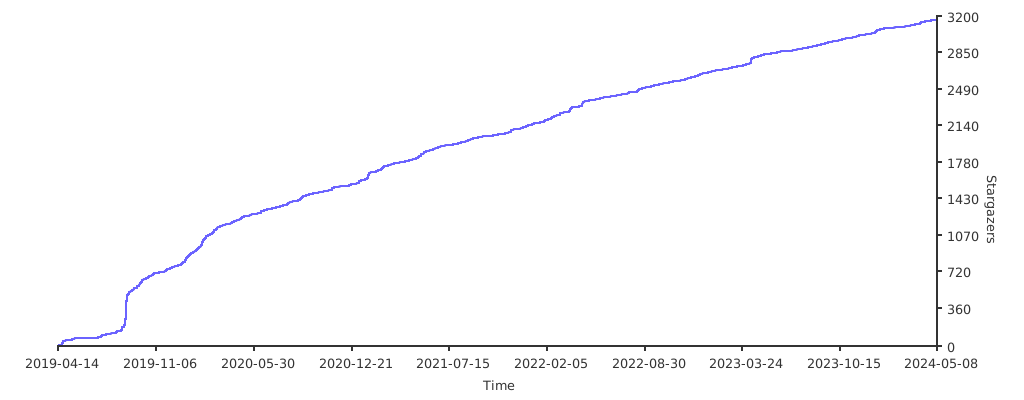
# Stargazers over time
[](https://starchart.cc/Edu4rdSHL/findomain)
## Contributors
### Code Contributors
This project exists thanks to all the people who contribute. [[Contribute](CONTRIBUTING.md)].
<a href="https://github.com/Edu4rdSHL/findomain/graphs/contributors"><img src="https://opencollective.com/findomain/contributors.svg?width=890&button=false" /></a>
### Financial Contributors
Become a financial contributor and help us sustain our community. [[Contribute](https://opencollective.com/findomain/contribute)]
#### Individuals
<a href="https://opencollective.com/findomain"><img src="https://opencollective.com/findomain/individuals.svg?width=890"></a>
#### Organizations
Support this project with your organization. Your logo will show up here with a link to your website. [[Contribute](https://opencollective.com/findomain/contribute)]
<a href="https://opencollective.com/findomain/organization/0/website"><img src="https://opencollective.com/findomain/organization/0/avatar.svg"></a>
<a href="https://opencollective.com/findomain/organization/1/website"><img src="https://opencollective.com/findomain/organization/1/avatar.svg"></a>
<a href="https://opencollective.com/findomain/organization/2/website"><img src="https://opencollective.com/findomain/organization/2/avatar.svg"></a>
<a href="https://opencollective.com/findomain/organization/3/website"><img src="https://opencollective.com/findomain/organization/3/avatar.svg"></a>
<a href="https://opencollective.com/findomain/organization/4/website"><img src="https://opencollective.com/findomain/organization/4/avatar.svg"></a>
<a href="https://opencollective.com/findomain/organization/5/website"><img src="https://opencollective.com/findomain/organization/5/avatar.svg"></a>
<a href="https://opencollective.com/findomain/organization/6/website"><img src="https://opencollective.com/findomain/organization/6/avatar.svg"></a>
<a href="https://opencollective.com/findomain/organization/7/website"><img src="https://opencollective.com/findomain/organization/7/avatar.svg"></a>
<a href="https://opencollective.com/findomain/organization/8/website"><img src="https://opencollective.com/findomain/organization/8/avatar.svg"></a>
<a href="https://opencollective.com/findomain/organization/9/website"><img src="https://opencollective.com/findomain/organization/9/avatar.svg"></a>
