# Getting started
## Opening a document
```bash
edamame notes.md # open a file
edamame notes.md#setup # open it at the "Setup" heading
edamame # start with an empty, unnamed buffer
```
A `#section` after the file name opens the document scrolled to that heading. This works the same way as a GitHub-style slug, so `## Getting started` is `#getting-started`. If nothing matches, the file still opens and the hint line says so.
With a file open in edamame, you can navigate to other documents by following links: put the cursor on a link to another `.md` file on your system and press `Ctrl-Enter` (or click it in Preview). `Alt-←` and `Alt-→` walk back and forward through where you've been, like a browser.
---
## Your first launch
A welcome screen appears the first time you run edamame. It shows a short introduction, a summary of what your terminal supports (color depth, images, mouse, keyboard) and a few initial options to decide on:
- **Theme** — choose light or dark mode and one of edamame's dozens of built-in themes
- **Images** and **Figures** — whether to render them inline. *Figures* covers both ` ```mermaid ` diagrams and `$$...$$` math. Each can be *Ask*, *Always* or *Never*, and they're independent.
- **Remote images** — whether to fetch images from the web. Leave this on "Ask" if you are concerned about e.g. tracking pixels in documents you open. See [security.md](security.md).
- **Vim mode** — edamame supports a focused subset of vim features. See [vim-mode.md](vim-mode.md).
- **Check for updates** — edamame checks GitHub once a day so it can notify you of a new release. This is on by default, but the first check doesn't occur until after the welcome screen is dismissed.
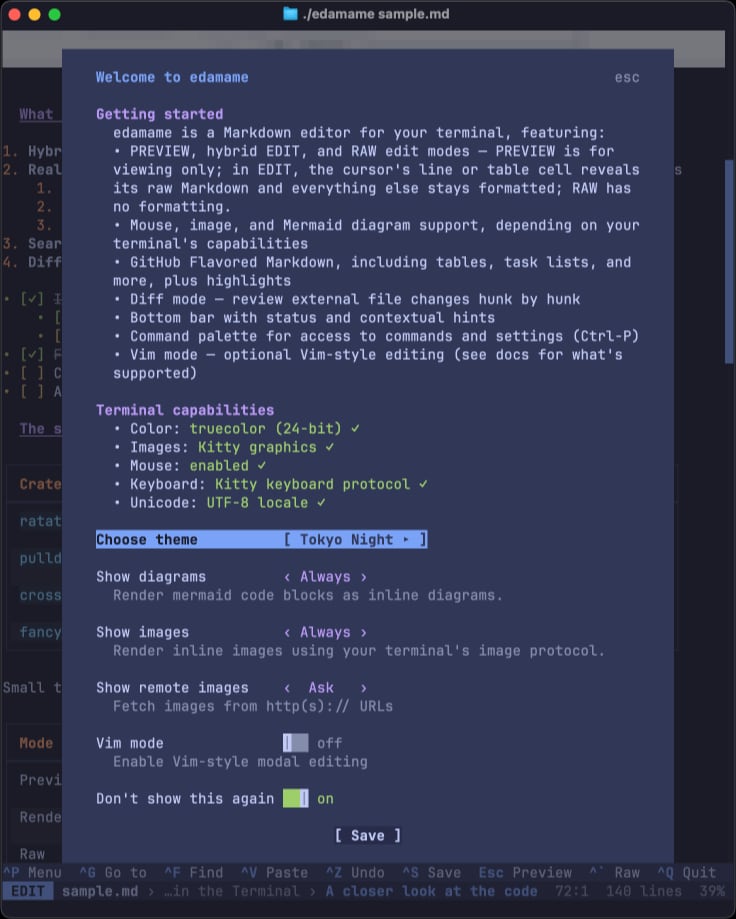
To show the welcome screen again: `Ctrl-P` → "Open welcome / terminal setup".
edamame also writes its config files on this first run, to `~/.config/edamame/` (details in [configuration.md](configuration.md#where-config-lives)).
### The terminal capabilities notice
If you later open edamame in a different terminal application, you should see a notice for what the new terminal supports — color depth, images, mouse, keyboard, unicode. This appears **once per terminal**, not every launch, and it matters because a few features are delivered by the terminal rather than by edamame: images and diagrams, most themes (due to color support), mouse selection, and a handful of chords.
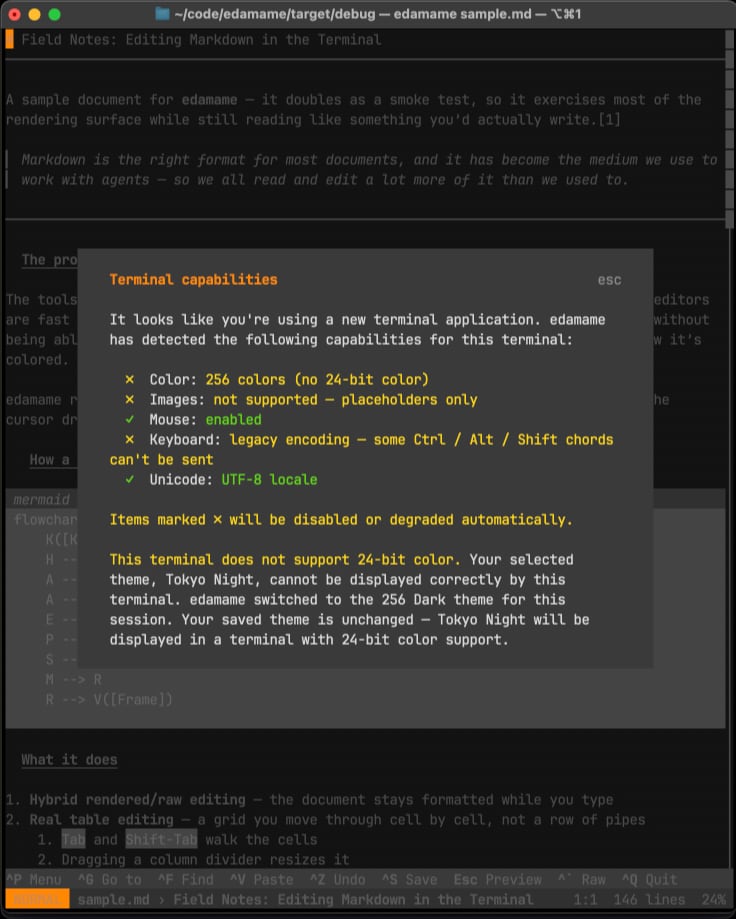
If your terminal falls short, edamame adapts rather than breaking: it swaps in a theme designed for 256 colors, shows image placeholders, and tells you which chords won't arrive. See [terminal-compatibility.md](terminal-compatibility.md) for more info — what each capability affects, the workarounds, and which terminals support what.
To see the summary again, run [`edamame --doctor`](#command-line-flags) or choose
"Open welcome / terminal setup" from the palette.
---
## The three view modes
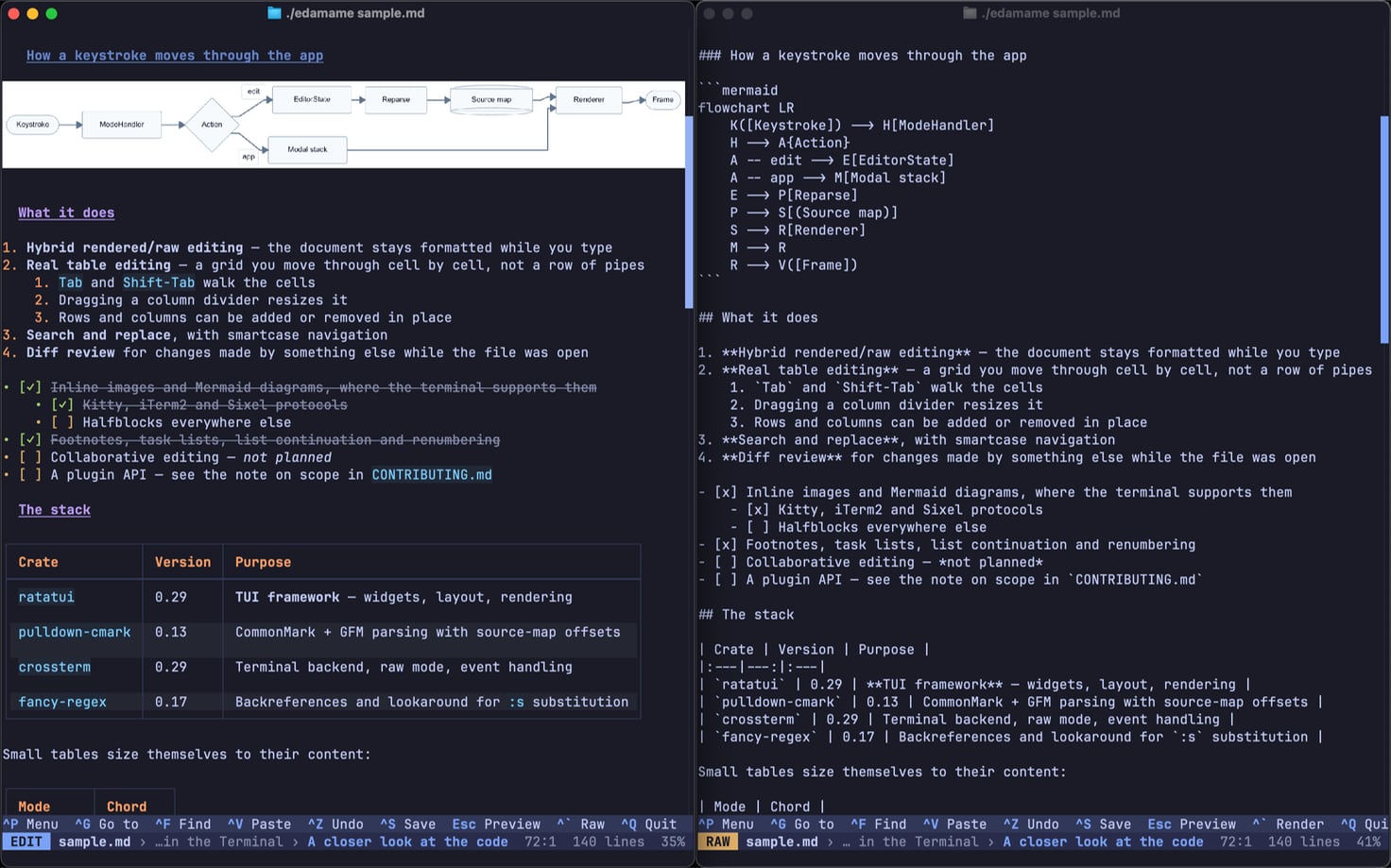
edamame shows your document rendered with real headings, drawn table borders, and actual bullet characters, while you edit it. The modes control how much of that rendering gets out of your way.
### PREVIEW — reading
Files open here for viewing. There's no cursor and nothing can be modified. You can scroll around and click links. **Any key that would edit or move the cursor takes you into Edit mode.**
### EDIT — rendered editing
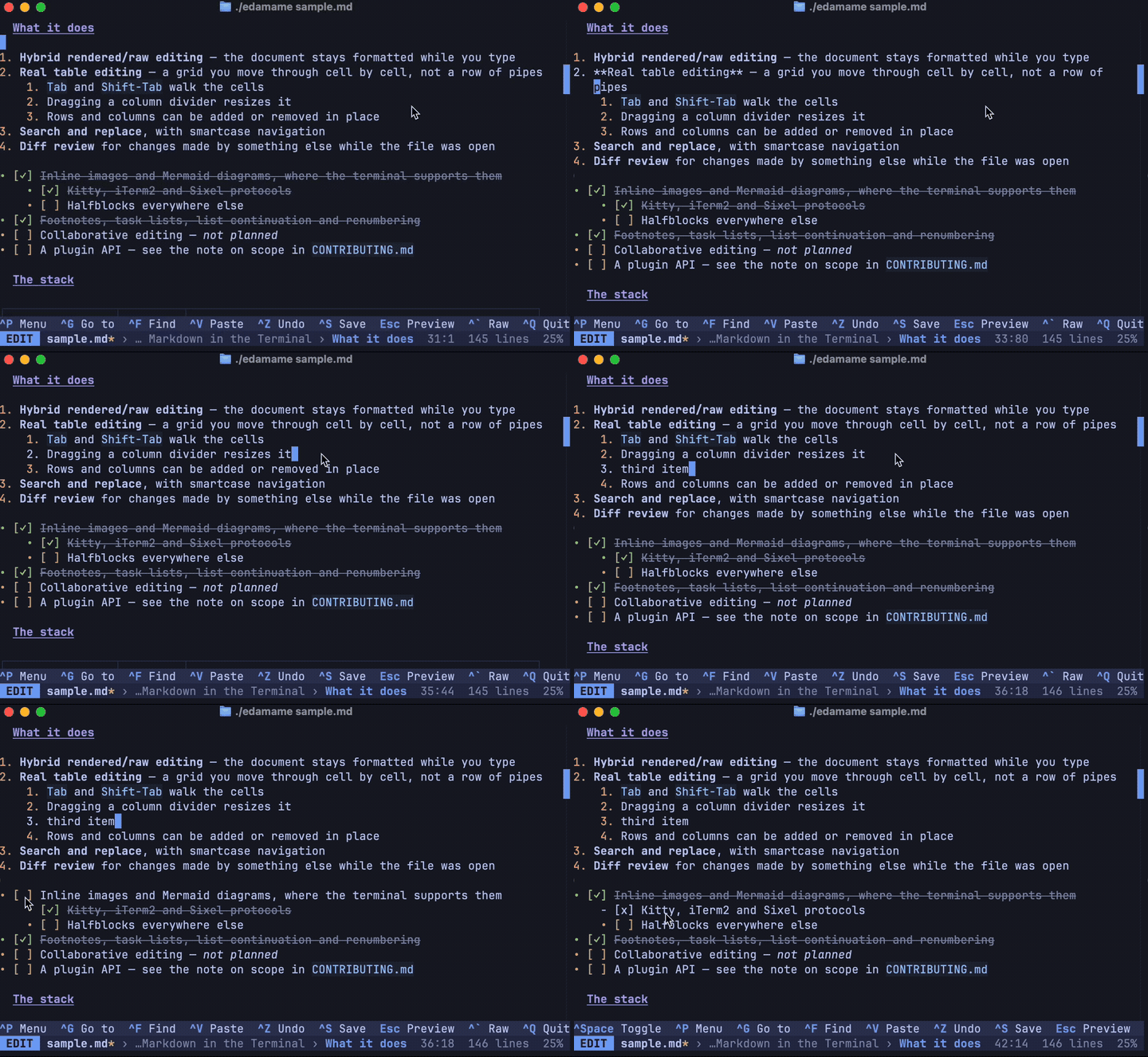
The document stays rendered, except for the line your cursor is on, which shows its raw Markdown. Move away and it renders again. Inside a table only the *cell* you're in is shown raw, inside the drawn grid.
### RAW — plain Markdown
Raw mode shows the whole document as source, like a plain text editor. It's useful when you want to fix something structural, like a broken table, an HTML comment, or syntax that's confusing the renderer. edamame's helpful behaviors get out of the way here. There is no auto-renumbering of lists, no table-cell guardrails, etc.
Toggle with ``Ctrl-` `` — or, if your terminal doesn't deliver that chord, from the palette or a chord you configure yourself.
### Moving between them
```
Preview ──any key──▶ Edit ──Ctrl-`──▶ Raw
▲ │ │
└────── Esc ─────────┴──── Ctrl-` ──────┘
```
`Esc` from anywhere returns to Preview. Switching modes keeps your place on screen, so nothing jumps.
*(In vim mode, Normal mode takes Preview's place — there is no separate Preview.)*
---
## Reading the bottom two rows

**The hint line** shows the chords that apply right now — they change depending on context, such as inside a table or a list — and doubles as where messages appear ("Saved", "Copied", "Autosaved").
**The status bar** shows, left to right: the mode, the filename, `*` if you have unsaved changes, then a breadcrumb of the headings you're currently under, and finally cursor position, document length, and how far down you are.
---
## Things worth knowing early
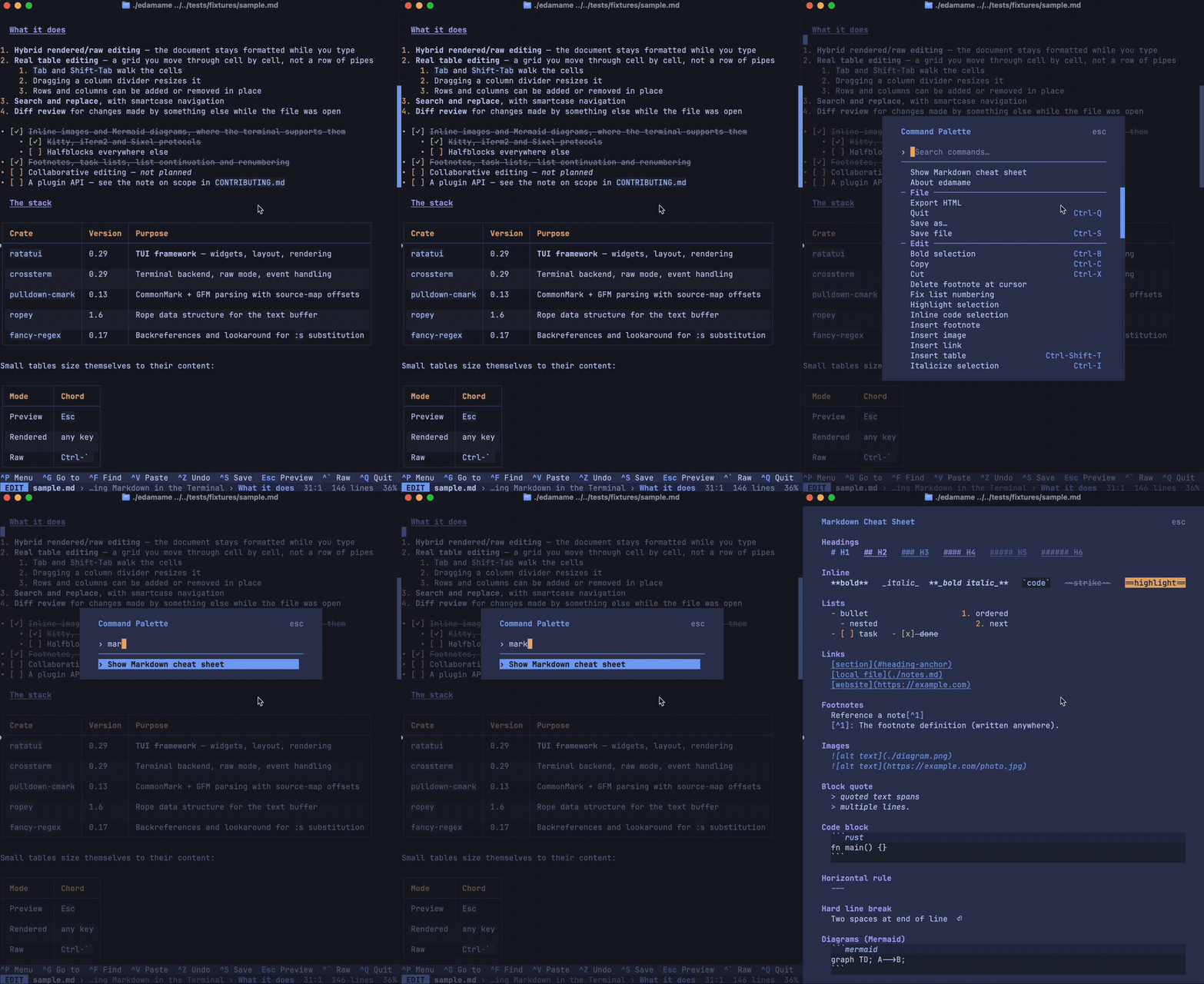
**`Ctrl-P` command palette.** Every command is here, fuzzy-searchable. Many features deliberately ship without a keybinding — the palette is how you reach them.
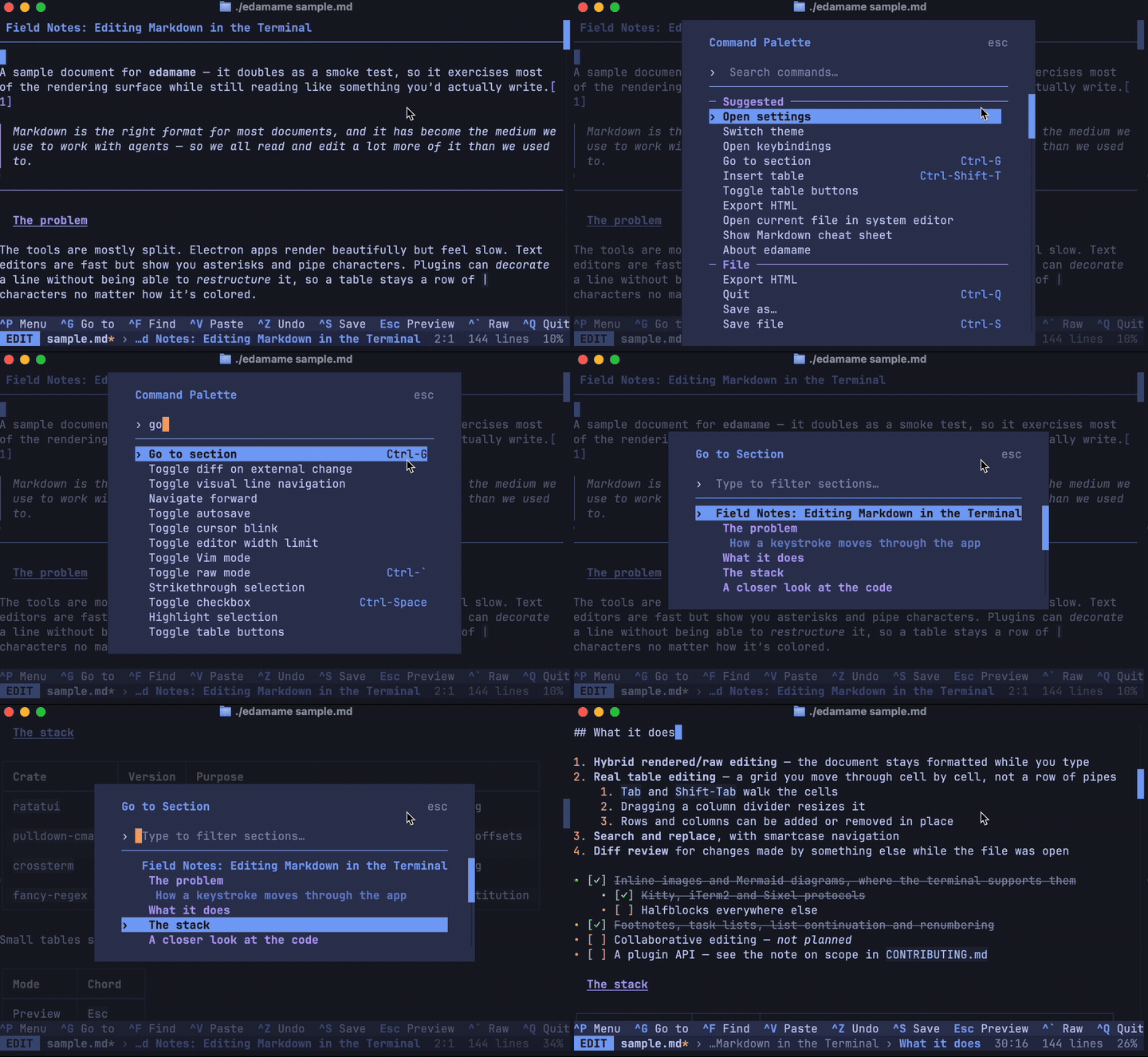
**`Ctrl-G` jumps to a heading.** This works like a searchable table of contents. It's a fuzzy search field over the document's own structure — quicker than scrolling in anything longer than a screen.
**`Ctrl-C` copies.** It does not quit. Quit is `Ctrl-Q`.
**Nothing is saved unless you save it** (`Ctrl-S`) — autosave exists but is off by default. If something else changes your file while you have it open, edamame shows you the changes hunk by hunk rather than clobbering either version. See [editing.md](editing.md#when-the-file-changes-underneath-you).
**Undo is per-action.** `Ctrl-Z`. Typing a word is one undo step, not one per character.
**Did you know?** Once a day, on startup, edamame may show a short tip about a useful feature. To read them whenever you like, `Ctrl-P` → "Browse tips" lists them all.
---
## Command-line flags
The flag list is short by design — everything else is configured from inside the app or in `config.toml`.
| `-h`, `--help` | Print the flag list |
| `-V`, `--version` | Print the installed version |
| `--doctor` | Print version, system, and terminal diagnostics |
| `--diff <old> <new>` | Review two files read-only, for use as a [git difftool](editing.md#using-edamame-as-a-git-difftool) |
| `--no-config` | Run with built-in defaults, ignoring `~/.config/edamame` |
| `--log` | Write a debug log for this run |
| `--` | Treat everything after it as the file name |
Use `--doctor` when you're experiencing a problem with edamame. It reports which version you're running, which terminal you're running it in, and what that terminal supports:
```bash
$ edamame --doctor
edamame 0.1.0
System
OS: macOS 15.6 (aarch64)
Terminal: ghostty 1.3.1
TERM: xterm-ghostty
COLORTERM: truecolor
Locale: en_US.UTF-8 (LANG)
tmux: no
Terminal capabilities
ok Color: truecolor (24-bit)
ok Images: Kitty graphics
ok Mouse: enabled
ok Keyboard: Kitty keyboard protocol
ok Unicode: UTF-8 locale
```
Paste that into a [bug report](https://github.com/mijowi/edamame/issues) — it gives us valuable context about your system and terminal. Note that redirecting either stream (`edamame --doctor > report.txt`, or piping something in) means the Images and Keyboard rows come back as `unknown`: detecting those two means writing a question to the terminal and reading its reply back, so it needs both stdout and stdin attached to a real one. Copy from the screen instead.
`--no-config` can be useful for troubleshooting. It starts edamame with no theme files, no keybinding overrides, and no other settings. This helps separate "edamame is broken" from "my config is broken" in one step. Your real config is safe: settings you change during a `--no-config` run apply to that session only.
---
## The manual is inside the app
Everything under `docs/` ships **inside the binary**, so you can read it without a browser or a network connection. Open the command palette (`Ctrl-P`) and choose **Help: Documentation** for the index, or jump straight to a page — the palette lists each one as **Docs: Editing**, **Docs: Keybindings**, and so on.
Docs are not editable and open in **Preview mode**. The pages you read are the ones that shipped with your build of edamame. `Alt+Left` navigates back to whatever you were writing before you opened it.
---
## Where to go next
- [editing.md](editing.md) — tables, lists, links, footnotes, search and replace, images, export
- [keybindings.md](keybindings.md) — every default chord, and how to change it
- [terminal-compatibility.md](terminal-compatibility.md) — what depends on your terminal, and what to do about each gap
- [configuration.md](configuration.md) — every setting
- [themes.md](themes.md) — switching themes and writing your own
- [vim-mode.md](vim-mode.md) — modal editing, and how it differs from real Vim
- [security.md](security.md) — what protects you when you open a document you didn't write