
---
- [ComChan](#comchan)
- [Installation](#installation)
- [From crates.io](#from-cratesio)
- [From AUR](#from-aur)
- [Using Homebrew](#using-homebrew)
- [From source](#from-source)
- [Documentation Link](#documentation-link)
- [Common Commands](#common-commands)
- [Basic Serial Monitor](#basic-serial-monitor)
- [Verbose Mode](#verbose-mode)
- [Log Mode](#log-mode)
- [Serial Plotter](#serial-plotter)
- [Automatically detect serial ports](#automatically-detect-serial-ports)
- [Use a Configuration file](#use-a-configuration-file)
- [Features](#features)
- [Legends](#legends)
- [Examples](#examples)
- ["Hello World" Program](#hello-world-program)
- [User Input](#user-input)
- [Serial Plotter](#serial-plotter-1)
- [Auto Serial Port Detector](#auto-serial-port-detector)
- [Using the Configuration file](#using-the-configuration-file)
- [Serial Monitor (`plot = false`)](#serial-monitor-plot--false)
- [Serial Plotter (`plot = true`)](#serial-plotter-plot--true)
- [Serial Plotter Multiple sensor values](#serial-plotter-multiple-sensor-values)
- [ComChan in Windows](#comchan-in-windows)
- [Feedback Form](#feedback-form)
- [Stargazers over time](#stargazers-over-time)
# ComChan (Communication Channel)
ComChan is a Blazingly Fast Serial monitor for Embedded Systems and Serial Communication.
**Latest Version**: 0.2.3
## Installation
### From crates.io
> [!NOTE]
> `cargo install` NOW AVAILABLE
```bash
cargo install comchan
#Install the binary directly
cargo binstall comchan
```
After installing, check if it has been installed with
```bash
comchan --version
```
### From AUR
Thanks to [orhun](https://github.com/orhun), ComChan now has an AUR package
```bash
# Using yay
yay -S comchan
# Using paru
paru -S comchan
```
### Using Homebrew
ComChan can also be installed by using Homebrew taps
```bash
brew install Vaishnav-Sabari-Girish/taps/comchan
```
### From source
```bash
# Clone from GitHub
git clone git@github.com:Vaishnav-Sabari-Girish/ComChan.git
# Clone from Codeberg
git clone ssh://git@codeberg.org/Vaishnav-Sabari-Girish/ComChan.git
```
```bash
cd ComChan
cargo build --release
cargo run
```
# Documentation Link
Documentation Link : https://vaishnav.world/ComChan
## Common Commands
### Basic Serial Monitor
```bash
comchan -p <port> -r <baud_rate>
# OR
comchan --port <port> --baud <baud_rate>
```
### Verbose Mode
```bash
comchan -p <port> -r <baud_rate> -v
# OR
comchan --port <port> --baud <baud_rate> --verbose
```
### Log Mode
```bash
comchan -p <port> -r <baud_rate> -l <log_file_name>
# OR
comchan --port <port> --baud <baud_rate> --log <log_file_name>
```
For an example log file , get it [here](./test.log)
### Serial Plotter
```bash
comchan --port <port> --baud <baud_rate> --plot
# OR
comchan -p <port> -r <baud_rate> --plot
```
### Automatically detect serial ports
```bash
comchan --auto ##Defaults baud rate to 9600
#OR
comchan --auto --baud <baud_rate> # For non-default baud rates like 115200
# OR
comchan --auto -r <baud_rate>
```
### Use a Configuration file
As of version 0.1.9, you can now create your own configuration file to use ComChan, which means that you won't have to type all the flags.
```bash
# Generate default configuration file
comchan --generate-config # Generates the default config file at ~/.config/comchan/comchan.toml
```
Here is an example configuration file
```toml
# ComChan Configuration File
#
# This file contains default settings for comchan serial monitor.
# Command line arguments will override these settings.
#
# To use auto-detection, set port = "auto"
# Available parity options: "none", "odd", "even"
# Available flow control options: "none", "software", "hardware"
port = "auto"
baud = 9600
data_bits = 8
stop_bits = 1
parity = "none"
flow_control = "none"
timeout_ms = 500
reset_delay_ms = 1000
verbose = false
plot = false
plot_points = 100
```
> [!NOTE]
> Note that the default baud rate is `9600`, you can change it later on in the config file
The above default config file values can be overridden by using the flags (`--auto`, `--port or -p`, `--baud or -r`, `--plot`).
## Features
- [x] Read incoming Serial data from Serial ports
- [x] Write to Serial port i.e Send data to Serial device.
- [x] Basic logging.
- [x] Auto detect Serial Ports
- [x] Use a `.toml` file for config instead of flags
- [ ] Write serial data to a file for later use (can be .txt , .csv and more)
- [x] Terminal based Serial Plotter (to be implemented with the `--plot` command)
- [x] Plot multiple sensor values in the Serial Plotter with legends
### Legends
- [x] Implemented Features
- [ ] Yet to me implemented
# Examples
## "Hello World" Program

[code file hw](./code_tests/test_comchan_arduino_uno/test_comchan_arduino_uno.ino)
## User Input

[Code file](./code_tests/test_user_input/test_user_input.ino)
## Serial Plotter

[code file 2](./code_tests/random_sensor_vals/random_sensor_vals.ino)
## Auto Serial Port Detector

## Using the Configuration file
### Serial Monitor (`plot = false`)

### Serial Plotter (`plot = true`)

### Serial Plotter Multiple sensor values

[code file multiple vals](./code_tests/random_sensor_vals_multiple/random_sensor_vals_multiple.ino)
## ComChan in Windows
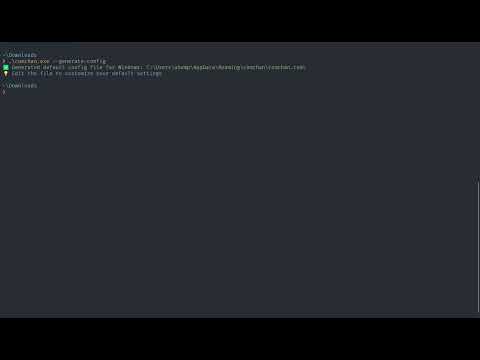
As of Version 0.2.2, ComChan can be used in Windows with no drawbacks
[](https://www.youtube.com/watch?v=23sSd4_bcxM)
To use ComChan in Windows, you can download the .exe file from the releases and use it as follows.
Let's say you have downloaded the .exe file to `Downloads/`, you have to first open `cmd` or Powershell and `cd` to `Downloads/` and then
```pwr
comchan.exe --help
```
# Feedback Form
The Feedback form was created using Bashforms (Forms in the terminal itself).
To give you feedback, please type this on your terminal
```bash
ssh -t bashform.me f comchan
```
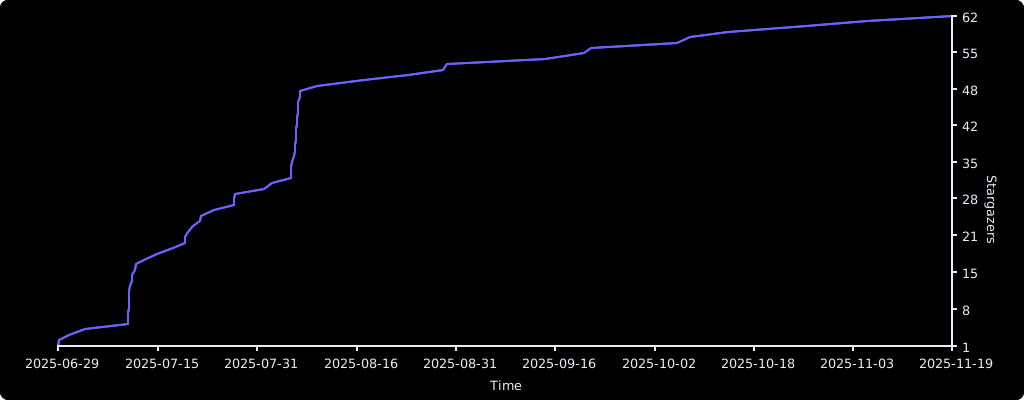
# Stargazers over time
[](https://starchart.cc/Vaishnav-Sabari-Girish/ComChan)