
claudeye
A transparent always-on-top overlay that monitors Claude Code sessions running in tmux panes.
What it does
claudeye periodically polls all tmux panes, finds those running the claude command, and displays their status in a small floating window at the top center of your screen. The window is click-through, so it never interferes with your workflow.
Each session is shown as a mini Clawd (the Claude robot mascot) with a color-coded speech bubble indicating its current state and elapsed time:
| Label | Color | Meaning |
|---|---|---|
Running |
Green | Claude is processing |
Approval |
Yellow | Waiting for your approval |
Idle |
Gray | Prompt shown, waiting for input |
Requirements
- tmux — must be installed and running. claudeye uses
tmux list-panesandtmux capture-paneto discover and read Claude sessions. - Claude Code (
claudeCLI) — sessions must be running inside tmux panes. claudeye identifies panes where the current command isclaude. - Rust toolchain — install via rustup (only required when building from source)
- macOS or Linux with X11 — on Linux, tested on X11; Wayland is supported but mouse hover transparency is unavailable. Standard X11 libraries are required (typically pre-installed).
Installation
Quick install
|
From crates.io
Usage
Overlay mode
# Run with default settings (show all sessions at top center)
# Position the overlay at a specific screen location
| Option | Description |
|---|---|
--compact |
Show state summary with session counts |
--position, -p |
Window position on screen (default: top-center). Values: top-left, top-center, top-right, middle-left, middle-center, middle-right, bottom-left, bottom-center, bottom-right |
--alert-on-stale |
Move overlay to screen center when any session stays in Approval/Idle for 5–15 seconds, then return to its configured position |
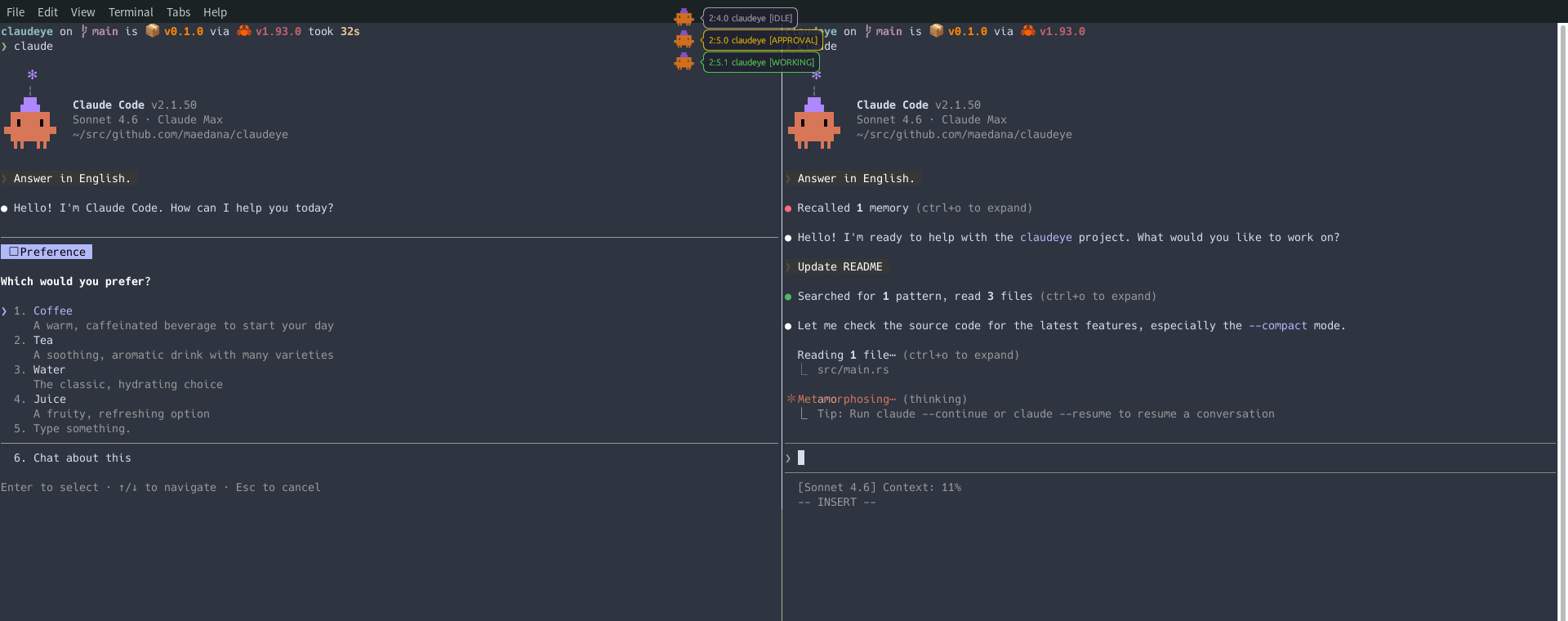
Compact mode
# Run in compact mode (state summary with session counts)
In compact mode, sessions are grouped by state and displayed as a single row of robot + bubble pairs. Each bubble shows the number of sessions in that state. States with no sessions are hidden.

Picker mode
An interactive TUI session picker. Use it to quickly switch to any Claude session:
| Key | Action |
|---|---|
1–9 |
Jump directly to that session |
j / ↓ |
Move selection down |
k / ↑ |
Move selection up |
Enter |
Switch to selected session |
q / Esc |
Quit without switching |
Sessions beyond the 9th are accessible via j/k navigation.
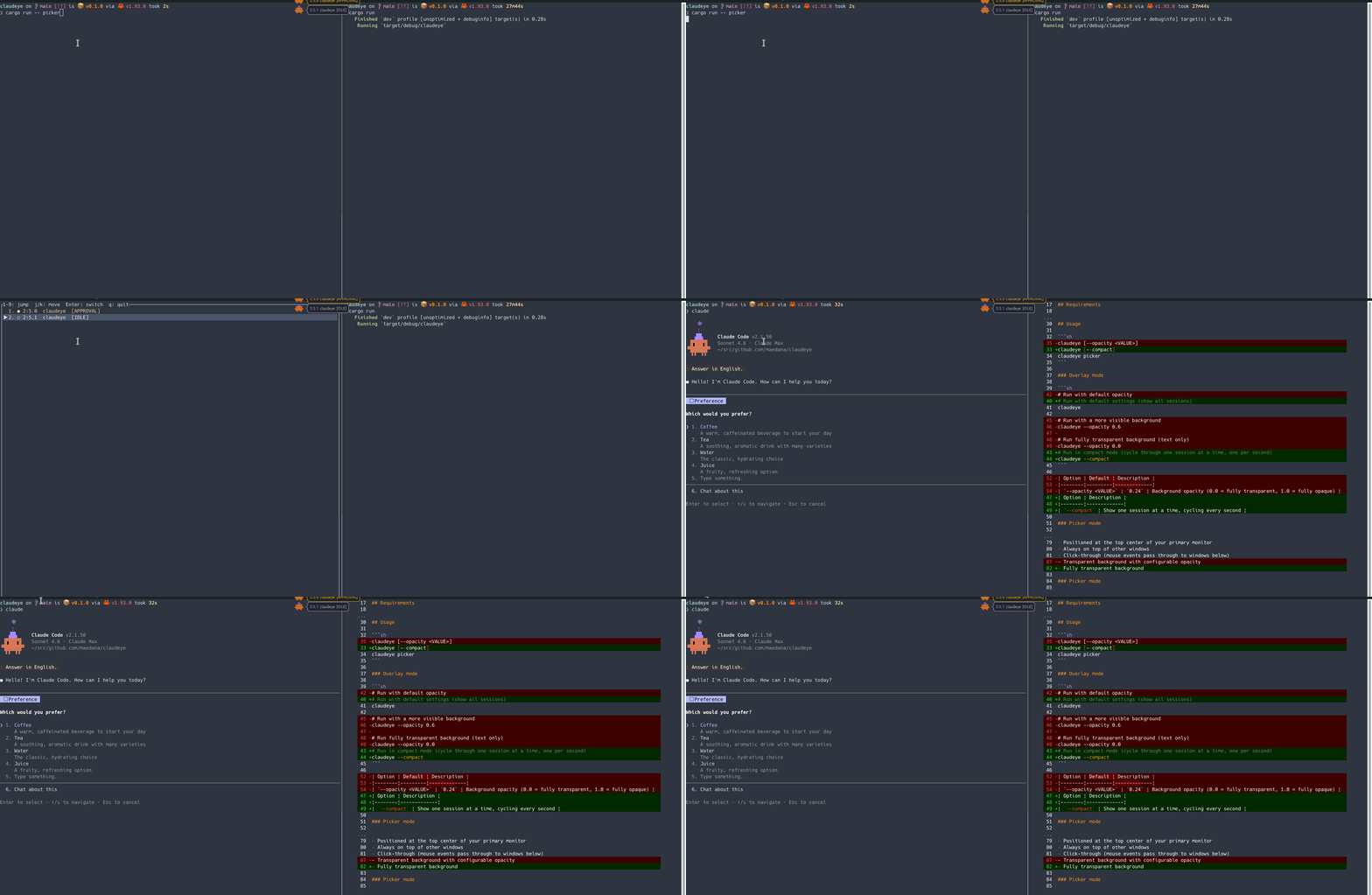
Auto-quiet mode
When the focused tmux pane is running Claude, claudeye automatically suppresses pulse animations, stale-idle highlights, and --alert-on-stale centering so the overlay stays unobtrusive while you're actively working with Claude.
This feature relies on tmux focus events. Enable them in your ~/.tmux.conf:
set-option -g focus-events on
When focus-events is off (or the terminal doesn't support it), quiet mode is simply disabled and the overlay behaves as before.
How it works
Overlay mode
- A background thread periodically polls
tmux list-panes -ato find all panes runningclaude. - For each matching pane, it runs
tmux capture-paneto read the terminal content. - The terminal content is analyzed with regex patterns to determine Claude's current state (working, waiting for approval, idle, etc.).
- The egui overlay window updates to reflect the latest state of each session.
The overlay window is:
- Positioned at the top center of your primary monitor by default (configurable with
--position) - Dynamically sized to fit session content
- Always on top of other windows
- Click-through (mouse events pass through to windows below)
- Fully transparent background
- Fades out when the mouse cursor hovers over it (macOS and Linux/X11)
Picker mode
- Runs
tmux list-panes -aonce to collect all panes runningclaude. - Captures each pane's content to determine its current state.
- Displays the sessions in a ratatui TUI list with state indicators and numeric labels.
- On selection, runs
tmux switch-clientto jump to the chosen pane.
Development