```sh
██████╗ ███████╗ ██████╗ ███╗ ██╗ ████████╗ ███████╗
██╔════╝ ██╔════╝ ██╔═══██╗ ████╗ ██║ ╚══██╔══╝ ██╔════╝
██║ █████╗ ██║ ██║ ██╔██╗ ██║ ██║ ███████╗
██║ ██╔══╝ ██║ ██║ ██║╚██╗██║ ██║ ╚════██║
╚██████╗ ██║ ╚██████╔╝ ██║ ╚████║ ██║ ███████║
╚═════╝ ╚═╝ ╚═════╝ ╚═╝ ╚═══╝ ╚═╝ ╚══════╝
```
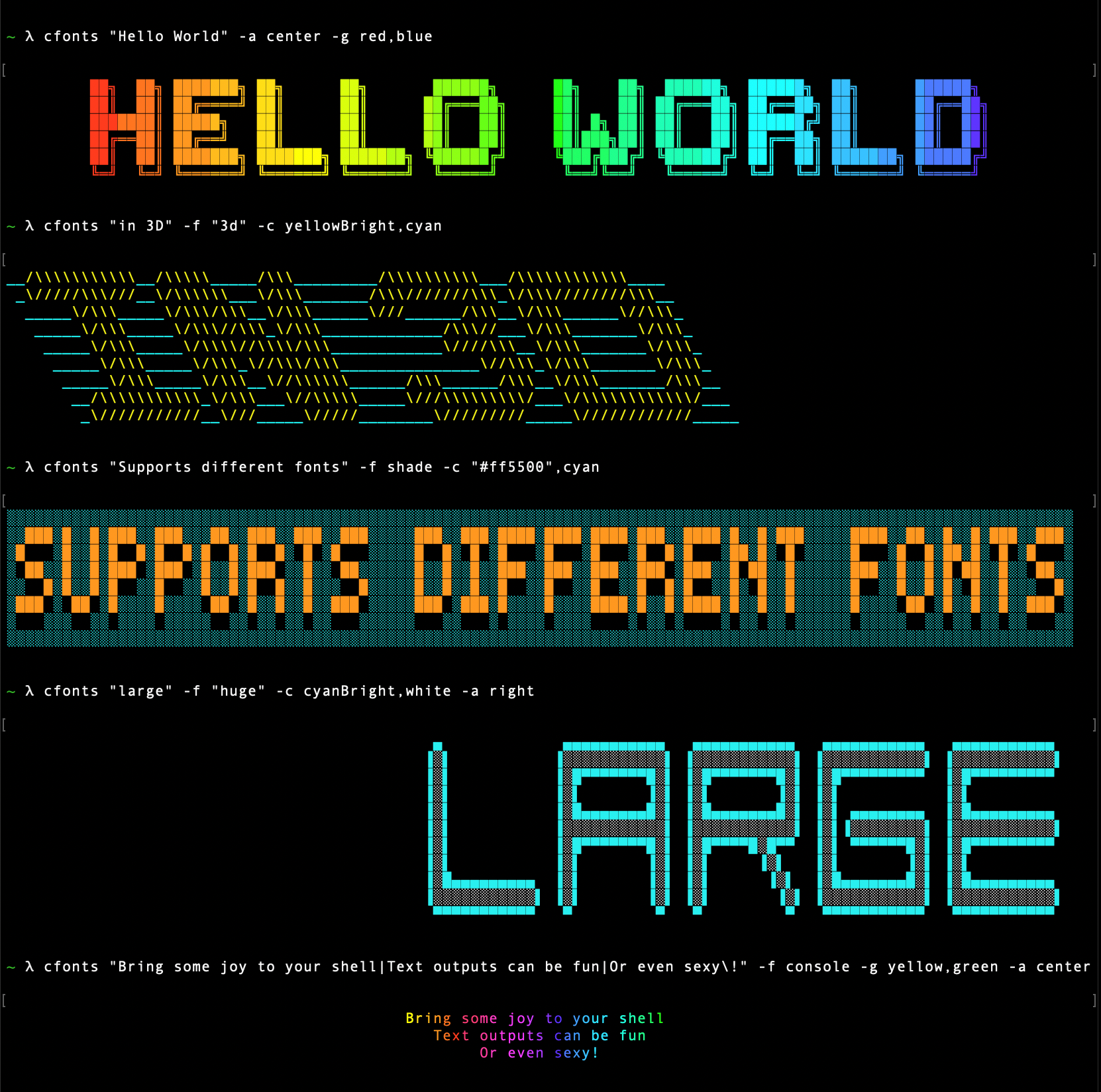
<p align="center"><img src="https://raw.githubusercontent.com/dominikwilkowski/cfonts/released/img/example2.png" alt="api example"></p>
<p align="center">
<a href="https://crates.io/crates/cfonts"><img src="https://img.shields.io/crates/v/cfonts.svg" alt="crates badge"></a>
<a href="https://crates.io/crates/cfonts"><img src="https://docs.rs/cfonts/badge.svg" alt="crates docs tests"></a>
<a href="https://github.com/dominikwilkowski/cfonts/actions/workflows/testing.yml"><img src="https://github.com/dominikwilkowski/cfonts/actions/workflows/testing.yml/badge.svg" alt="build status"></a>
<a href="https://www.npmjs.com/package/cfonts"><img alt="npm" src="https://img.shields.io/npm/v/cfonts"></a>
<a href='https://coveralls.io/github/dominikwilkowski/cfonts?branch=released'><img src='https://coveralls.io/repos/github/dominikwilkowski/cfonts/badge.svg?branch=released' alt='cfonts Coverage Status' /></a>
</p>
<p align="center">This is a silly little command line tool for sexy ANSI fonts in the console. <strong>Give your cli some love.</strong></p>
## Implementations
### Rust
Read more in the [Rust folder](https://github.com/dominikwilkowski/cfonts/tree/released/rust).
### Nodejs
Read more in the [Nodejs folder](https://github.com/dominikwilkowski/cfonts/tree/released/nodejs).
## Install
### Rust
#### [homebrew](https://formulae.brew.sh/formula/cfonts)
```sh
brew install cfonts
```
#### [Arch User Repository](https://aur.archlinux.org/packages/cfonts)
```sh
yay -S cfonts
```
#### [Fedora](https://src.fedoraproject.org/rpms/rust-cfonts)
```sh
sudo dnf install cfonts
```
#### [NixOS](https://search.nixos.org/packages?show=cfonts)
``` sh
nix-env -iA nixos.cfonts
```
#### [MacPorts](https://ports.macports.org/port/cfonts/)
```sh
sudo port install cfonts
```
#### [cargo](https://crates.io/crates/cfonts)
```sh
cargo install cfonts
```
### NodeJs
#### [npm](https://www.npmjs.com/package/cfonts)
```sh
npm i cfonts -g
```
#### [yarn](https://yarnpkg.com/package/cfonts)
```sh
yarn global add cfonts
```
## Usage
Using the CLI is easy.
```
Usage: cfonts "<value>" [option1] <input1> [option2] <input1>,<input2> [option3] etc...
```
At any point you can run the *help* command to get a full list of commands and
how to use them.
```sh
$ cfonts --help
```
## Supported Characters
| `A` | `P` | `4` | `$` |
| `B` | `Q` | `5` | `%` |
| `C` | `R` | `6` | `&` |
| `D` | `S` | `7` | `(` |
| `E` | `T` | `8` | `)` |
| `F` | `U` | `9` | `/` |
| `G` | `V` | `!` | `:` |
| `H` | `W` | `?` | `;` |
| `I` | `X` | `.` | `,` |
| `J` | `Y` | `+` | `'` |
| `K` | `Z` | `-` | `"` |
| `L` | `0` | `_` | ` ` (space) |
| `M` | `1` | `=` | |
| `N` | `2` | `@` | |
| `O` | `3` | `#` | |
_The `|` character will be replaced with a line break_
## Options
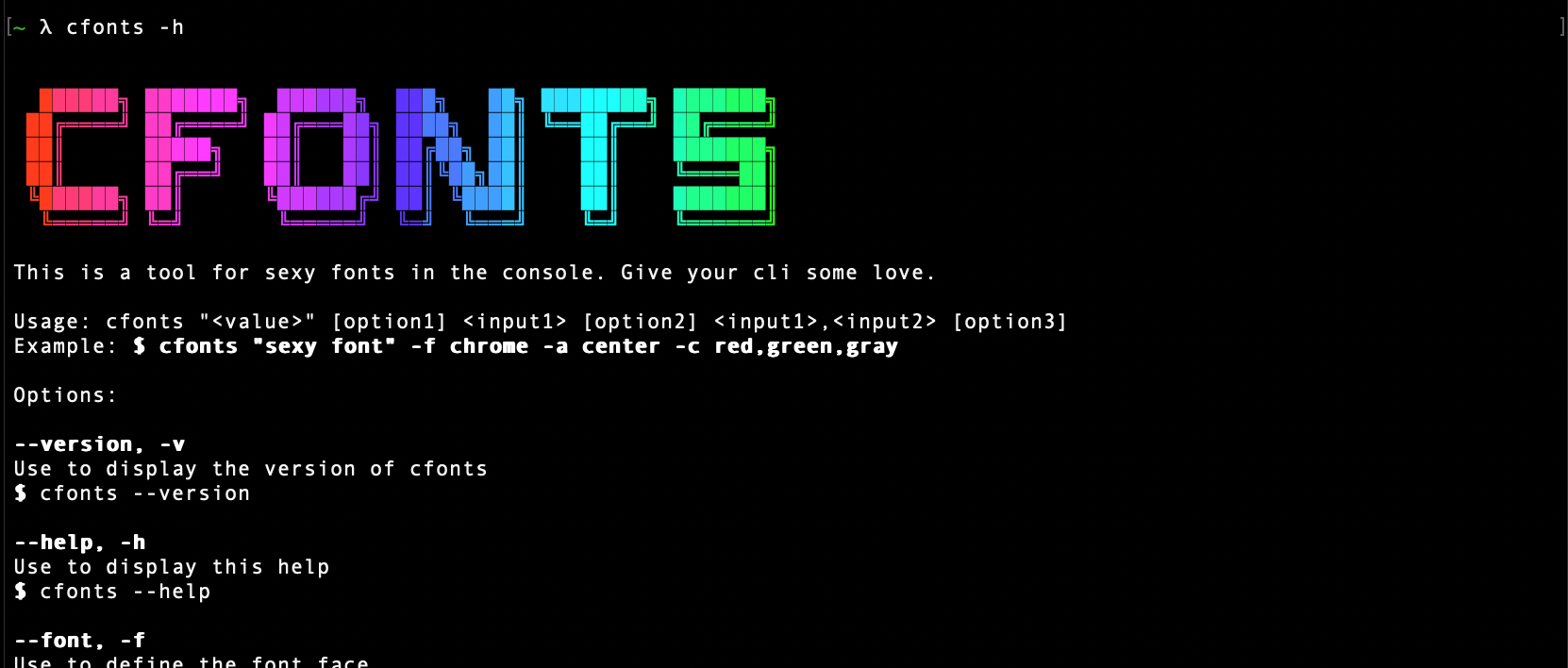
#### -h, --help
Type: `<command>`
Default value: `none`
This shows a list of all available options.
```sh
$ cfonts --help
```
#### -V, --version
Type: `<command>`
Default value: `none`
This shows the installed version.
```sh
$ cfonts --version
```

#### text
Type: `<string>`
Default value: `""`
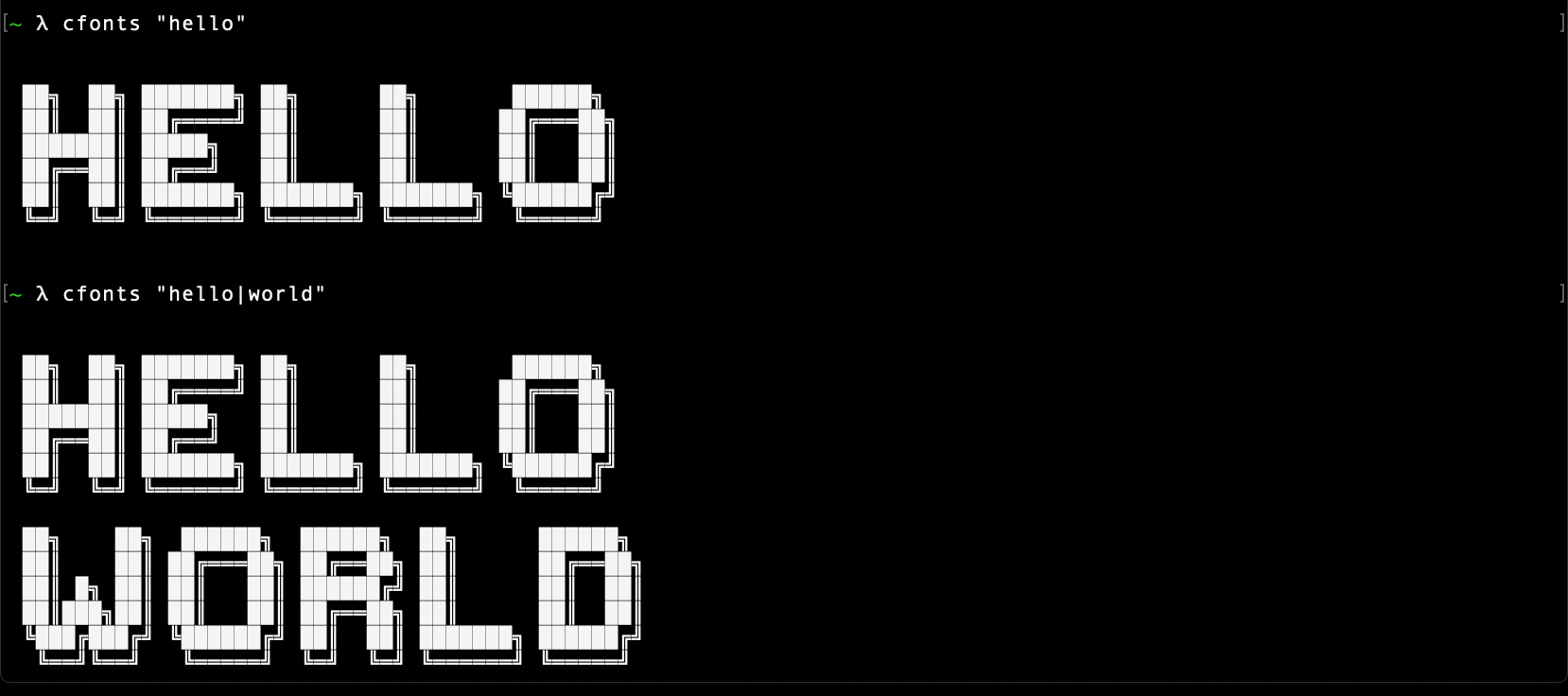
This is the "text input" to be converted into a nice font.
The `|` character will be replaced with a line break.
```sh
$ cfonts "Hello world"
```
#### -f, --font
Type: `<string>`
Default value: `"block"`
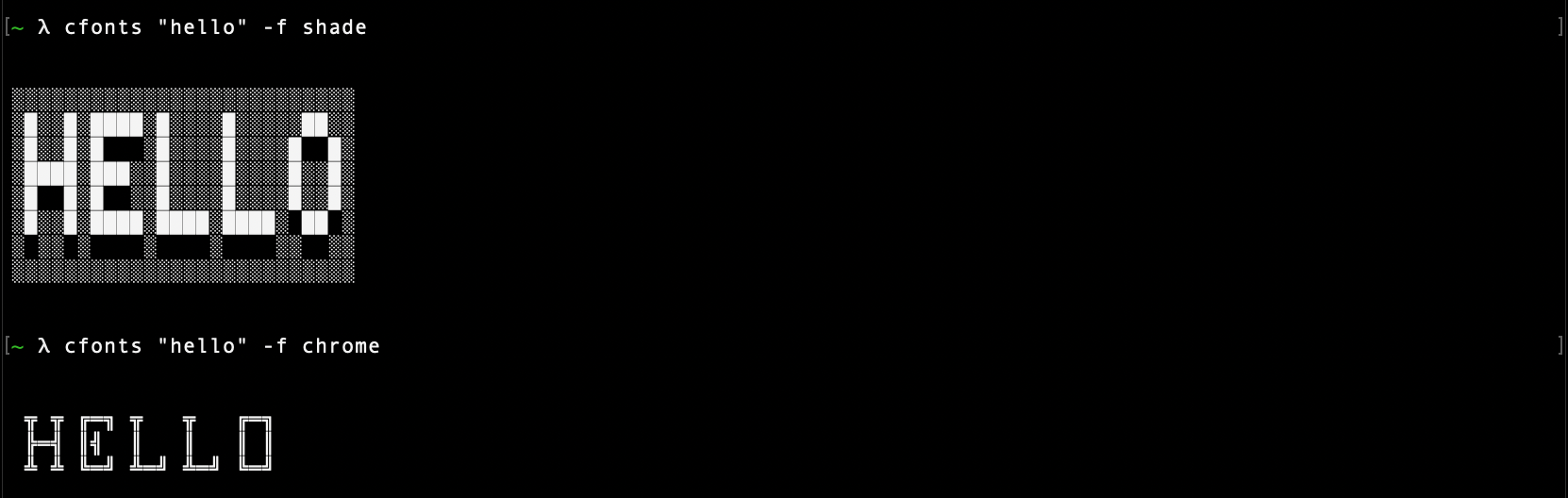
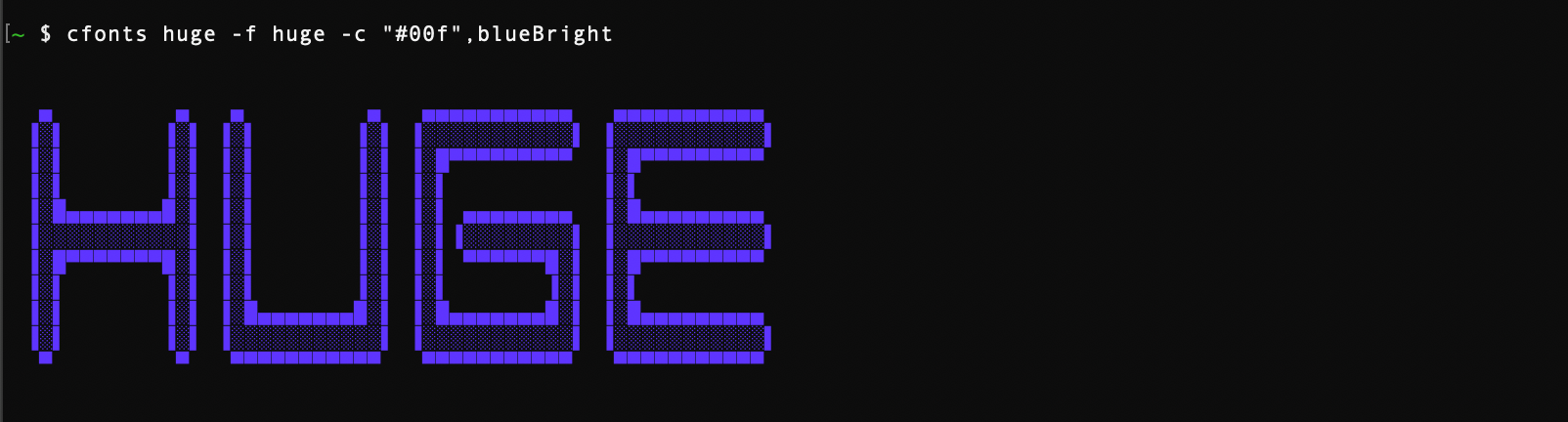
This is the font face you want to use. So far this plugin ships with with following font faces:
```sh
$ cfonts "text" --font "chrome"
```
- `block` [colors: 2] _(default)_

- `slick` [colors: 2]

- `tiny` [colors: 1]

- `grid` [colors: 2]

- `pallet` [colors: 2]

- `shade` [colors: 2]
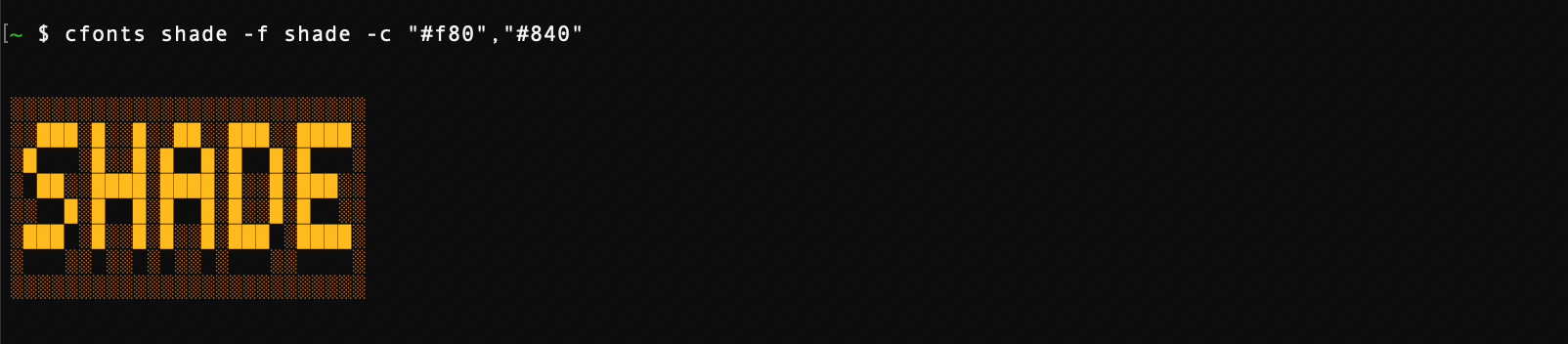
- `chrome` [colors: 3]

- `simple` [colors: 1]

- `simpleBlock` [colors: 1]
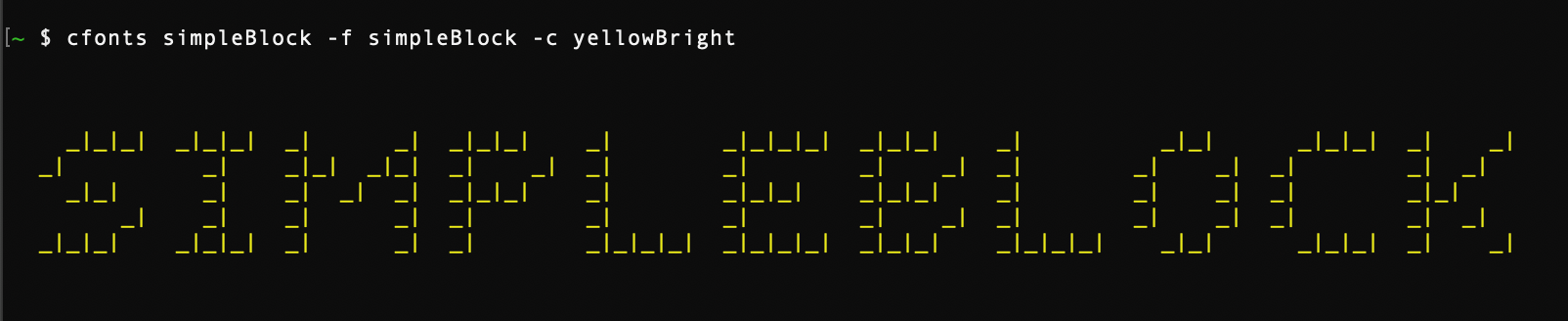
- `3d` [colors: 2]
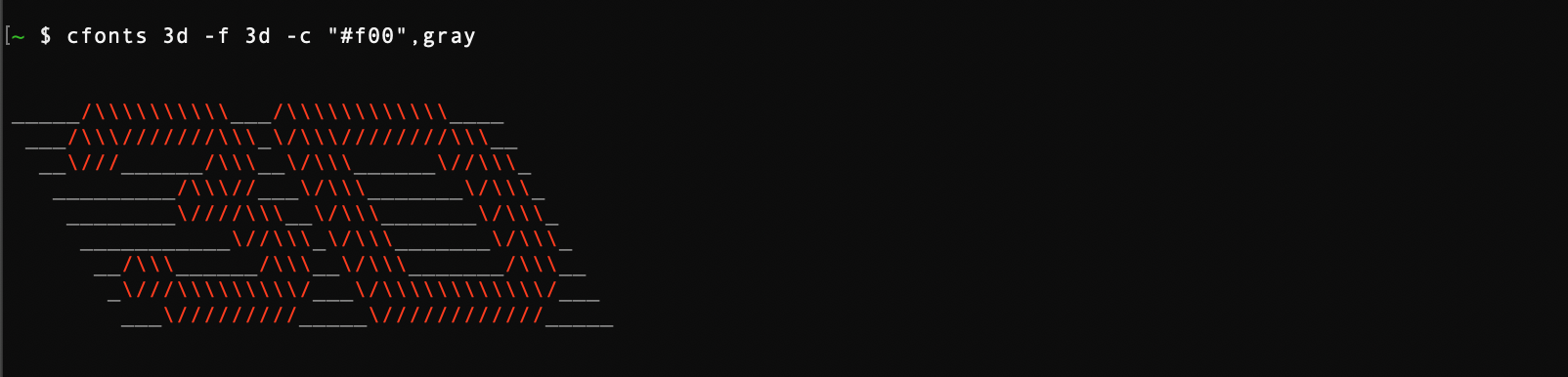
- `simple3d` [colors: 1]
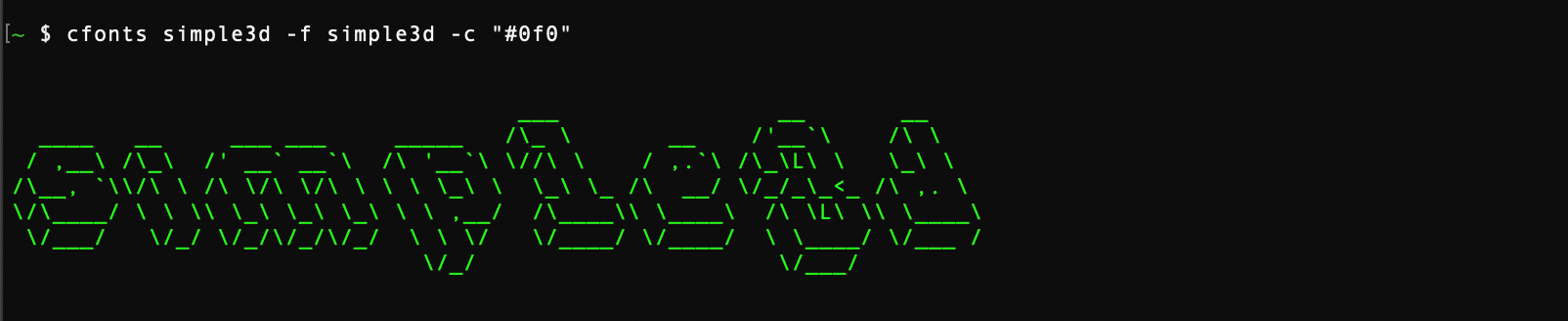
- `huge` [colors: 2]
- `console` [colors: 1]

#### -a, --align
Type: `<string>`
Default value: `"left"`
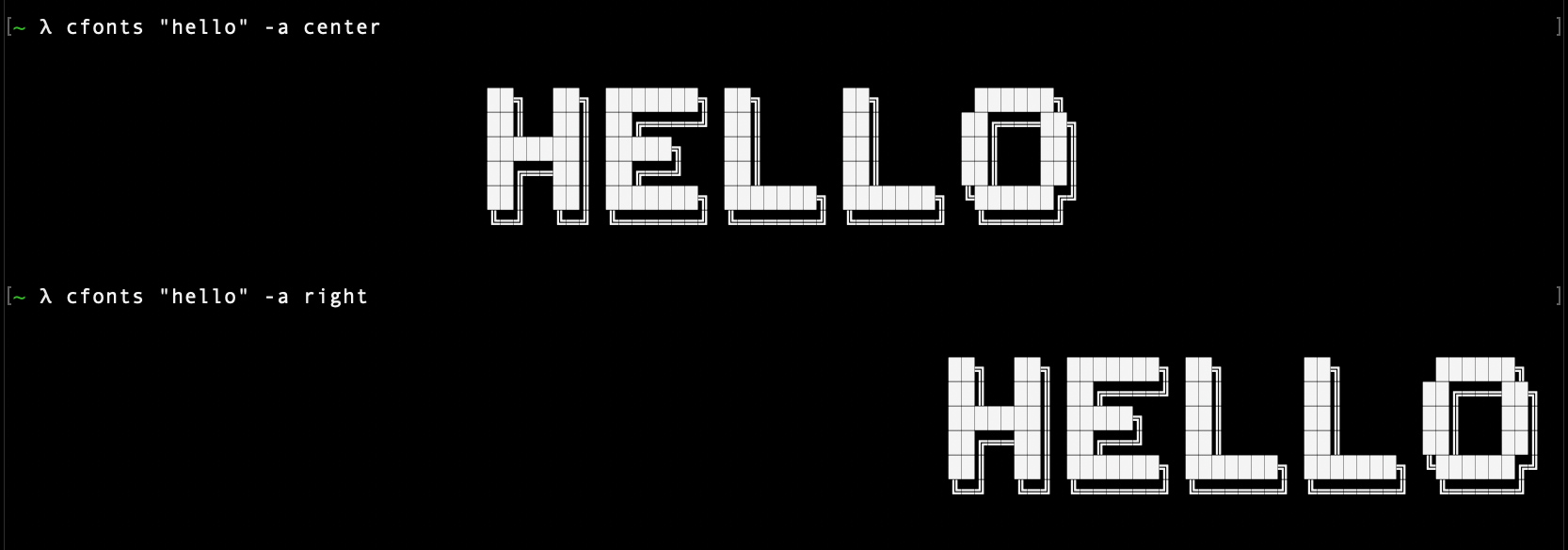
You can align your text in the terminal with this option. Use the keywords below:
- `left` _(default)_
- `center`
- `right`
- `top` _(Will be ignored if used with the spaceless option)_
- `bottom` _(Will be ignored if used with the spaceless option)_
```sh
$ cfonts "text" --align "center"
```
#### -c, --colors
Type: `<string list>`
Default value: `['system']`
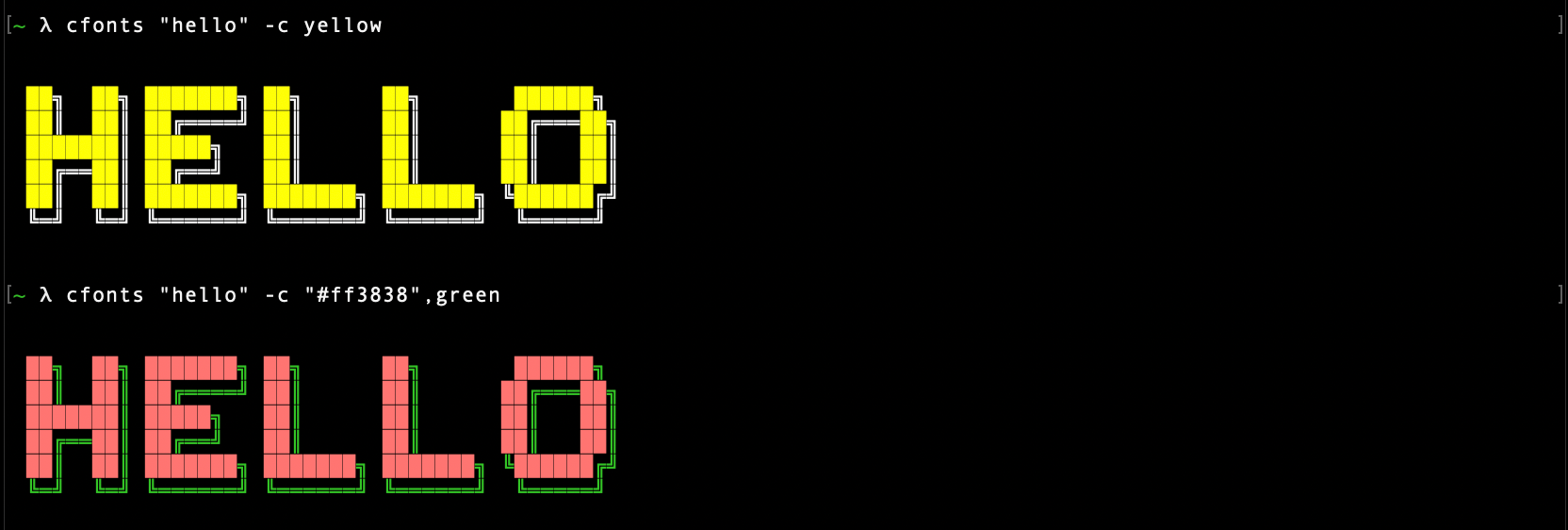
With this setting you can set the colors for your font.
Use the below color strings or a hex color.
Provide colors in a comma-separated string, eg: `red,blue`. _(no spaces)_
If you use a hex color make sure you include the `#` prefix. _(In most terminals wrap the hex in quotes)_
The `system` color falls back to the system color of your terminal.
💡 There are [environment variables](#consistency) that can affect the display of colors in your terminal.
- `system` _(default)_
- `black`
- `red`
- `green`
- `yellow`
- `blue`
- `magenta`
- `cyan`
- `white`
- `gray`
- `redBright`
- `greenBright`
- `yellowBright`
- `blueBright`
- `magentaBright`
- `cyanBright`
- `whiteBright`
- `#ff8800` _(any valid hex color)_
- `#f80` _(short form is supported as well)_
```sh
$ cfonts "text" --colors white,"#f80"
```
#### -g, --gradient
Type: `<string list>`
Default value: `false`
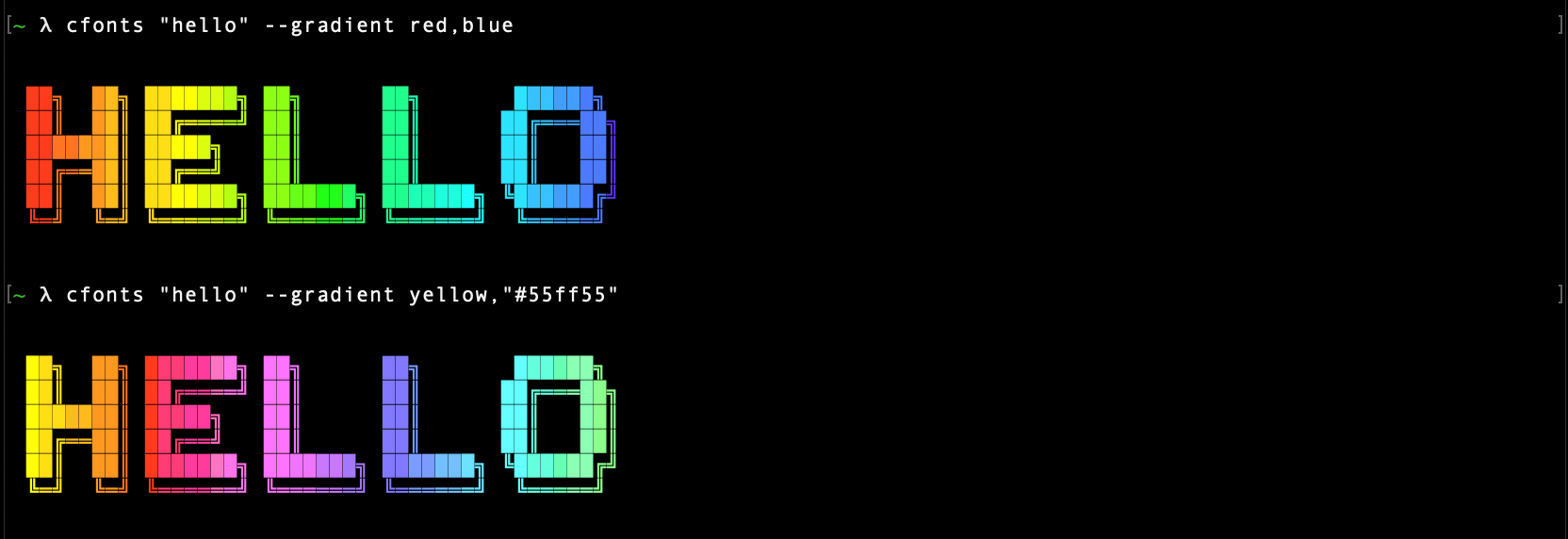
With this setting you can set a gradient over your output.
This setting supersedes the color open.
The gradient requires two colors, a start color and an end color from left to right.
_(If you want to set your own colors for the gradient, use the [transition](#-t---transition-gradient) option.)_
`cfonts` will then generate a gradient through as many colors as it can find to make the output most impressive.
Provide two colors in a comma-separated string, eg: `red,blue`. _(no spaces)_
If you use a hex color make sure you include the `#` prefix. _(In the terminal wrap the hex in quotes)_
- `black`
- `red`
- `green`
- `yellow`
- `blue`
- `magenta`
- `cyan`
- `white`
- `gray`
- `grey`
- `#ff8800` _(any valid hex color)_
- `#f80` _(short form is supported as well)_
```sh
$ cfonts "text" --gradient red,"#f80"
```
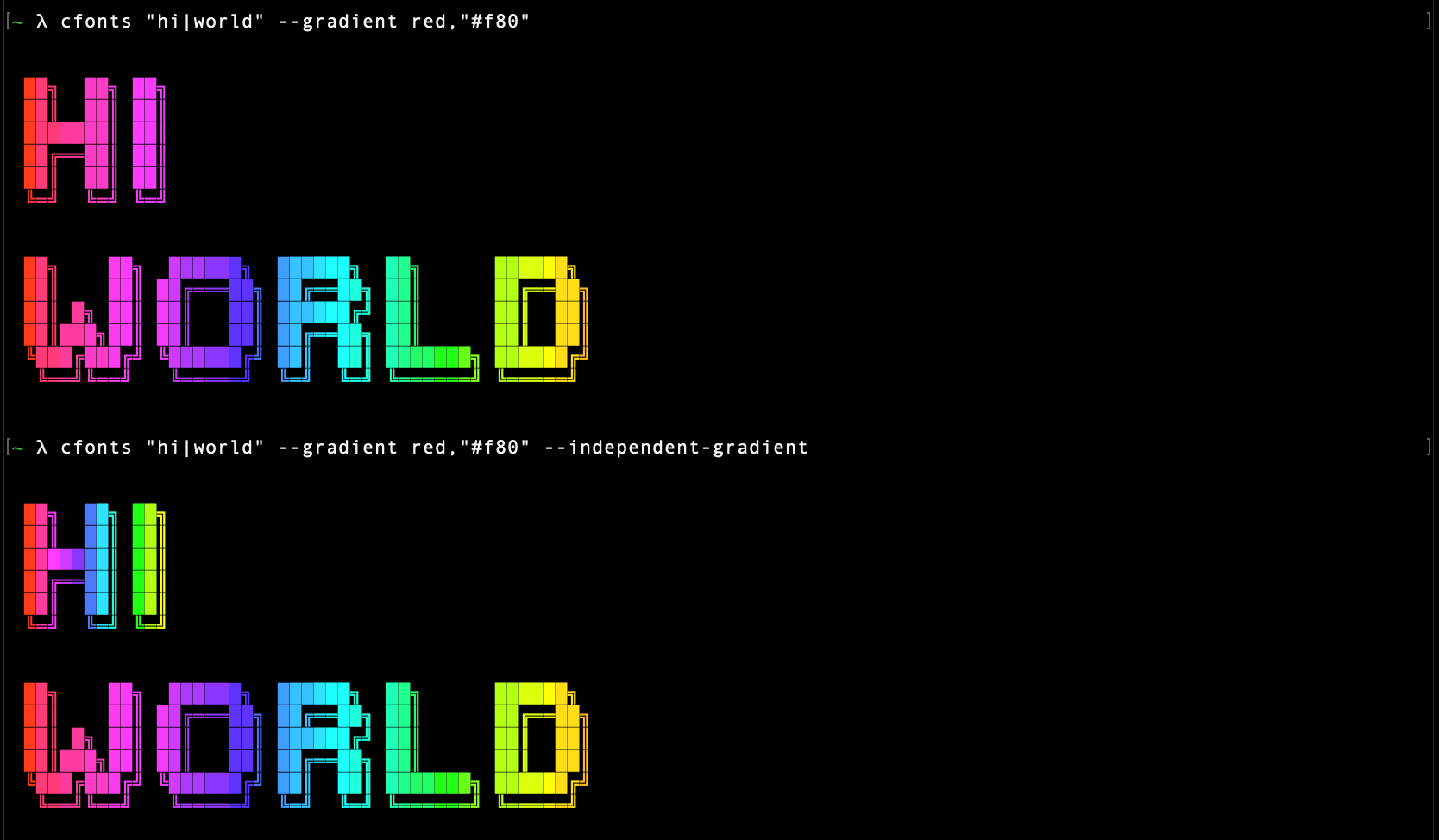
#### -i, --independent-gradient
Type: `<boolean>`
Default value: `false`
Set this option to re-calculate the gradient colors for each new line.
Only works in combination with the [gradient](#-g---gradient) option.
```sh
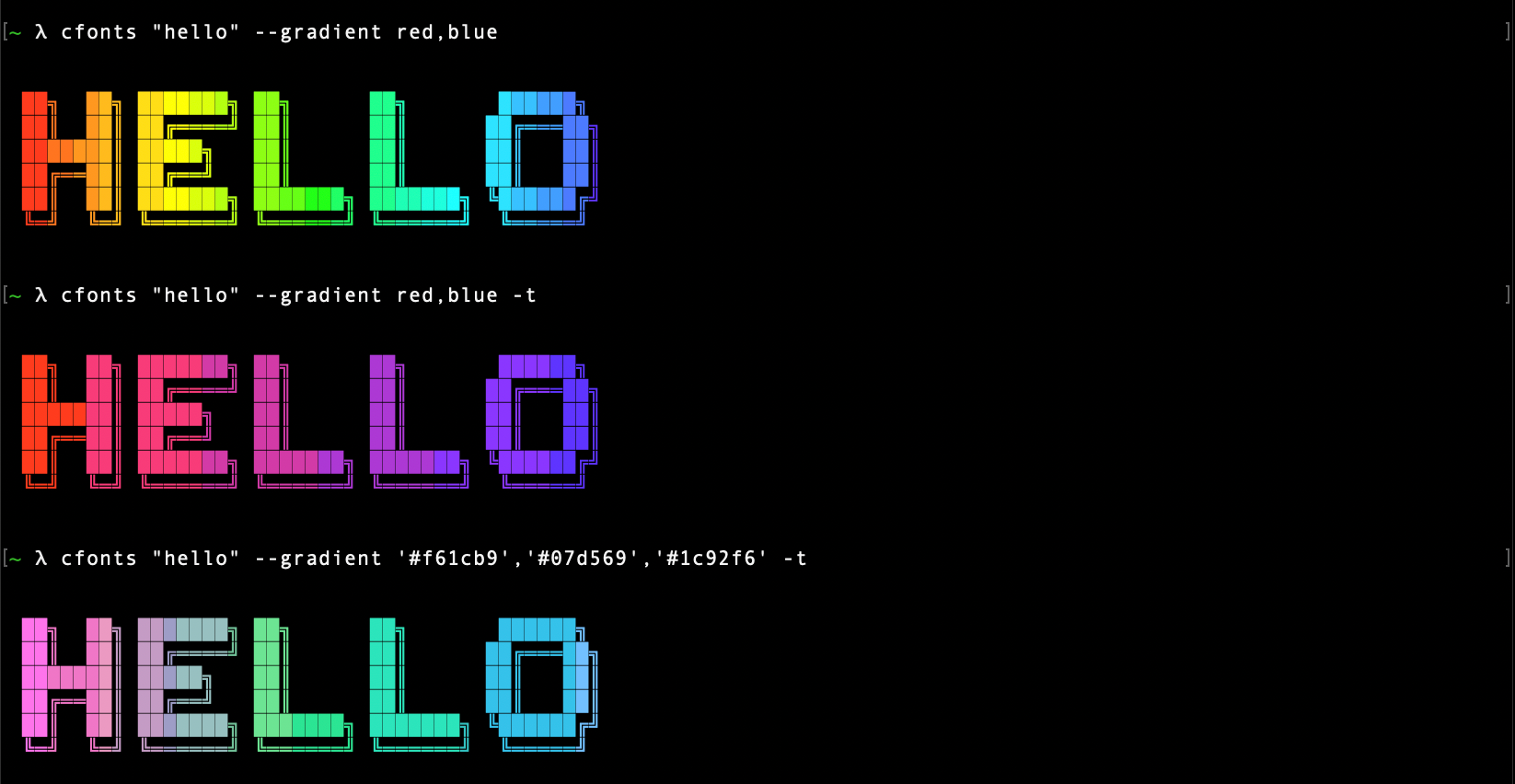
#### -t, --transition-gradient
Type: `<boolean>`
Default value: `false`
Set this option to generate your own gradients.
Each color set in the gradient option will then be transitioned to directly.
This option allows you to specify more than just two colors for your gradient.
Only works in combination with the [gradient](#-g---gradient) option.
```sh
$ cfonts "text" --gradient red,"#f80",green,blue --transition-gradient
```
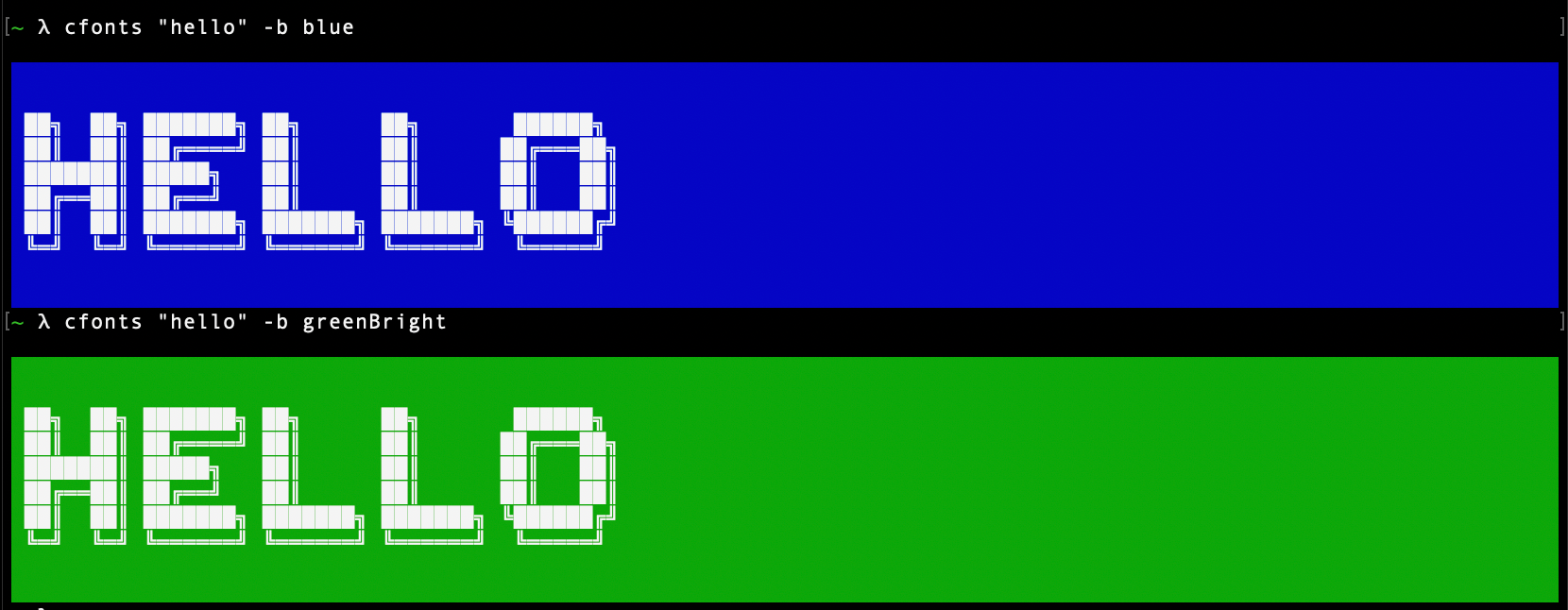
#### -b, --background
Type: `<string>`
Default value: `"transparent"`
With this setting you can set the background colors for the output. Use the below color strings.
Provide the background color from the below supported list, eg: 'white'
- `transparent` _(default)_
- `black`
- `red`
- `green`
- `yellow`
- `blue`
- `magenta`
- `cyan`
- `white`
- `blackBright`
- `redBright`
- `greenBright`
- `yellowBright`
- `blueBright`
- `magentaBright`
- `cyanBright`
- `whiteBright`
- `#ff8800` _(any valid hex color)_
- `#f80` _(short form is supported as well)_
```sh
$ cfonts "text" --background "Green"
```
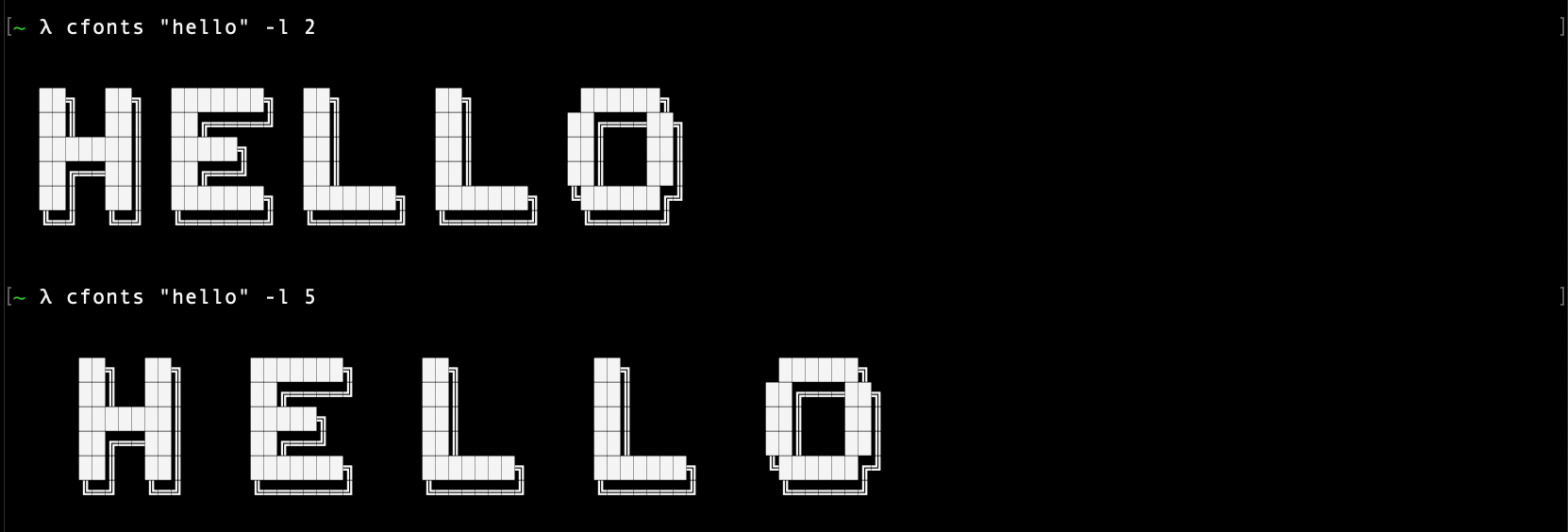
#### -l, --letter-spacing
Type: `<integer>`
Default value: `1`
Set this option to widen the space between characters.
```sh
$ cfonts "text" --letter-spacing 2
```
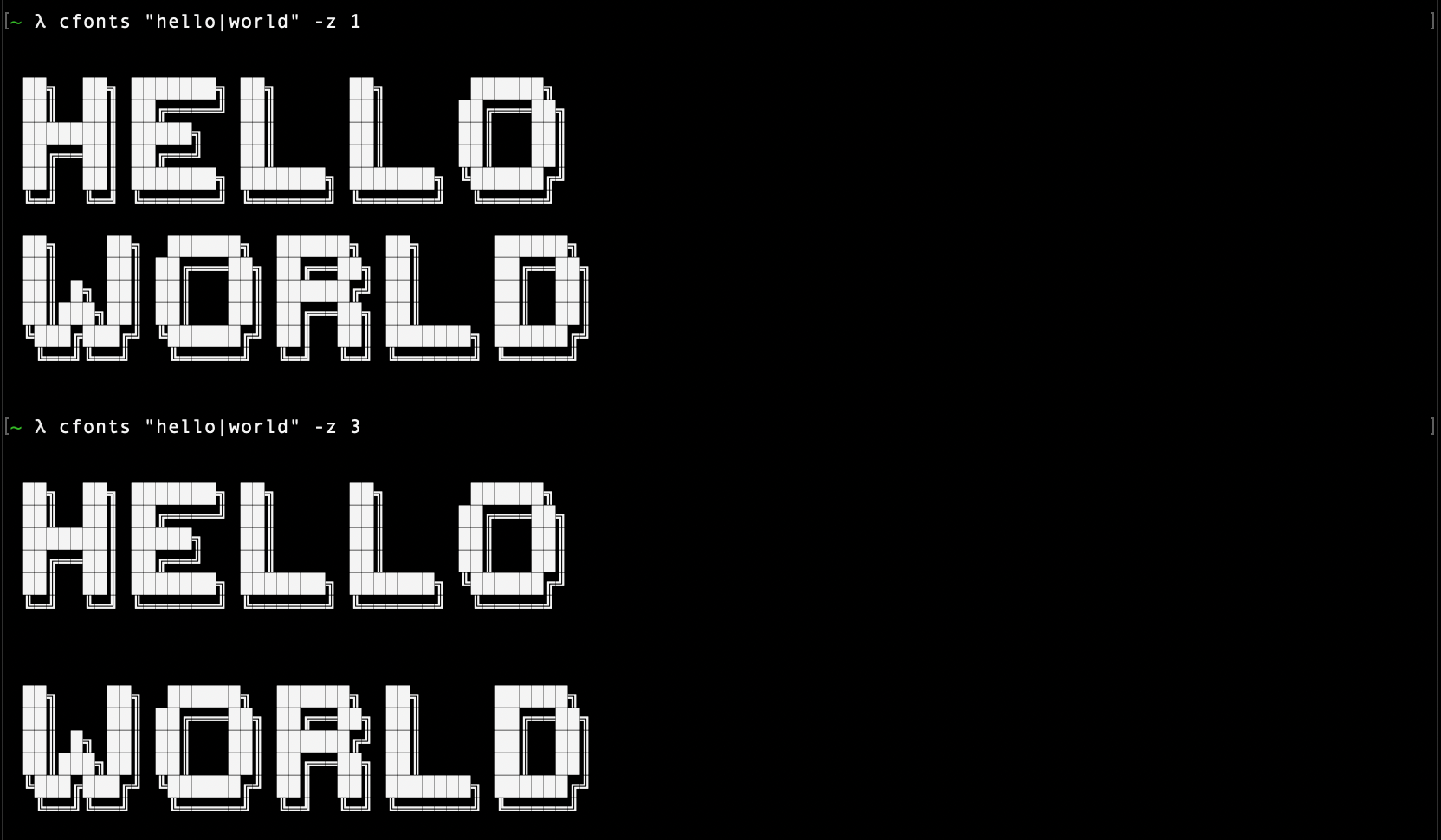
#### -z, --line-height
Type: `<integer>`
Default value: `1`
Set this option to widen the space between lines.
```sh
$ cfonts "text" --line-height 2
```
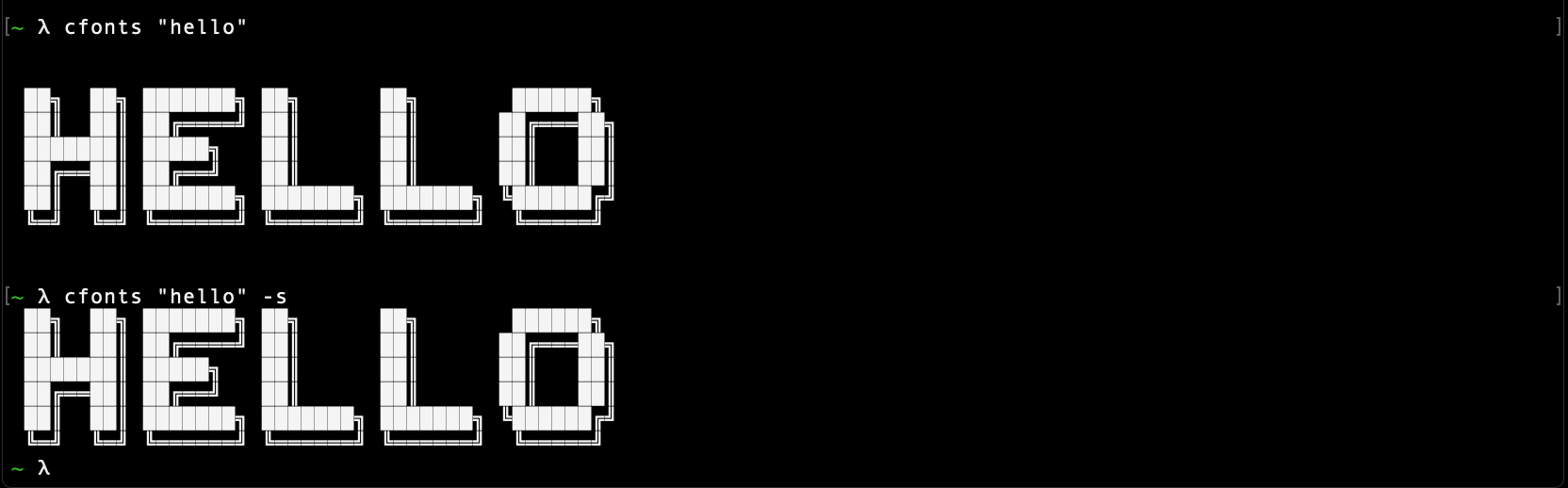
#### -s, --spaceless
Type: `<boolean>`
Default value: `false`
Set this option to false if you don't want the plugin to insert two empty lines on top and on the bottom of the output.
```sh
$ cfonts "text" --spaceless
```
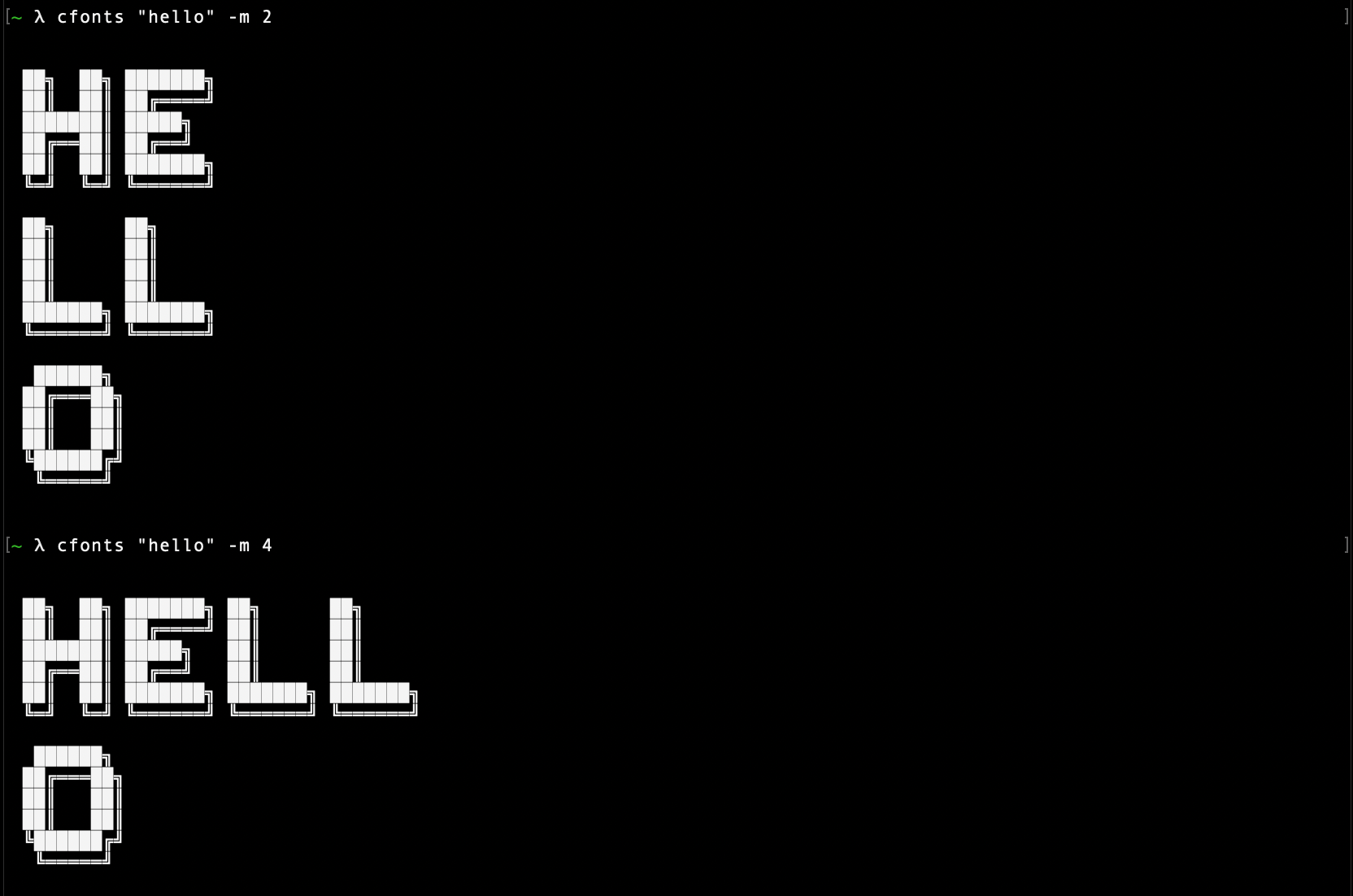
#### -m, --max-length
Type: `<integer>`
Default value: `0`
This option sets the maximum characters that will be printed on one line.
`cfonts` detects the size of your terminal but you can opt out and determine your own max width.
`0` means no max width and the text will break at the edge of the terminal window.
```sh
$ cfonts "text" --max-length 15
```
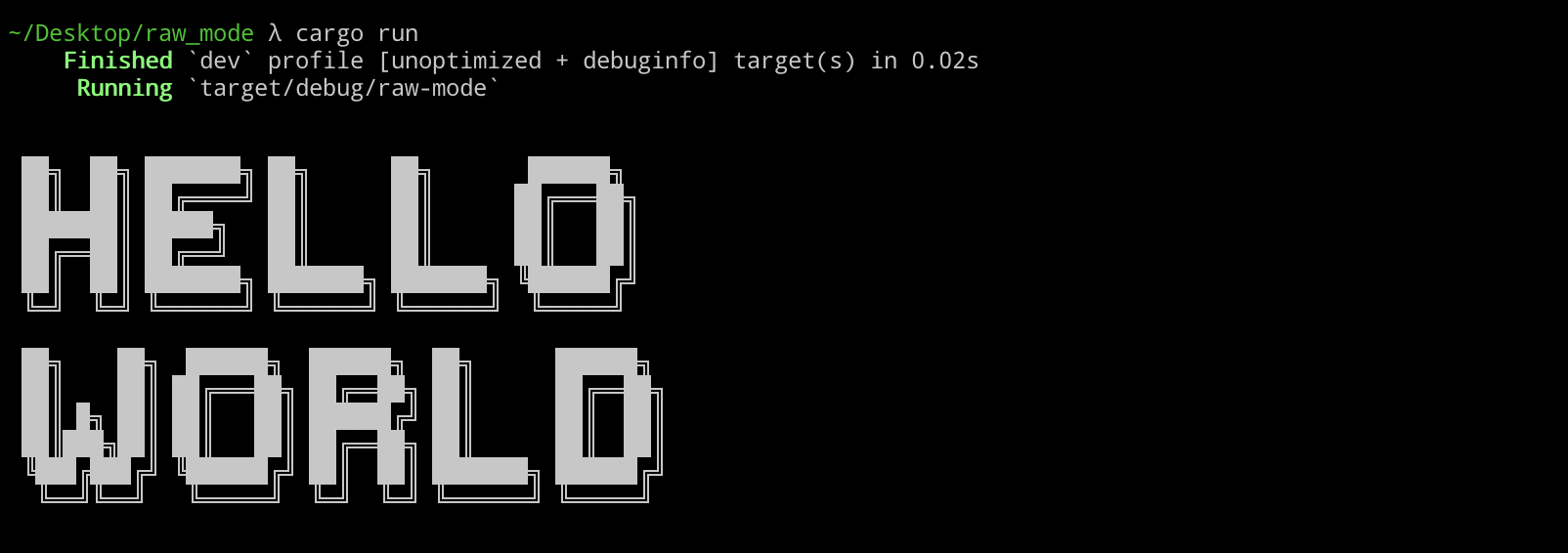
#### -r, --raw-mode
Type: `<boolean>`
Default value: `false`
Set this option to make sure `cfonts` used `CRLF` (`\r\n`) over the default `LF` (`\n`) [line breaks](https://en.wikipedia.org/wiki/Newline).
This could be useful for terminal raw modes or on older windows machines.
```rust
use crossterm::terminal;
use std::io::Write;
use cfonts;
fn main() -> std::io::Result<()> {
terminal::enable_raw_mode()?;
cfonts::say(cfonts::Options {
text: String::from("Hello|world"),
raw_mode: true,
..cfonts::Options::default()
});
std::io::stdout().flush()?;
terminal::disable_raw_mode()?;
Ok(())
}
```
#### -e, --env
Type: `<string>`
Default value: `cli`
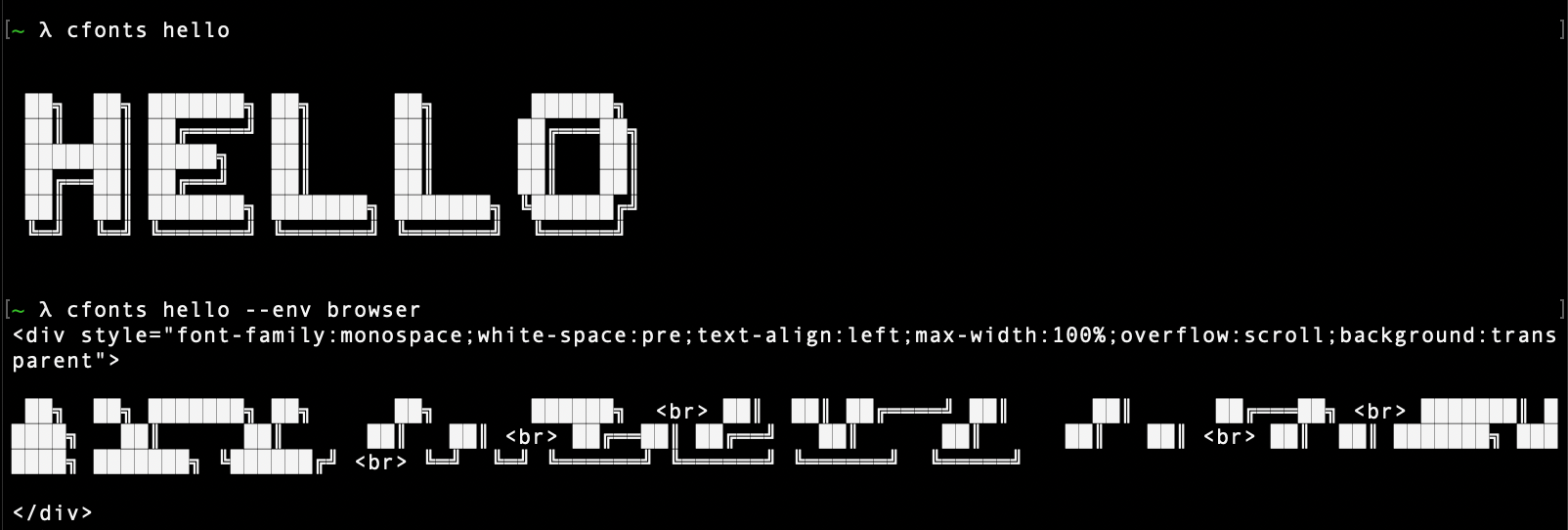
This option lets you use `cfonts` to generate HTML instead of ANSI code.
Note that `max-length` will be set to very large.
```sh
$ cfonts "text" --env browser
```
## Consistency
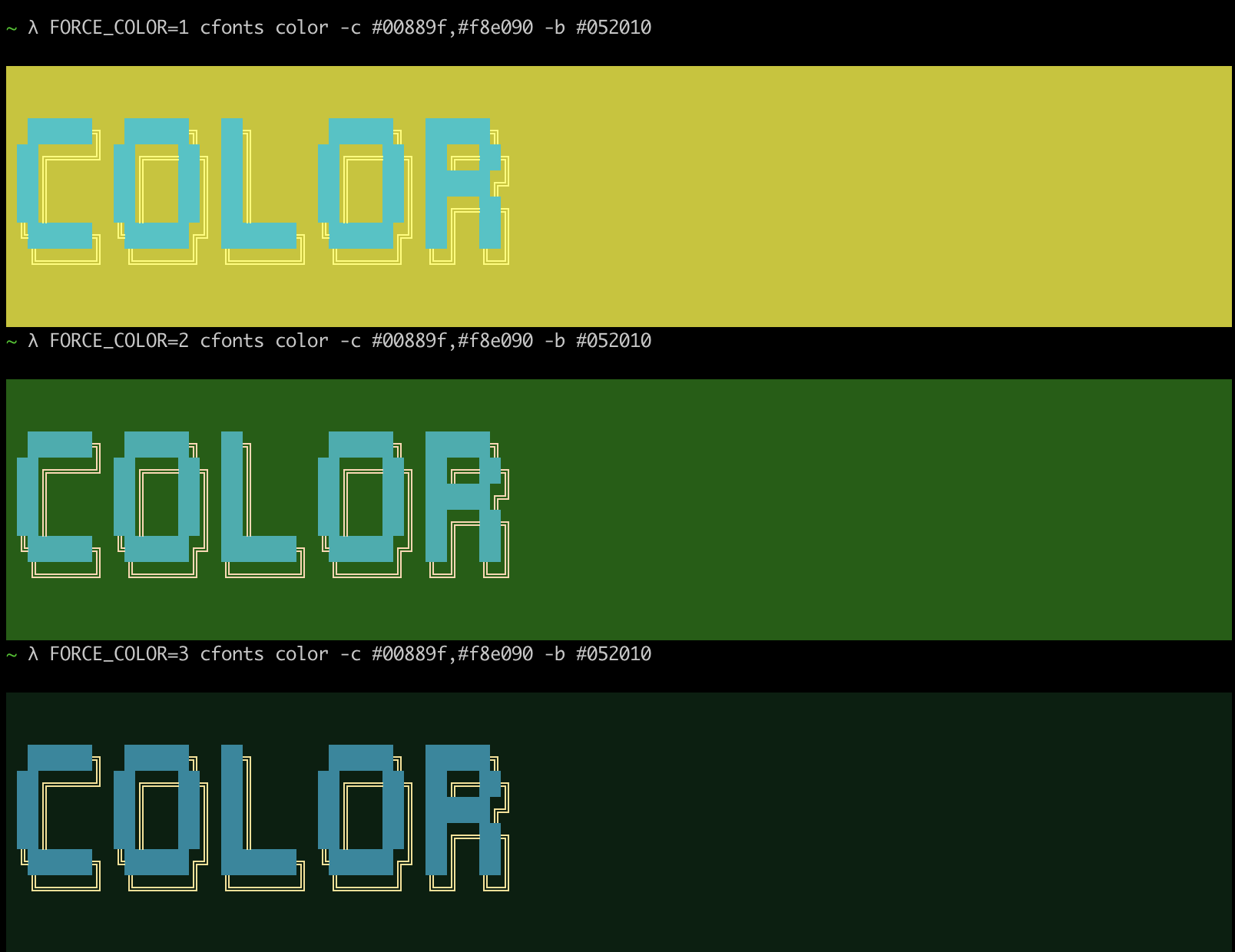
`cfonts` detects what colors are supported on your platform.
It sets a level of support automatically.
In `cfonts` you can override this by passing in the `FORCE_COLOR` environment variable.
```sh
FORCE_COLOR=3 cfonts "hello world" -c "#0088ff"
```
You can also use the `NO_COLOR` environment variable to set no color output for environments like CI.
```sh
NO_COLOR="" cfonts "hello world" -c "#0088ff"
```
💡 `FORCE_COLOR` overrides `NO_COLOR` if both are set.
## License
Copyleft (c) Dominik Wilkowski.
Licensed under the [GNU GPL-3.0-or-later](https://github.com/dominikwilkowski/cfonts/blob/released/LICENSE).