
A simple [Nostr](https://nostr.how) client with a [gemini](https://geminiprotocol.net) interface.
The beauty of the Nostr protocol combined with the simplicity of Gemini.
- UI Internationalization (i18n): English, French, Spanish, Japanese
- Remote signer (bunker)
- Encrypted private messages (NIP-17)
- Polls
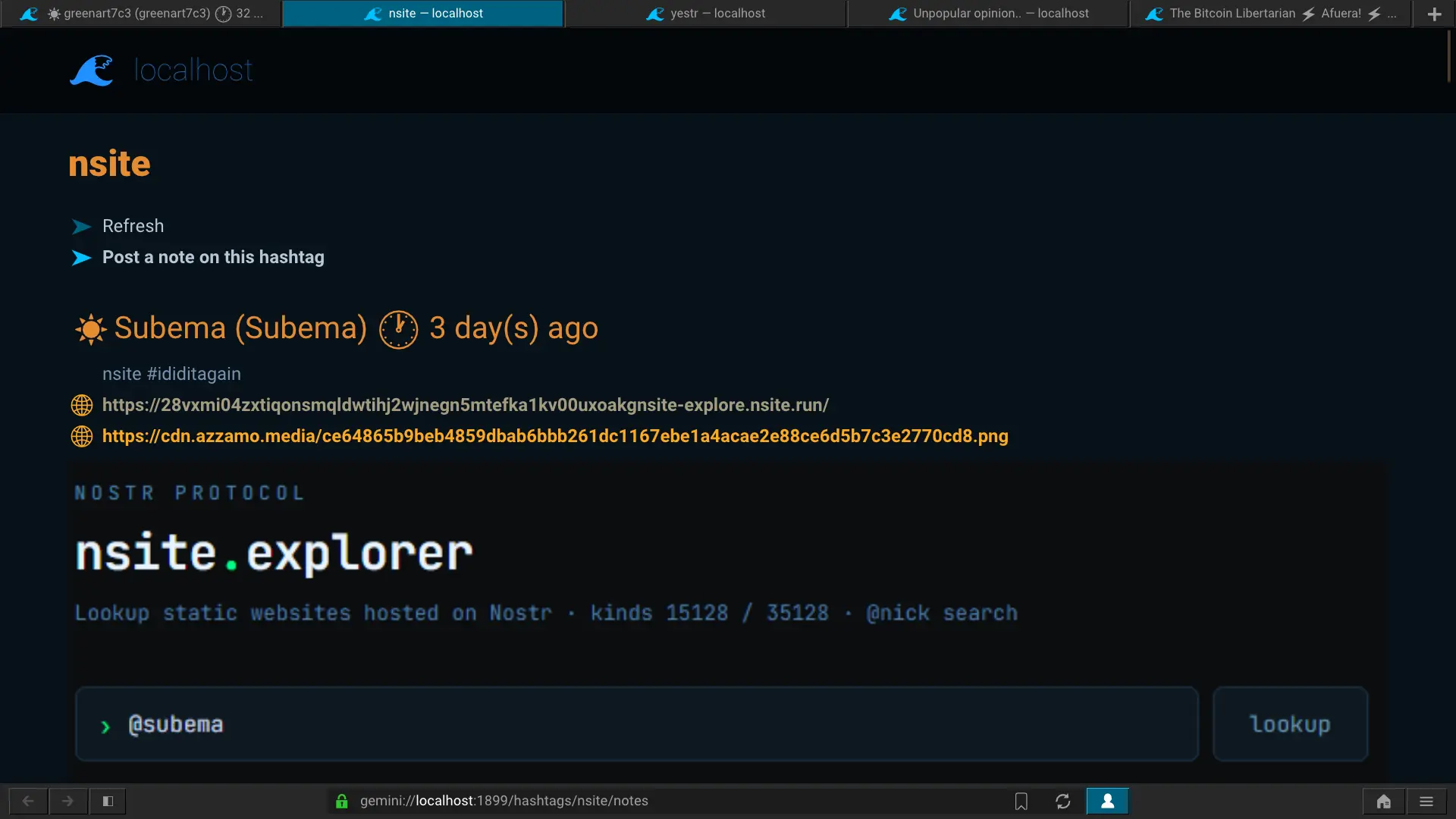
- [Nsite](https://nsite.run) browser
- Note drafts with Titan. Upload files and include them in your notes.
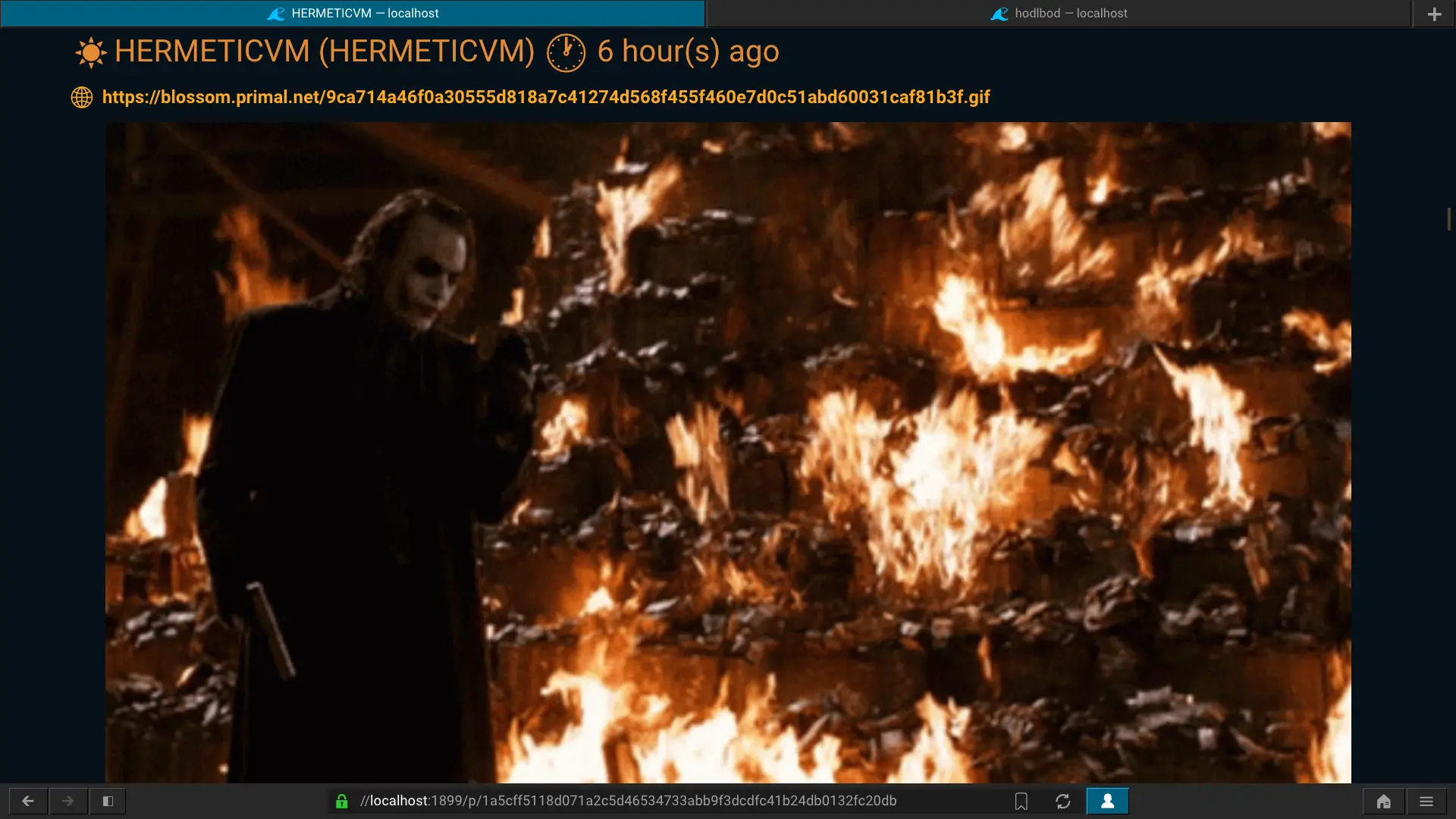
- Displays images attached to notes over Gemini
- Long-form notes rendering (markdown => gemtext)
- Supports file uploads to blossom servers ([Titan](https://communitywiki.org/wiki/Titan) => [Blossom](https://github.com/hzrd149/blossom))
*caracal* is written in Rust and uses the [rust-nostr](https://rust-nostr.org) SDK. Use the
[Matrix room](https://matrix.to/#/#caracal:matrix.org) for help and discussions, or the
[BBS subspace](gemini://bbs.geminispace.org/s/caracal) on the Gemini BBS.



## Install
[](https://gitlab.com/cipres/caracal/-/releases/continuous-master/downloads/caracal-x86_64.AppImage)
### Cargo
```sh
cargo install caracal
```
Run it:
```sh
caracal
```
Then go to [gemini://localhost](gemini://localhost) in your Gemini browser.
If needed, you can change the listen port (which is 1965 by default) using the -p option.
```sh
caracal -p 1995
```
### GitLab
You can download the latest binary release for Linux (x64)
[here](https://gitlab.com/cipres/caracal/-/releases/continuous-master/downloads/caracal).
```sh
curl -L -o ~/.local/bin/caracal https://gitlab.com/cipres/caracal/-/releases/continuous-master/downloads/caracal
chmod +x ~/.local/bin/caracal
```
### AppImage
[](https://gitlab.com/cipres/caracal/-/releases/continuous-master/downloads/caracal-x86_64.AppImage)
This AppImage is based on the [Lagrange](https://gmi.skyjake.fi/lagrange/) browser (v1.18.4). It bundles and runs caracal for you, making it the easiest way to get started if you use Linux.
It runs caracal on port 1985 to avoid conflicts.
[Download the AppImage](https://gitlab.com/cipres/caracal/-/releases/continuous-master/downloads/caracal-x86_64.AppImage).
```sh
curl -L -o caracal-x86_64.AppImage https://gitlab.com/cipres/caracal/-/releases/continuous-master/downloads/caracal-x86_64.AppImage
chmod +x ./caracal-x86_64.AppImage
./caracal-x86_64.AppImage
```
## Usage
To use *caracal*, you'll need to use a Gemini browser like
[Lagrange](https://gmi.skyjake.fi/lagrange/).
Start *caracal*, open Lagrange and go to [gemini://localhost](gemini://localhost).
You should see a page telling you that you need to use a X509 Gemini certificate.
From Lagrange, create an identity by selecting
*New identity for domain* in the identities controller menu (top-right corner).
Lagrange will then always use this certificate to access caracal.
*caracal* maps your Gemini identity to your Nostr identity, therefore you can
have multiple Nostr identities by creating different Gemini certificates and
switching between them.
### Remote signer (Nostr Connect)
If you want to use a remote signer (bunker), create an identity in Lagrange
(*New identity for domain*), click on *More*, and set the *Organization*
field's value to **nostr**. After creating the identity, activate it and you will
be prompted for the *Nostr Bunker URI*. Copy-paste your bunker URI and send it.
You should now be connected to the remote signer.
### Web content
caracal is able to serve content from web URLs contained in Nostr notes over Gemini,
therefore images and videos from notes will be displayed in the Gemini browser.
If you use Lagrange, you can activate automatic loading of images as you scroll
by activating the "Load next image on scroll key" setting in the "Behavior"
section of the preferences ("File menu" => "Preferences").
### Drafts
*caracal* supports writing and editing note drafts using the
[titan](https://communitywiki.org/wiki/Titan) protocol. Click on *New draft*
in the homepage and you should get a Titan dialog window from Lagrange. Be sure
to select the correct identity.
Once you've uploaded your draft, you can edit it by just pressing *Ctrl+e*.
You can attach files to your note by clicking on *Upload file* in the note.
Files are uploaded to a Blossom server.
Just click on *Post note* when you're ready to send it.
## Contributors
- [knshow](gemini://bbs.geminispace.org/u/knshow): Testing, Japanese translation
## Donations
Monero: 46CAwqF4zwjL3Pe1oxtr2AGbmzLFY4rp6eAGkiDbAfYnYCAx8C47dex2XGb6VqXDUoYEZmemLzKxT1wkjFU6ebk23DensvR