
calcli



A fast terminal calculator (TUI) with an editable history, stored variables and a few helpers engineers reach for. Built with Ratatui.
Type an expression, press Enter, keep going. The previous result is available as ans, every line stays in an editable history (editing a line recomputes everything below it), and results keep full f64 precision internally even when the display is rounded.
Features
- History with recompute – each entry shows the input with its result on the line below (both soft-wrap long content). Edit any earlier line and every line below is re-evaluated, so
anschains stay correct. - Full precision – the rounded value you see is only for display; further math always uses the exact internal value.
- Three views – Calc, Variables and Settings, switched with
Alt+1/Alt+2/Alt+3(the Calc view is a text field, so bare digits stay typeable). The active view is restored on the next start. - Variables – save with
=name(stores the last answer) orname = expr. Manage them in their own view: insert, copy, delete, reset all. Persisted. - Notation – cycle decimal / scientific / SI-prefixed (
F2); trailing fractional zeros are dropped by default (12, not12.000), toggle withF6or thetrim_trailing_zerosconfig key. - Angle mode – toggle degrees / radians for trig (
F3). - Lenient input – spaces,
_and the non-decimal one of./,are accepted as thousands separators; SI prefixes like3.3k,100uare expanded. Function arguments use;(e.g.max(1;2)). - Clipboard –
ycopies the plain, full-precision value (no grouping);Ycopies it as shown (rounded, grouped). - Growing input – long expressions soft-wrap and the input field grows (up to
input_max_lines);↑/↓move the caret across the wrapped lines,↑on the first line enters the history. - Syntax highlighting – functions, constants, operators (bold), numbers, defined variables, units, parentheses and
ansare coloured in the input, the history and while editing. Colours are configurable in the[highlight]table; unknown identifiers stay neutral. - Live feedback – as you type, the input border shows a dim
= valuepreview while the expression is valid and a subtle warning marker when it looks complete but won't parse (silent while still mid-typing). Toggle withlive_feedbackin the config. - Settings view – every display setting on one editable list (
←/→steps the focused value, applied live), including the theme and the glyph set. The function keys keep working from every view. - Shortcut hints – the footer lists the current view's keys, grouped, with a closing
Globalgroup.F1hides the whole band (the state is remembered);F12or?opens the scrollable, fuzzy-filtered help overlay. - Persistence – settings, variables, history and the interface state (active view, theme, glyphs, hint visibility) are saved on exit and restored next time (settings restore is configurable). Writes are atomic, and a
state.tomlfrom any older calcli still loads.
Install
calcli builds on Rust 1.88 or newer (MSRV).
From crates.io:
Or from a local checkout:
Or run without installing:
Command line
calcli has exactly one job and therefore no subcommands: called without arguments it opens the calculator.
Usage: calcli [OPTIONS]

Options:
      --demo         Fills the session with sample data and leaves the saved state alone
  -h, --help         Shows this help and exits
  -V, --version      Shows the version and exits
--demo fills the session with sample data (history, variables, unit conversions) for a quick tour and never writes to your saved session:
Exit codes follow the usual convention: 0 on success, 1 on a runtime error, 2 on a usage error (an unknown option). Errors go to stderr as calcli: error: ….
Keys
Every key below is rebindable under [keys] in the config, with three exceptions: Ctrl+Q and F1 belong to the toolkit, and the clipboard chords Ctrl+C / Ctrl+X / Ctrl+V belong to the text editor rather than to the action catalog. The footer and the help overlay (F12 or ?) are both generated from that catalog, so they can never disagree with each other – and a test holds this table to it.
Global
Available everywhere. The function keys and Alt chords also work while typing, because they are not themselves expression characters.
AltGris the exception, and it types. A terminal reports it as Control+Alt, so the characters it produces –@,\,[,~on a German layout – would otherwise read as chords; they reach the input instead.
Alt+Nreaches the app only if your terminal sendsAltas a meta prefix. Ghostty, WezTerm, Alacritty and kitty do by default. In iTerm2 set Left Option key toEsc+; in macOS Terminal.app enable Use Option as Meta key. Otherwise rebindview_calc/view_variables/view_settingsunder[keys]–F4already reaches the Variables view unaided.
| Key | Action |
|---|---|
Alt+1 / Alt+2 / Alt+3 |
switch to Calc / Variables / Settings |
F4 |
switch to Variables |
F2 |
cycle notation (dec / sci / SI) |
F3 |
toggle angle mode (deg / rad) |
F5 |
toggle decimal separator (. / ,) |
F6 |
toggle trailing-zero trimming |
Ctrl+Y |
copy the last result (plain) |
Ctrl+R |
search the history and recall a line into the input |
Ctrl+P |
open the command palette (run any action by name) |
F12 / ? |
open the help overlay |
q |
quit (outside the input; use :q while typing) |
F1 |
show / hide the shortcut hints |
Ctrl+Q |
quit at once, from anywhere (a modal included) |
q and ? are ordinary characters while the input or an in-place edit has the keyboard, so they are typed rather than acted on. Use :q to quit from there.
With confirm_quit = true the soft quit (q, :q) asks first; Ctrl+Q never asks. Both save the session on the way out.
Calc – typing
| Key | Action |
|---|---|
Enter |
evaluate the expression |
↑ / PgUp |
enter the history (↑ only from the first wrapped line) |
Esc |
clear the input |
Ctrl+C / X / V |
copy / cut / paste in the input |
Typing an identifier opens a suggestion dropdown of matching variables, built-in functions and constants. ↑ / ↓ pick a suggestion, Enter / Tab / → accept it, and Esc closes the dropdown. While it is open ↑ steers it rather than the history, so use PgUp to browse the history from there.
Calc – browsing the history (after ↑)
| Key | Action |
|---|---|
↑ ↓ / PgUp PgDn / Home End |
move the selection |
Alt+↑ / Alt+↓ |
move the selected line up / down (recomputes) |
o / O |
insert a line below / above and edit it |
Enter / e |
edit the selected line (recomputes below) |
d / Del |
delete the selected line (asks first) |
D |
clear the whole history (asks first) |
y |
copy the value (plain, full precision) |
Y |
copy the value (as shown, grouped) |
Esc |
back to the input |
Reordering, inserting and deleting all re-evaluate the affected lines, so ans and variable assignments stay consistent with the new order.
Calc – editing a line in place
| Key | Action |
|---|---|
Enter |
apply the edit |
Esc |
cancel (a freshly inserted line is removed) |
Switching views is locked while a line is being edited; the tab bar dims to say so. Finish or cancel the edit first.
Variables (Alt+2 or F4)
| Key | Action |
|---|---|
↑ ↓ |
select (cyclic) |
PgUp PgDn |
move by one screenful (clamped) |
Home End |
jump to the first / last variable |
Enter |
insert the name into the input and return to Calc |
y / Y |
copy the value (plain / as shown) |
d / Del |
delete the variable |
R |
reset all variables (asks first) |
Esc |
back to Calc |
Settings (Alt+3)
| Key | Action |
|---|---|
↑ ↓ |
select a setting (cyclic) |
PgUp PgDn |
move by one screenful (clamped) |
Home End |
jump to the first / last setting |
← / → or Enter |
step the focused value (applied live) |
Esc |
back to Calc |
Notation, decimals, angle mode, trailing zeros, the decimal and thousands marks, the glyph set and the theme. The theme and glyph choice are persisted.
Typed commands (in the input)
:d[n], :s[n], :si[n] set notation (and optional decimals); :deg / :rad set the angle mode; :clear clears the history (asks first); :q quits.
Expressions
Backed by meval: + - * / ^ (and ** for power), parentheses, constants pi, e, and functions such as sqrt, exp, ln, abs, sin, cos, tan, asin, acos, atan, sinh/cosh/tanh, floor, ceil, round, min, max, atan2. Trig respects the angle mode.
ans– the previous result. A line starting with an operator (e.g.+5) continues from it automatically.=name– save the previous answer toname.name = expr– evaluate and store.ans,piandeare reserved.- SI prefixes on numbers:
k M G T m µ u n p(e.g.4.7k→4700). - Units, conversion & arithmetic: write a quantity as
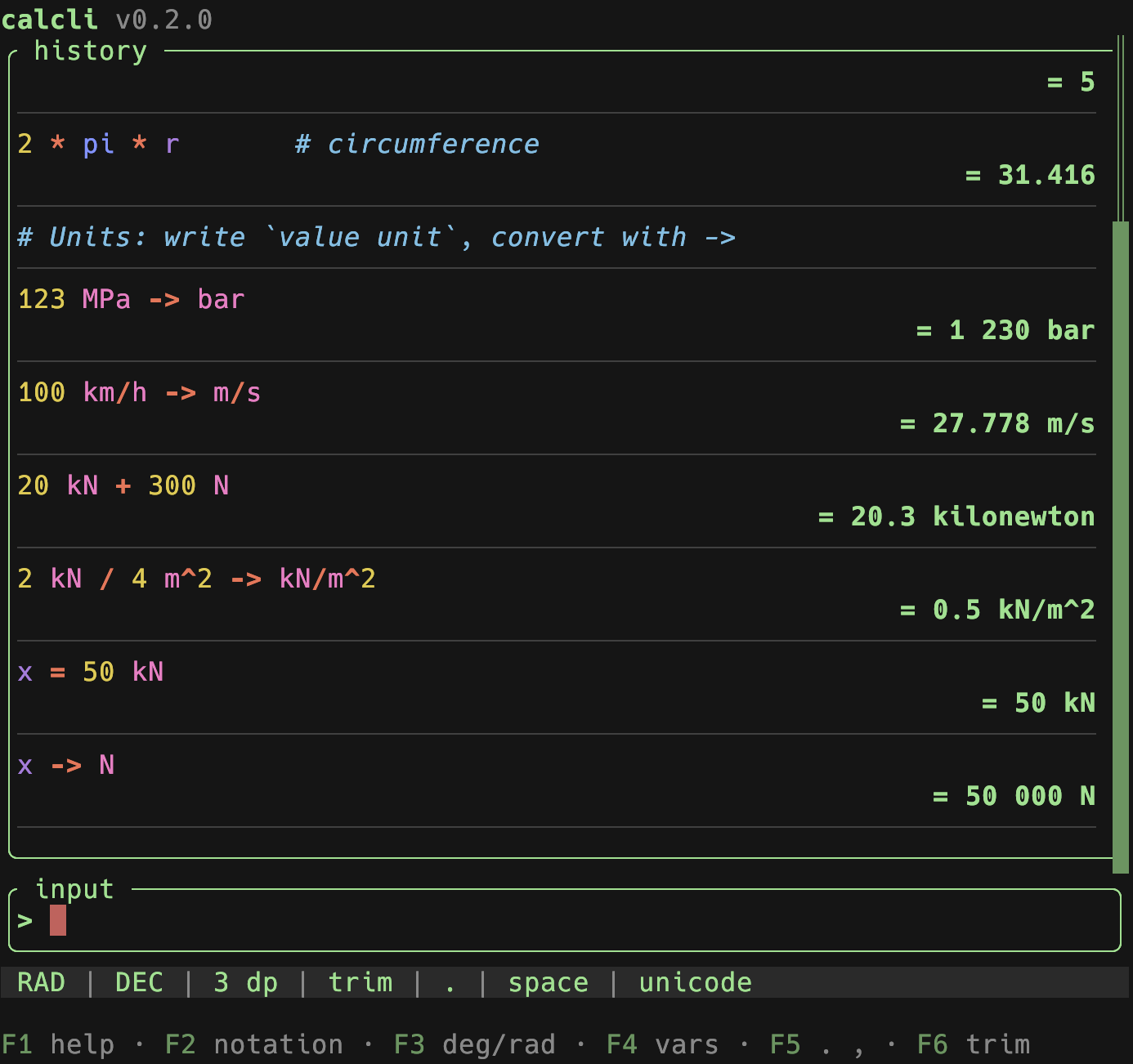
value unit(space-separated, e.g.123 MPa) and convert with->(orto):123 MPa -> bar,1 l -> dm^3,100 km/h -> m/s,ans -> psi,x = 50 kNthenx -> N. You can also calculate with units –20 kN + 300 N→20.3 kN,1 m + 50 cm→1.5 m,1 m * 2 m→2 m^2,2 kN / 4 m^2 -> kN/m^2→0.5 kN/m^2.ansand variables keep their unit. Units are powered byrink-core; a conversion is shown in the unit you typed, a derived result in a sensible symbol (pin any other unit with->). Exponents use^(cm^3,m^2). - Comments: everything after
#is ignored by the calculation but kept in the history (e.g.2*pi*r # circumference). A line that is only a comment is kept as a note (no result); notes don't break theanschain.
Configuration
calcli reads config.toml from $XDG_CONFIG_HOME/calcli/ (or ~/.config/calcli/). Every key is optional, and merging is per key rather than per section. See examples/config.toml for the full, commented list.
| Section | Holds |
|---|---|
| top level | notation, decimals, angle mode, separators, max history, the restore_last_settings / live_feedback / confirm_delete / confirm_quit switches and the history-list options |
[appearance] |
the theme name, the glyph set and per-colour palette overrides |
[highlight] |
the eight syntax-highlight token colours |
[themes.<name>] |
your own themes, selectable by name |
[keys] |
the key bound to each action |
Environment variables override the file for a single run: CALCLI_DECIMALS, CALCLI_DECIMAL_SEPARATOR, CALCLI_THEME, CALCLI_ACCENT, CALCLI_GLYPHS, CALCLI_CONFIRM_QUIT, CALCLI_CONFIRM_DELETE.
A config.toml written for calcli 0.2 (a flat [theme] table and a top-level glyphs key) still loads unchanged; its colours are mapped onto the sections above. The 0.2 shape is deprecated but supported.
The session (settings, variables, history and the interface state) is stored in state.toml under $XDG_STATE_HOME/calcli/ (or ~/.local/state/calcli/); see examples/state.toml. It is written atomically, and a state.toml from any earlier calcli still loads. History values are recomputed on load so the ans chain stays consistent with the active settings.
glyphs = "ascii"switches the warning marker and the toolkit's list markers to ASCII; borders and a few separators use broadly-compatible Unicode box-drawing and middle-dot glyphs.
Architecture
Layered, with the composition root in main.rs and dependencies pointing inward to domain:
domain/– pure core: evaluation (Evaluatortrait + meval), theunitsengine (rink), expression preprocessing, number formatting, variables, history (and its replay), and the domain error type.services/–CalcService: orchestration (submit / edit / delete + recompute, variables, settings). Also the error funnel: aStorageErroris converted here into a domain error, so nothing below names files or TOML.storage/–StateRepositoryport + an atomic TOML implementation.config/–Config, the appearance/highlight sections and the loader (defaults → TOML →CALCLI_*).keymap.rs– the action catalog and the scope rule: the single source for key dispatch, the footer hints, the help overlay and the[keys]config names. The chord grammar itself comes fromratada::keymap.tui/– the Ratatui front-end: a sharedappframe, one module per view, and anInteractionport so the key path is testable without a terminal.util/– atomic writes, paths, logging.
The terminal toolkit (widgets, theming, modals, the event loop, the chord grammar, the clipboard) comes from ratada, so calcli holds no copy of it. The one deliberate exception is tui/text_edit.rs: calcli syntax-highlights its input per character, and ratada's text widgets render plain text only. Even there the exception is the rendering – the key rules come from the toolkit.
Dimensionless math runs through the Evaluator trait (meval), keeping full f64 precision and the angle mode; anything involving units is routed to the domain::units wrapper around rink-core, which owns conversion and unit arithmetic.
Development
See docs/DEVELOPMENT.md for the project layout and CLAUDE.md for the coding standards this project follows.
When you change a shortcut, the footer and the help overlay follow the action catalog in src/keymap.rs automatically – but the key tables in this README and the [keys] block in examples/config.toml have to be updated by hand.
License
Licensed under the MIT License.