Tool for getting another perspective to the scene, also known as fly camera.
[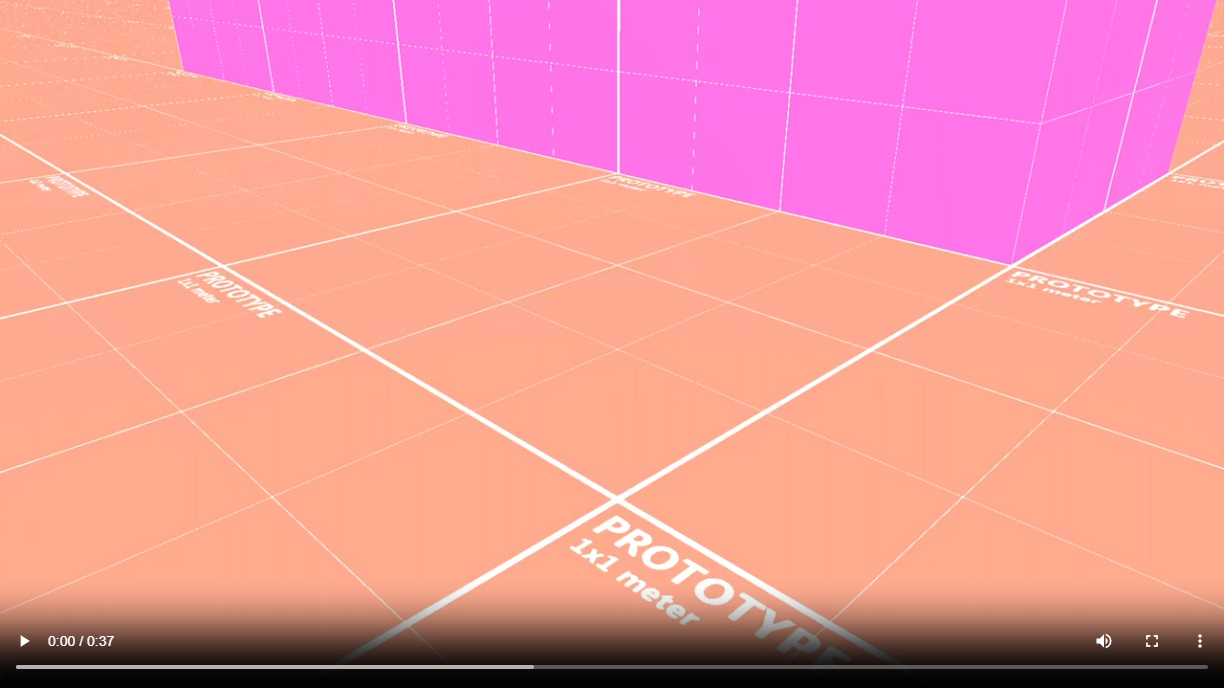](https://github.com/Vixenka/bevy_dev/assets/44348304/073d635c-3d58-4c36-8e01-8a8686f5060b)
Requires [`crate::ui::DebugUiPlugin`] if `ui` feature is enabled.
# Behavior
## Movement
To move debug camera use:
- `W` - move forward
- `S` - move backward
- `A` - move left
- `D` - move right
- `E` - move up
- `Q` - move down
Debug camera speed accelerates during flight, and can be multipled by mouse scrolling.
To rotate debug camera, user must move cursor in window.
> Debug camera movement is similar to another game engines like Unity or Unreal Engine.
Controls can be modified via [`crate::debug_camera::DebugCameraControls`].
## Management
When [`crate::debug_camera::DebugCameraPlugin::switcher`] is set to default or active, program will be listen to user input to allow him to manage of debug cameras.
### Switching
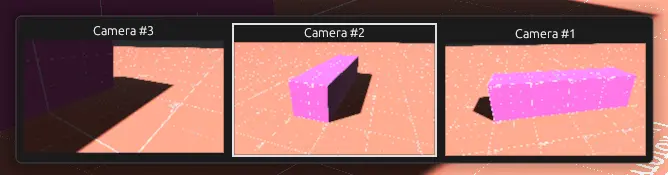
Pressing `ShiftLeft` + `Tab` select last used debug camera. Every next clicking `Tab` selecting next earlier and earlier debug camera, using wrapping. Switching is applied after release `ShiftLeft`.
> Switching works similar to `Alt` + `Tab` in Microsoft Windows.
If any debug camera not exist, this shortcut will create, and switch to one from transform of current used camera.
#### Feature `ui` enabled
Switching have their UI what visualize current state. Also if [`crate::debug_camera::DebugCameraPlugin::show_preview`] is active, every debug camera show their preview as rendered image.
> Preview is rendered only when `UI` is showed, and rendered in low resolution. Only one debug camera refresh their preview in one frame, what do not affect performance so much.
### Spawning new debug camera
`ShiftLeft` + `F1` create, and switch to new debug camera from transform of current used camera.
### Returning to game camera
`ShiftLeft` + `Escape` deactivate current use debug camera, and restore window to use previous game camera.
Controls can be modified via [`crate::debug_camera::DebugCameraControls`].
## Auto spawning
When[`crate::debug_camera::DebugCameraPlugin::spawn_debug_camera_if_any_camera_exist`] is active, then in every PostUpdate frame debug camera will be created, and used if any camera exists.