# Examples

## Basic Usage

### 1. Monitor with auto-detected interface

```bash
bandwidthmon
```

This will automatically select the network interface with the most traffic.

### 2. Monitor specific interface

```bash
# Ethernet
bandwidthmon -i eth0

# WiFi
bandwidthmon -i wlan0

# Loopback
bandwidthmon -i lo
```

### 3. List available interfaces

```bash
bandwidthmon -l
```

Output:
```
Available Network Interfaces:
────────────────────────────────────────────────────────────────────────────────
  eth0 (RX: 1234567890 bytes, TX: 987654321 bytes)
  wlan0 (RX: 5678901234 bytes, TX: 4321098765 bytes)
  lo (RX: 1000 bytes, TX: 1000 bytes)
```

## Chart Customization

### 4. Custom chart height

```bash
# Tall chart (20 lines)
bandwidthmon -H 20

# Short chart (5 lines)
bandwidthmon -H 5
```

### 5. Custom chart width

```bash
# Fixed width of 100 columns
bandwidthmon -W 100

# Auto-fit terminal width (default)
bandwidthmon -W 0
```

### 6. Combined size settings

```bash
bandwidthmon -H 15 -W 80
```

## Display Modes

### 7. Show only download

```bash
bandwidthmon -d
```

Output:
```
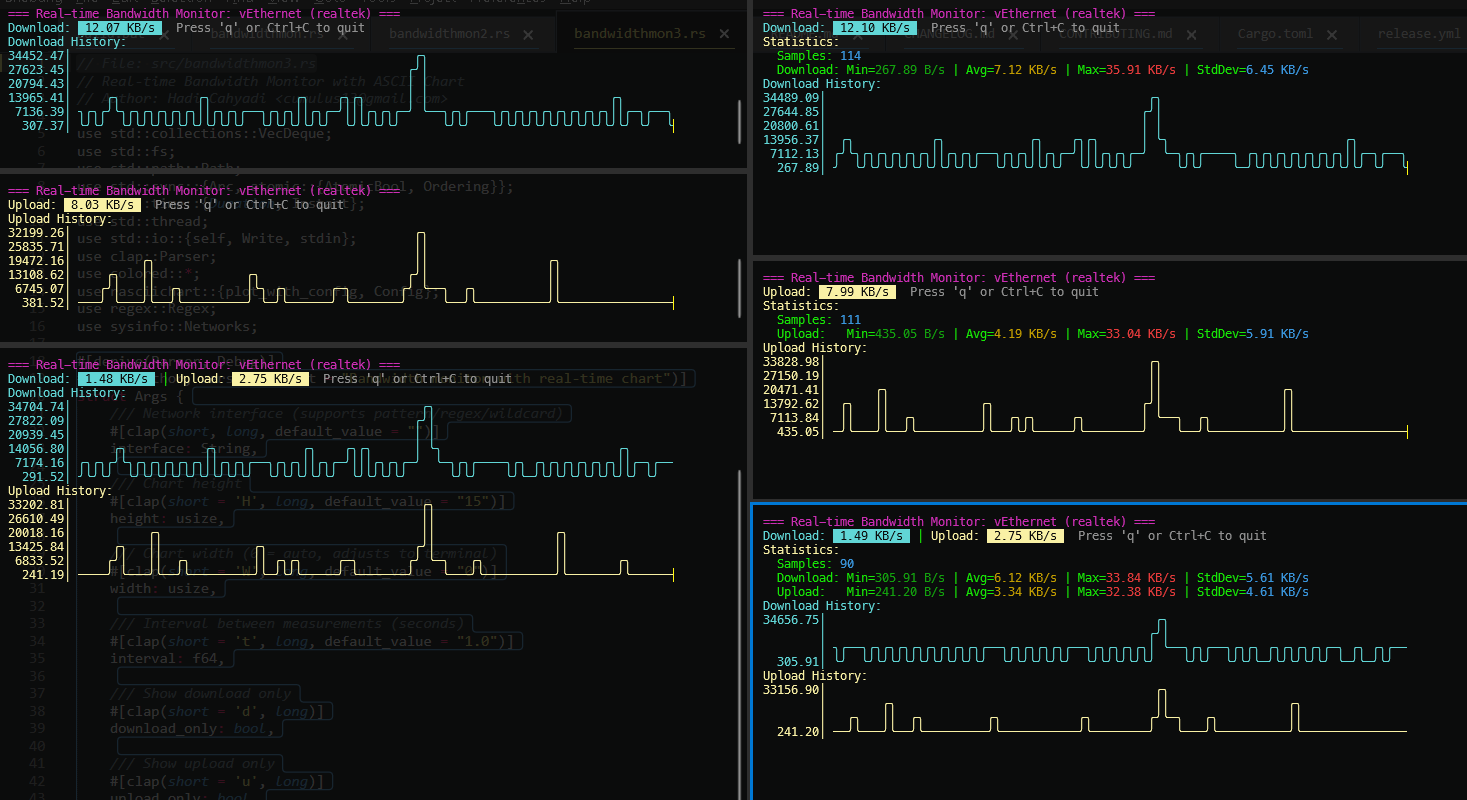
═══ Bandwidth Monitor (eth0) ═══
Download: 1.24 MB/s  │  Upload: 456.78 KB/s

DOWNLOAD
   1.50 │
   1.25 │      ╭─╮
   1.00 │    ╭─╯ ╰─╮
   0.75 │  ╭─╯     ╰─╮
   0.50 │╭─╯         ╰─╮
   0.25 ╰╯             ╰─

Press 'q' or Ctrl+C to quit
```

### 8. Show only upload

```bash
bandwidthmon -u
```

### 9. Show both (default)

```bash
bandwidthmon
```

### 10. Enable summary statistics

```bash
bandwidthmon -s
```

Output:
```
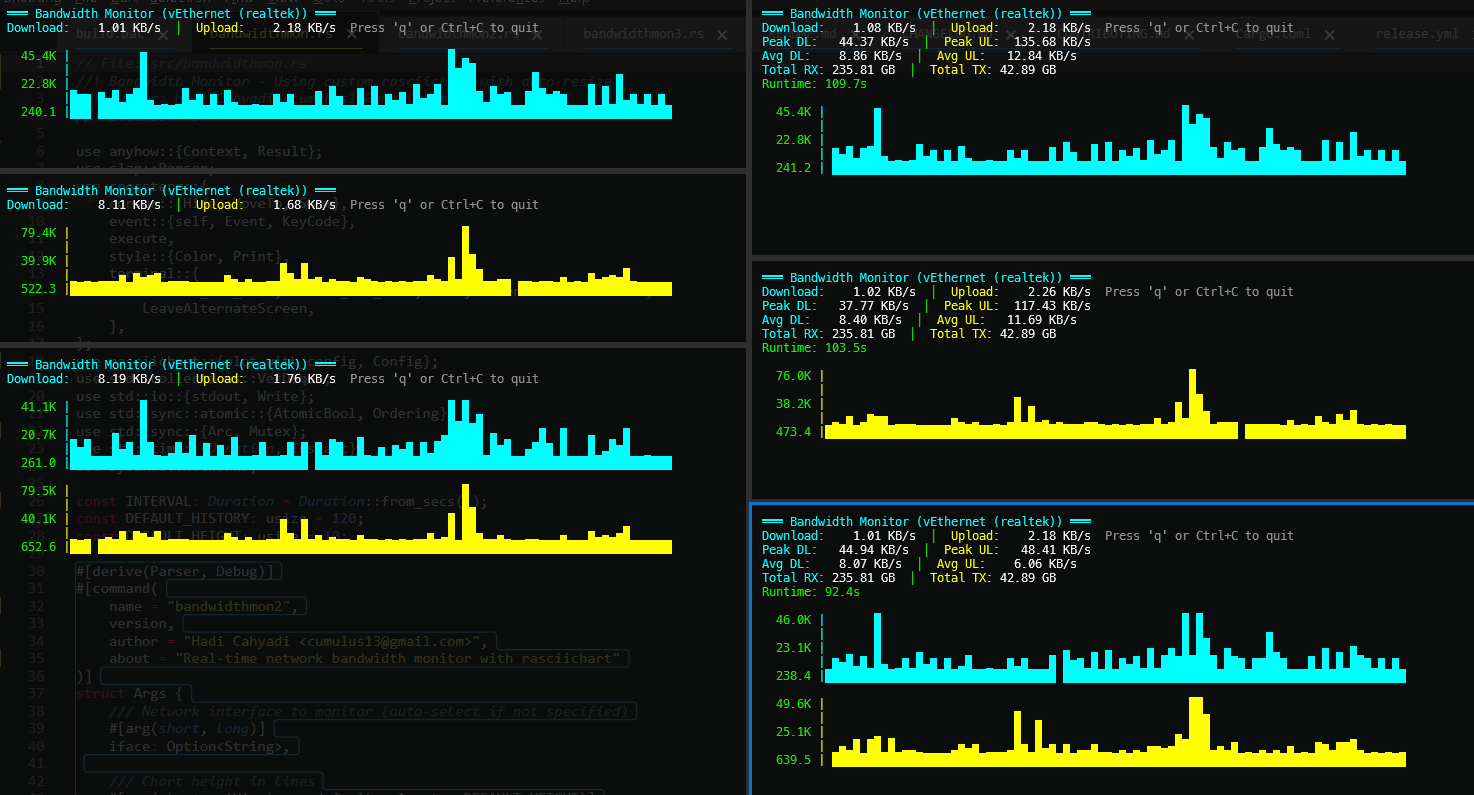
═══ Bandwidth Monitor (eth0) ═══
Download: 1.24 MB/s  │  Upload: 456.78 KB/s
Peak DL: 2.50 MB/s  │  Peak UL: 1.00 MB/s
Avg DL: 1.15 MB/s  │  Avg UL: 450.00 KB/s
Total RX: 1.25 GB  │  Total TX: 456.78 MB
Runtime: 125.5s

DOWNLOAD
...

UPLOAD
...

Press 'q' or Ctrl+C to quit
```

## Advanced Usage

### 11. Monitor with all options

```bash
bandwidthmon -i eth0 -H 15 -W 100 -s -d
```

This will:
- Monitor `eth0` interface
- Use 15 lines for chart height
- Use 100 columns for chart width
- Show summary statistics
- Show only download chart

### 12. Monitor WiFi with custom settings

```bash
bandwidthmon -i wlan0 -H 20 -s
```

### 13. Quick bandwidth check

```bash
# Show only download with summary
bandwidthmon -d -s

# Show only upload with summary
bandwidthmon -u -s
```

### 14. Custom history size

```bash
# Keep 300 data points (5 minutes)
bandwidthmon --history 300

# Keep 60 data points (1 minute)
bandwidthmon --history 60
```

## Using bandwidthmon2 (Manual Rendering)

All examples work the same with `bandwidthmon2`:

```bash
# Basic usage
bandwidthmon2

# With options
bandwidthmon2 -i eth0 -H 20 -s

# Custom rendering with full options
bandwidthmon2 -i wlan0 -H 15 -W 100 -s -d
```

## Real-world Scenarios

### 15. Monitoring during downloads

```bash
# Start monitoring before download
bandwidthmon -d -s

# Then start your download in another terminal
# Watch real-time bandwidth usage
```

### 16. Checking upload during backup

```bash
# Monitor upload only
bandwidthmon -u -s

# Start backup in another terminal
# Monitor upload speed
```

### 17. Comparing interfaces

```bash
# Terminal 1
bandwidthmon -i eth0

# Terminal 2
bandwidthmon -i wlan0

# Compare performance side by side
```

### 18. Debugging network issues

```bash
# Monitor with tall chart for better visibility
bandwidthmon -H 25 -s

# Watch for:
# - Sudden drops in bandwidth
# - Consistent low speeds
# - High peak vs low average (unstable connection)
```

### 19. Server monitoring

```bash
# Monitor server interface with wide chart
bandwidthmon -i eth0 -H 10 -W 120 -s

# Useful for:
# - Web server traffic monitoring
# - Database replication monitoring
# - Backup job monitoring
```

### 20. Data usage tracking

```bash
# Run for extended period with summary
bandwidthmon -s

# Check Total RX/TX at end of session
# Calculate data usage over time
```

## Tips and Tricks

### Terminal resize handling
The charts automatically adjust to terminal width changes (when using `-W 0`).

### Keyboard shortcuts
- `q` - Quit
- `Q` - Quit
- `Esc` - Quit
- `Ctrl+C` - Quit

### Performance tuning
For long monitoring sessions:
```bash
# Reduce history to save memory
bandwidthmon --history 60

# Reduce chart height for faster rendering
bandwidthmon -H 5
```

### Color schemes
The tool uses:
- Cyan for download
- Yellow for upload
- White for values
- Green for positive indicators

### Best practices

1. **Always use `-s` for production monitoring** - Summary statistics help identify trends
2. **Use `-d` or `-u` to focus** - Reduces visual clutter when you only care about one direction
3. **Adjust `-H` based on terminal** - Taller terminals benefit from taller charts
4. **Let `-W 0` auto-size** - Unless you need consistent output for screenshots
5. **Use `--history` wisely** - More history = more memory usage

## Troubleshooting

### Interface not found
```bash
# List interfaces first
bandwidthmon -l

# Then use exact name
bandwidthmon -i <exact-interface-name>
```

### Chart looks distorted
```bash
# Increase width
bandwidthmon -W 100

# Decrease height
bandwidthmon -H 8
```

### Terminal too small
```bash
# Use minimal settings
bandwidthmon -H 5 -W 50
```