# Installation Guide

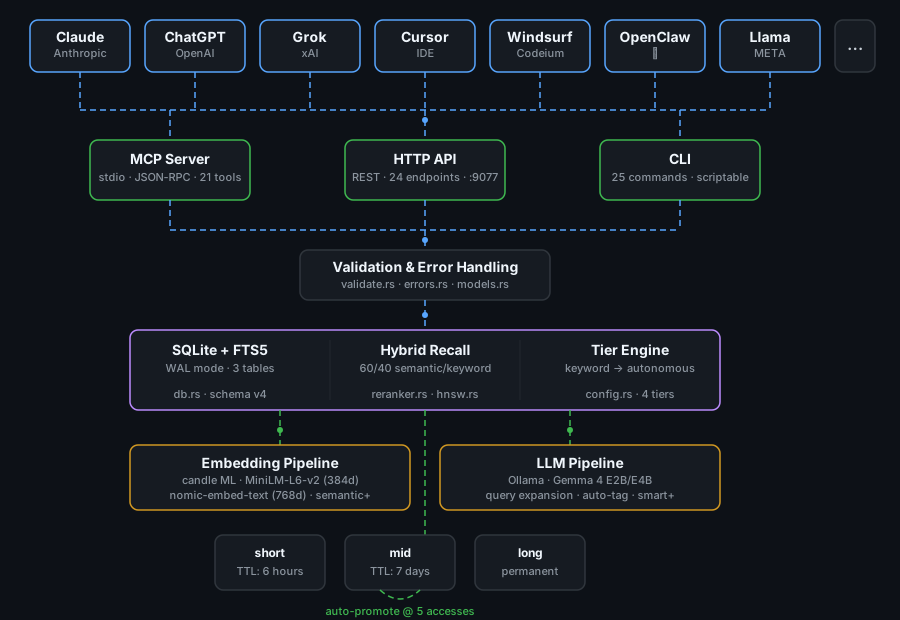
> **BLUF (Bottom Line Up Front):** `ai-memory` is an AI-agnostic memory management system that works with **any MCP-compatible AI client** -- including Claude AI, OpenAI ChatGPT, xAI Grok, META Llama, OpenClaw, and others. Install the binary, configure your AI client's MCP settings, and you get 21 memory tools instantly. The default `semantic` tier includes embedding-based hybrid recall out of the box. Total time: ~60 seconds (pre-built binary + fast internet; first semantic-tier run also downloads a ~100MB embedding model).

## Install in 60 Seconds (pre-built binary + fast internet)

1. **Install the binary** (pick one):

   **One-liner (pre-built binary, Linux/macOS):**
   ```bash
   curl -fsSL https://raw.githubusercontent.com/alphaonedev/ai-memory-mcp/main/install.sh | sh
   ```

   **Windows (PowerShell):**
   ```powershell
   irm https://raw.githubusercontent.com/alphaonedev/ai-memory-mcp/main/install.ps1 | iex
   ```

   **Cargo (crates.io):**
   ```bash
   cargo install ai-memory
   ```

   **Homebrew (macOS + Linux):**
   ```bash
   brew install alphaonedev/tap/ai-memory
   ```

   **cargo-binstall (pre-built, no compile):**
   ```bash
   cargo binstall ai-memory
   ```

   **Ubuntu (PPA — recommended):**
   ```bash
   sudo add-apt-repository ppa:jbridger2021/ppa
   sudo apt update
   sudo apt install ai-memory
   ```

   **Ubuntu/Debian (.deb manual install):**
   ```bash
   # Download from https://github.com/alphaonedev/ai-memory-mcp/releases/latest
   sudo dpkg -i ai-memory_0.5.1_amd64.deb   # or arm64
   ```

   **Fedora/RHEL (COPR — recommended):**
   ```bash
   sudo dnf copr enable alpha-one-ai/ai-memory
   sudo dnf install ai-memory
   ```

   **Fedora/RHEL (.rpm manual install):**
   ```bash
   # Download from https://github.com/alphaonedev/ai-memory-mcp/releases/latest
   sudo rpm -i ai-memory-0.5.1-1.x86_64.rpm    # or aarch64
   ```

   **Docker:**
   ```bash
   docker build -t ai-memory https://github.com/alphaonedev/ai-memory-mcp.git
   docker run -p 9077:9077 -v data:/data ai-memory
   ```

   **From source (requires Rust + C compiler):**
   ```bash
   cargo install --git https://github.com/alphaonedev/ai-memory-mcp.git
   ```

2. **Configure MCP in your AI client.** The example below is for **Claude Code** — add the `mcpServers` key to `~/.claude.json` (user scope, applies to all projects):

   **macOS / Linux:**
   ```json
   {
     "mcpServers": {
       "memory": {
         "command": "ai-memory",
         "args": ["--db", "~/.claude/ai-memory.db", "mcp", "--tier", "semantic"]
       }
     }
   }
   ```

   **Windows** (in `%USERPROFILE%\.claude.json`):
   ```json
   {
     "mcpServers": {
       "memory": {
         "command": "ai-memory",
         "args": ["--db", "C:/Users/YourName/.claude/ai-memory.db", "mcp", "--tier", "semantic"]
       }
     }
   }
   ```

   > **Note:** `~/.claude.json` likely already exists with other settings. Merge the `mcpServers` key into the existing JSON — do not overwrite the file. See [Claude Code MCP Scopes](#claude-code-mcp-configuration-scopes) below for project-level and team-shared alternatives.

   > The `--tier` flag selects the feature tier: `keyword`, `semantic` (default), `smart`, or `autonomous`. **Important:** The `--tier` flag must be passed in the MCP args — the `config.toml` `tier` setting is not used when the server is launched by an AI client. Smart and autonomous tiers require [Ollama](https://ollama.com) running locally with the appropriate models.
   > **Other AI platforms** (OpenAI ChatGPT, xAI Grok, META Llama, etc.) have their own MCP configuration locations. Consult your platform's documentation for where to add MCP server entries. The server command and args are the same — only the config file location differs.

3. **Restart your AI client.**

4. **Verify** -- you should see 21 new tools: `memory_store`, `memory_recall`, `memory_search`, `memory_list`, `memory_delete`, `memory_promote`, `memory_forget`, `memory_stats`, `memory_update`, `memory_get`, `memory_link`, `memory_get_links`, `memory_consolidate`, `memory_capabilities`, `memory_expand_query`, `memory_auto_tag`, `memory_detect_contradiction`, `memory_archive_list`, `memory_archive_restore`, `memory_archive_purge`, `memory_archive_stats`.

5. **Test** -- ask your AI assistant to store a memory. It should use `memory_store` automatically.

6. **Disable built-in auto-memory (recommended).** ai-memory replaces built-in memory systems with zero-token-cost on-demand recall. Built-in systems load your entire memory into every message, burning tokens and money. Disable them:

   **Claude Code (Desktop or CLI):** Add to `~/.claude/settings.json`:
   ```json
   {
     "autoMemoryEnabled": false
   }
   ```

   **ChatGPT:** Settings > Personalization > Memory > turn off (ai-memory replaces it via MCP/HTTP)

   This stops the built-in system from injecting 200+ lines of memory context into every conversation. ai-memory uses zero tokens until `memory_recall` is called -- only relevant memories are returned, ranked by score.

7. **Token savings are automatic.** All recall, search, and list responses use TOON compact format by default -- 79% smaller than JSON. The MCP server also provides `recall-first` and `memory-workflow` prompts that teach AI clients to use memory proactively.

That's it. Everything below is optional detail.

---

## Prerequisites

> **Pre-built binaries have no prerequisites** -- just run `install.sh` or `install.ps1` as shown above. The requirements below only apply when building from source.

- **Rust toolchain (1.87+): Install via [rustup](https://rustup.rs/)
  ```bash
  curl --proto '=https' --tlsv1.2 -sSf https://sh.rustup.rs | sh
  ```

- **C compiler**: Required for the candle ML backend and bundled SQLite:
  - **Ubuntu/Debian:** `sudo apt-get install build-essential pkg-config`
  - **Fedora/RHEL:** `sudo dnf install gcc pkg-config`
  - **macOS:** Xcode command line tools (`xcode-select --install`) -- usually already present
  - **Windows:** MSVC C++ build tools via [Visual Studio Installer](https://visualstudio.microsoft.com/visual-cpp-build-tools/) (select "Desktop development with C++")

## Install from Source (One-Liner)

```bash
cargo install --git https://github.com/alphaonedev/ai-memory-mcp.git
```

This builds a release binary and places it in `~/.cargo/bin/ai-memory`.

Or clone and build locally:

```bash
git clone https://github.com/alphaonedev/ai-memory-mcp.git
cd ai-memory
cargo install --path .
```

## Pre-built Binaries

Pre-built binaries are available on the [Releases](https://github.com/alphaonedev/ai-memory-mcp/releases) page for Linux (x86_64) and macOS (aarch64). Releases are created on git tags.

The easiest way to install is via the install scripts:

```bash
# Linux/macOS
curl -fsSL https://raw.githubusercontent.com/alphaonedev/ai-memory-mcp/main/install.sh | sh

# Windows (PowerShell)
irm https://raw.githubusercontent.com/alphaonedev/ai-memory-mcp/main/install.ps1 | iex
```

Or download and install manually:

```bash
tar xzf ai-memory-x86_64-unknown-linux-gnu.tar.gz
chmod +x ai-memory
sudo mv ai-memory /usr/local/bin/
```

## Platform Notes

- **macOS Gatekeeper**: Pre-built binaries downloaded outside the App Store may be quarantined. If you get "cannot be opened because the developer cannot be verified", run:
  ```bash
  xattr -d com.apple.quarantine ~/.cargo/bin/ai-memory
  # or wherever the binary was installed:
  xattr -d com.apple.quarantine /usr/local/bin/ai-memory
  ```

- **Windows**: Use the PowerShell install script (`install.ps1`) for pre-built binaries. For building from source, use `cargo install` with the MSVC toolchain (the default Rust target on Windows). MinGW is not supported.

- **WSL (Windows Subsystem for Linux)**: Works as native Linux. Follow the Ubuntu/Debian instructions for both pre-built binaries and building from source.

- **Docker**: A `Dockerfile` is included in the repository root. Build and run:
  ```bash
  docker build -t ai-memory .
  docker run --rm -v ai-memory-data:/data ai-memory --db /data/ai-memory.db serve
  ```

## Network Requirements

- **First run with `semantic` tier (or above)**: Downloads a ~100MB embedding model from HuggingFace. No account or API key is required. The model is cached in `~/.cache/huggingface/` for subsequent runs. After the initial download, no network access is needed for keyword or semantic tiers.
- **Smart/autonomous tiers**: Require a running Ollama instance (local network only, no external calls).

## Disk Space

| Component | Size |
|-----------|------|
| `ai-memory` binary (pre-built) | ~50 MB |
| Cargo build from source (including build artifacts) | ~500 MB |
| Semantic embedding model (downloaded on first run) | ~100 MB |
| Ollama models (smart/autonomous tiers only) | ~1--2.3 GB |

## MCP Server Setup (Recommended)

The primary integration path is the **MCP tool server**. MCP (Model Context Protocol) is an open standard -- `ai-memory` works with **any MCP-compatible AI client**, including Claude AI, OpenAI ChatGPT, xAI Grok, META Llama, OpenClaw, and others.

### Step 1: Add MCP configuration

Each AI platform has its own MCP configuration location. The server command and arguments are identical across all platforms.

#### Claude Code MCP Configuration Scopes

Claude Code supports three scopes for MCP server configuration. Pick the one that matches your use case:

| Scope | File | Applies to | Best for |
|-------|------|------------|----------|
| **User** (global) | `~/.claude.json` | All projects on your machine | Personal tools you want everywhere |
| **Project** (shared) | `.mcp.json` in project root | Everyone who clones the repo | Team-wide tools (checked into git) |
| **Local** (private) | `~/.claude.json` under `projects` | One project, only you | Project-specific overrides |

> **Scope precedence:** Local > Project > User. A server defined in a narrower scope overrides a same-named server from a broader scope.

> **Important:** MCP servers are **not** configured in `settings.json` or `settings.local.json` — those files do not support `mcpServers`.

**User scope (recommended — available in every project):**

Merge the `mcpServers` key into your existing `~/.claude.json`:

<table>
<tr><th>macOS / Linux</th><th>Windows</th></tr>
<tr><td>

File: `~/.claude.json`

```json
{
  "mcpServers": {
    "memory": {
      "command": "ai-memory",
      "args": ["--db", "~/.claude/ai-memory.db", "mcp", "--tier", "semantic"]
    }
  }
}
```

</td><td>

File: `%USERPROFILE%\.claude.json`

```json
{
  "mcpServers": {
    "memory": {
      "command": "ai-memory.exe",
      "args": ["--db", "C:/Users/YourName/.claude/ai-memory.db", "mcp", "--tier", "semantic"]
    }
  }
}
```

</td></tr>
</table>

> **Note:** `~/.claude.json` likely already exists with other Claude Code settings (tips, projects, etc.). Add the `mcpServers` key at the top level of the existing JSON object — do not overwrite the file.

**Project scope (shared with your team via git):**

Create `.mcp.json` in your project root:

```json
{
  "mcpServers": {
    "memory": {
      "command": "ai-memory",
      "args": ["--db", "~/.claude/ai-memory.db", "mcp", "--tier", "semantic"]
    }
  }
}
```

> Claude Code prompts for approval before using project-scoped MCP servers from `.mcp.json` files.

**Local scope (one project, private):**

Add an `mcpServers` entry under the project path in `~/.claude.json`:

```json
{
  "projects": {
    "/Users/you/my-project": {
      "mcpServers": {
        "memory": {
          "command": "ai-memory",
          "args": ["--db", "~/.claude/ai-memory.db", "mcp", "--tier", "smart"]
        }
      }
    }
  }
}
```

#### Database Path by Platform

| Platform | Default `--db` path | Environment variable |
|----------|---------------------|---------------------|
| **macOS** | `~/.claude/ai-memory.db` | `$HOME/.claude/ai-memory.db` |
| **Linux** | `~/.claude/ai-memory.db` | `$HOME/.claude/ai-memory.db` |
| **Windows** | `C:\Users\YourName\.claude\ai-memory.db` | `%USERPROFILE%\.claude\ai-memory.db` |

> Use forward slashes in JSON args on all platforms: `"C:/Users/YourName/.claude/ai-memory.db"`. The `AI_MEMORY_DB` environment variable can also be used to set the database path globally.

#### OpenAI Codex CLI

| Scope | File | Notes |
|-------|------|-------|
| **Global** (user) | `~/.codex/config.toml` | macOS/Linux: `~/.codex/config.toml`; Windows: `%USERPROFILE%\.codex\config.toml` |
| **Project** | `.codex/config.toml` in project root | Only loaded for trusted projects |

> Override config directory with the `CODEX_HOME` environment variable.

```toml
[mcp_servers.memory]
command = "ai-memory"
args = ["--db", "~/.local/share/ai-memory/memories.db", "mcp", "--tier", "semantic"]
enabled = true
```

Or add via CLI:

```bash
codex mcp add memory -- ai-memory --db ~/.local/share/ai-memory/memories.db mcp --tier semantic
```

> **Notes for Codex CLI:** Codex uses TOML format with underscored key `mcp_servers` (not camelCase, not hyphenated — this is critical). Additional supported options include `env` (explicit key/value pairs), `env_vars` (list of env vars to forward), `cwd`, `startup_timeout_sec`, `tool_timeout_sec`, `enabled_tools` (restrict which memory tools are exposed), and `disabled_tools`. Use `/mcp` in the TUI to view server status. Codex also supports HTTP-based MCP servers via `url` and `bearer_token_env_var`. See [Codex MCP docs](https://developers.openai.com/codex/mcp).

> **Windows:** Use `%USERPROFILE%\.codex\config.toml`. WSL uses the Linux home directory by default — set `CODEX_HOME` to share config with the Windows host.

#### Google Gemini CLI

| Scope | File | Notes |
|-------|------|-------|
| **User** (global) | `~/.gemini/settings.json` | macOS/Linux: `~/.gemini/settings.json`; Windows: `%USERPROFILE%\.gemini\settings.json` |
| **Project** | `.gemini/settings.json` in project root | Scoped to the project directory |

```json
{
  "mcpServers": {
    "memory": {
      "command": "ai-memory",
      "args": ["--db", "~/.local/share/ai-memory/memories.db", "mcp", "--tier", "semantic"],
      "timeout": 30000
    }
  }
}
```

Or add via CLI:

```bash
gemini mcp add memory ai-memory -- --db ~/.local/share/ai-memory/memories.db mcp --tier semantic
```

> **Notes for Gemini CLI:** Avoid underscores in server names (use hyphens). Tool names are auto-prefixed as `mcp_<serverName>_<toolName>`. Environment variables in the `env` field support `$VAR` / `${VAR}` syntax (all platforms) and `%VAR%` (Windows only) — undefined variables resolve to empty strings. Gemini sanitizes sensitive patterns (`*TOKEN*`, `*SECRET*`, `*PASSWORD*`) from the inherited environment unless explicitly declared. Add `"trust": true` to skip tool confirmation prompts. Additional supported options include `cwd`, `includeTools`, `excludeTools`, `url` (SSE), and `httpUrl` (HTTP). CLI management: `gemini mcp list`, `gemini mcp remove`, `gemini mcp enable/disable`. See [Gemini CLI MCP docs](https://geminicli.com/docs/tools/mcp-server/).

#### Cursor IDE

| Scope | File | Notes |
|-------|------|-------|
| **Global** (user) | `~/.cursor/mcp.json` | macOS/Linux: `~/.cursor/mcp.json`; Windows: `%USERPROFILE%\.cursor\mcp.json` |
| **Project** | `.cursor/mcp.json` in project root | Overrides global for same-named servers |

```json
{
  "mcpServers": {
    "memory": {
      "command": "ai-memory",
      "args": ["--db", "~/.local/share/ai-memory/memories.db", "mcp", "--tier", "semantic"]
    }
  }
}
```

Or add via Cursor Settings > Tools & MCP.

> **Notes for Cursor:** Restart Cursor (or reload window) after editing `mcp.json`. Verify server status in Settings > Tools & MCP (green dot = connected). Supports `env` field for environment variables, `envFile` for `.env` files, and `${env:VAR_NAME}` interpolation in config values (note: env var interpolation can be unreliable for shell profile variables — use `envFile` with a `.env` file as a workaround). Also supports `url` + `headers` for remote HTTP/SSE servers. **~40 tool limit** across all MCP servers combined. See [Cursor MCP docs](https://cursor.com/docs/context/mcp).

#### Windsurf (Codeium)

| Scope | File | Notes |
|-------|------|-------|
| **Global only** | `~/.codeium/windsurf/mcp_config.json` | macOS/Linux: `~/.codeium/windsurf/mcp_config.json`; Windows: `%USERPROFILE%\.codeium\windsurf\mcp_config.json` |

> **No project-level scope.** Windsurf uses global configuration only.

```json
{
  "mcpServers": {
    "memory": {
      "command": "ai-memory",
      "args": ["--db", "~/.local/share/ai-memory/memories.db", "mcp", "--tier", "semantic"]
    }
  }
}
```

> **Notes for Windsurf:** Supports `${env:VAR_NAME}` interpolation in `command`, `args`, `env`, `serverUrl`, `url`, and `headers` fields. Also supports `disabled` (boolean) and `alwaysAllow` (list of tool names) per server. **100 tool limit** across all MCP servers. Can also add servers via MCP Marketplace or Windsurf Settings > Cascade > MCP Servers. See [Windsurf MCP docs](https://docs.windsurf.com/windsurf/cascade/mcp).

#### Continue.dev

| Scope | File | Notes |
|-------|------|-------|
| **User** (global) | `~/.continue/config.yaml` | macOS/Linux: `~/.continue/config.yaml`; Windows: `%USERPROFILE%\.continue\config.yaml` |
| **Project** | `.continue/mcpServers/` directory in workspace root | Individual YAML or JSON files per server |

```yaml
mcpServers:
  - name: memory
    command: ai-memory
    args:
      - "--db"
      - "~/.local/share/ai-memory/memories.db"
      - "mcp"
      - "--tier"
      - "semantic"
```

> **Notes for Continue.dev:** Uses YAML list format. MCP tools only work in agent mode. Supports `${{ secrets.SECRET_NAME }}` syntax for secret interpolation via Continue's secrets system. Project-level config uses the `.continue/mcpServers/` directory — drop individual YAML or JSON config files there (JSON configs from Claude Code, Cursor, etc. are auto-detected). See [Continue MCP docs](https://docs.continue.dev/customize/deep-dives/mcp).

#### xAI Grok (API-level, remote MCP)

Grok connects to MCP servers over HTTPS (remote only, no stdio). No config file — servers are specified per API request.

Start ai-memory as an HTTP server behind HTTPS:

```bash
ai-memory serve --host 127.0.0.1 --port 9077
# Expose via HTTPS reverse proxy (nginx, caddy, cloudflare tunnel, etc.)
```

Then add the MCP server to your Grok API call:

```bash
curl https://api.x.ai/v1/responses \
  -H "Authorization: Bearer $XAI_API_KEY" \
  -H "Content-Type: application/json" \
  -d '{
    "model": "grok-3",
    "tools": [{
      "type": "mcp",
      "server_url": "https://your-server.example.com/mcp",
      "server_label": "memory",
      "server_description": "Persistent AI memory with recall and search",
      "allowed_tools": ["memory_store", "memory_recall", "memory_search"]
    }],
    "input": "What do you remember about our project?"
  }'
```

> **Requirements:** HTTPS required. `server_label` is required. Supports Streamable HTTP and SSE transports. Optional parameters: `allowed_tools` / `allowed_tool_names` (restrict tools), `authorization` (bearer token), `headers` / `extra_headers` (custom HTTP headers). Works with the xAI native SDK, OpenAI-compatible Responses API, and Voice Agent API. See [xAI Remote MCP docs](https://docs.x.ai/docs/guides/tools/remote-mcp-tools).

#### META Llama (via Llama Stack)

No standardized config file path — configuration is deployment-specific. Two approaches:

**Option A: Python/Node.js SDK (programmatic):**

```bash
ai-memory serve --host 127.0.0.1 --port 9077
```

```python
client.toolgroups.register(
    provider_id="model-context-protocol",
    toolgroup_id="mcp::memory",
    mcp_endpoint={"uri": "http://localhost:9077/sse"}
)
```

**Option B: run.yaml (declarative):**

```yaml
providers:
  tool_runtime:
    - provider_id: model-context-protocol
      provider_type: remote::model-context-protocol
      config: {}

tool_groups:
  - toolgroup_id: mcp::memory
    provider_id: model-context-protocol
    mcp_endpoint:
      uri: "http://localhost:9077/sse"
```

> **Notes for Llama Stack:** Supports `${env.VARIABLE_NAME}` syntax for environment variable interpolation in run.yaml. Transport is migrating from SSE to Streamable HTTP as the primary protocol. See [Llama Stack Tools docs](https://llama-stack.readthedocs.io/en/latest/building_applications/tools.html).

#### OpenClaw

| Scope | File | Notes |
|-------|------|-------|
| **Single config** | Platform config file | OpenClaw uses a single configuration file (no separate global/project scopes) |

> **Important:** OpenClaw uses `mcp.servers` (NOT `mcpServers`). The key structure is different from most other platforms.

```json
{
  "mcp": {
    "servers": {
      "memory": {
        "command": "ai-memory",
        "args": ["--db", "~/.local/share/ai-memory/memories.db", "mcp", "--tier", "semantic"]
      }
    }
  }
}
```

Or add via CLI:

```bash
openclaw mcp set memory '{"command":"ai-memory","args":["--db","~/.local/share/ai-memory/memories.db","mcp","--tier","semantic"]}'
```

> **Notes for OpenClaw:** Uses `mcp.servers` key (not camelCase `mcpServers` — this is critical). CLI management: `openclaw mcp list`, `openclaw mcp show <name>`, `openclaw mcp unset <name>`. See [OpenClaw MCP docs](https://docs.openclaw.ai/cli/mcp).

#### Nous Research Hermes Agent

| Scope | File | Notes |
|-------|------|-------|
| **Global only** | `~/.hermes/config.yaml` | YAML format, no per-project scope |

> **Important:** Hermes uses `mcp_servers` (underscored YAML key, NOT camelCase `mcpServers`).

**Stdio (local):**

```yaml
mcp_servers:
  memory:
    command: ai-memory
    args:
      - "--db"
      - "~/.local/share/ai-memory/memories.db"
      - "mcp"
      - "--tier"
      - "semantic"
```

**HTTP (remote — requires ai-memory running as HTTP daemon):**

```yaml
mcp_servers:
  memory:
    url: "http://localhost:9077/mcp"
```

**With tool filtering (restrict to core tools):**

```yaml
mcp_servers:
  memory:
    command: ai-memory
    args: ["--db", "~/.local/share/ai-memory/memories.db", "mcp", "--tier", "semantic"]
    tools:
      include:
        - memory_store
        - memory_recall
        - memory_search
        - memory_list
        - memory_get
```

> **Notes for Hermes Agent:** Uses YAML format with underscored `mcp_servers` key. Supports both stdio (local subprocess) and HTTP (remote endpoint) transports. Per-server tool filtering via `tools.include`/`tools.exclude`. Additional supported fields: `env` (environment variables), `timeout` (tool call timeout), `connect_timeout` (connection timeout), `enabled` (boolean), `sampling` (LLM inference config). See [Hermes MCP docs](https://hermes-agent.nousresearch.com/docs/user-guide/features/mcp).

If `ai-memory` is not in your PATH, use the full path to the binary in any of the configurations above:

```json
{
  "mcpServers": {
    "memory": {
      "command": "/usr/local/bin/ai-memory",
      "args": ["--db", "/var/lib/ai-memory/ai-memory.db", "mcp", "--tier", "semantic"]
    }
  }
}
```

### Step 2: Verify

Restart your AI client. You should see 21 new tools available: `memory_store`, `memory_recall`, `memory_search`, `memory_list`, `memory_delete`, `memory_promote`, `memory_forget`, `memory_stats`, `memory_update`, `memory_get`, `memory_link`, `memory_get_links`, `memory_consolidate`, `memory_capabilities`, `memory_expand_query`, `memory_auto_tag`, `memory_detect_contradiction`, `memory_archive_list`, `memory_archive_restore`, `memory_archive_purge`, `memory_archive_stats`.

### Step 3: Test

Ask your AI assistant to store a memory. It should use the `memory_store` tool automatically.

## Hook Installation (Optional, Claude Code-Specific)

The `hooks/session-start.sh` script auto-recalls relevant memories at the start of each Claude Code session. Other AI platforms may have their own hook/plugin mechanisms -- the CLI commands used in this hook work with any platform.

### Install the hook

```bash
# Copy the hook
cp hooks/session-start.sh ~/.claude/hooks/

# Make it executable
chmod +x ~/.claude/hooks/session-start.sh
```

### Configure the hook in settings.json

```json
{
  "hooks": {
    "PreToolUse": [
      {
        "command": "~/.claude/hooks/session-start.sh"
      }
    ]
  }
}
```

### Environment variables for the hook

| Variable | Default | Description |
|----------|---------|-------------|
| `AI_MEMORY_DB` | `ai-memory.db` | Path to the database |
| `AI_MEMORY_BIN` | `ai-memory` | Path to the binary |

## Systemd Service Setup (HTTP Daemon)

If you want to run the HTTP daemon as a background service (alternative to MCP). The HTTP API at `localhost:9077` works with **any AI platform, framework, or tool** -- no MCP required:

```bash
sudo tee /etc/systemd/system/ai-memory.service > /dev/null << 'EOF'
[Unit]
Description=AI Memory Daemon
After=network.target

[Service]
Type=simple
ExecStart=/usr/local/bin/ai-memory --db /var/lib/ai-memory/ai-memory.db serve
Restart=on-failure
RestartSec=5
Environment=RUST_LOG=ai_memory=info

# Graceful shutdown checkpoints the WAL
KillSignal=SIGINT
TimeoutStopSec=10

[Install]
WantedBy=multi-user.target
EOF
```

Create the data directory and enable the service:

```bash
sudo mkdir -p /var/lib/ai-memory
sudo systemctl daemon-reload
sudo systemctl enable --now ai-memory
```

## Verify Installation

```bash
# Check the binary
ai-memory --help

# If running as MCP server, test manually:
echo '{"jsonrpc":"2.0","id":1,"method":"initialize","params":{}}' | ai-memory mcp
# Expected: JSON-RPC response with serverInfo

# If running as HTTP daemon, check health:
curl http://127.0.0.1:9077/api/v1/health
# Expected: {"status":"ok","service":"ai-memory"}

# Store a test memory via CLI
ai-memory store -T "Installation test" -c "It works." --tier short

# Recall it
ai-memory recall "installation"
```

## Man Page

Generate and install the man page:

```bash
# View immediately
ai-memory man | man -l -

# Install system-wide
ai-memory man | sudo tee /usr/local/share/man/man1/ai-memory.1 > /dev/null
sudo mandb
man ai-memory
```

## Shell Completions

Generate completions for your shell:

```bash
# Bash
ai-memory completions bash > ~/.local/share/bash-completion/completions/ai-memory

# Zsh
ai-memory completions zsh > ~/.zfunc/_ai-memory
# Then add to ~/.zshrc: fpath+=~/.zfunc && autoload -Uz compinit && compinit

# Fish
ai-memory completions fish > ~/.config/fish/completions/ai-memory.fish
```

## Ollama Installation (Smart & Autonomous Tiers)

Smart and autonomous tiers require [Ollama](https://ollama.com) running locally for LLM inference (Gemma 4 models). The `keyword` and `semantic` tiers do **not** require Ollama.

### macOS

```bash
# Install via Homebrew
brew install ollama

# Or download directly from https://ollama.com/download/mac
# Drag Ollama.app to Applications

# Start Ollama (runs as a background service)
ollama serve &

# Pull the model for your tier
ollama pull gemma4:e2b    # Smart tier (~1GB)
ollama pull gemma4:e4b    # Autonomous tier (~2.3GB)
```

### Linux

```bash
# One-line install script
curl -fsSL https://ollama.com/install.sh | sh

# Start the service
sudo systemctl enable ollama
sudo systemctl start ollama

# Or run manually
ollama serve &

# Pull the model for your tier
ollama pull gemma4:e2b    # Smart tier (~1GB)
ollama pull gemma4:e4b    # Autonomous tier (~2.3GB)
```

### Windows

```powershell
# Download installer from https://ollama.com/download/windows
# Run OllamaSetup.exe — installs and starts as a background service

# Or install via winget
winget install Ollama.Ollama

# Pull the model (in PowerShell or Command Prompt)
ollama pull gemma4:e2b    # Smart tier (~1GB)
ollama pull gemma4:e4b    # Autonomous tier (~2.3GB)
```

### Verify Ollama is Running

```bash
# Check Ollama status
curl http://localhost:11434/api/tags

# Test the model
ollama run gemma4:e2b "Hello, world"
```

### Configure ai-memory for Smart/Autonomous Tier

```json
{
  "mcpServers": {
    "memory": {
      "command": "ai-memory",
      "args": ["--db", "~/.claude/ai-memory.db", "mcp", "--tier", "smart"]
    }
  }
}
```

> ai-memory connects to Ollama at `http://localhost:11434` automatically. No additional configuration needed. If Ollama is not running, ai-memory gracefully falls back to the semantic tier.

> **Note:** The `semantic` tier (default) downloads a HuggingFace embedding model (~100 MB) on first startup. No account or API key is required. The model is cached in `~/.cache/huggingface/`.

## Multi-Node Sync Setup

If you use ai-memory on multiple machines (e.g., laptop and server), you can sync databases:

```bash
# Pull memories from a remote database (e.g., over NFS, sshfs, or rsync'd copy)
ai-memory sync /mnt/server/ai-memory.db --direction pull

# Push local memories to remote
ai-memory sync /mnt/server/ai-memory.db --direction push

# Bidirectional merge (both sides get all memories, dedup-safe)
ai-memory sync /mnt/server/ai-memory.db --direction merge
```

The sync operation uses the same dedup-safe upsert as regular stores -- title+namespace conflicts are resolved by keeping the higher priority and never downgrading tier.

## Uninstall

```bash
# Stop and remove the service (if using systemd)
sudo systemctl stop ai-memory
sudo systemctl disable ai-memory
sudo rm /etc/systemd/system/ai-memory.service
sudo systemctl daemon-reload

# Remove MCP configuration from ~/.claude.json (delete the "mcpServers" key)
# Or remove .mcp.json from your project root if using project scope

# Remove the binary
cargo uninstall ai-memory
# or: sudo rm /usr/local/bin/ai-memory

# Remove the database (WARNING: deletes all memories)
rm -f ai-memory.db ai-memory.db-wal ai-memory.db-shm
# or if using the systemd path:
# sudo rm -rf /var/lib/ai-memory
```

## Environment Variables

| Variable | Default | Description |
|----------|---------|-------------|
| `AI_MEMORY_DB` | `ai-memory.db` | Path to the SQLite database file |
| `RUST_LOG` | (none) | Log level filter (e.g., `ai_memory=info,tower_http=info`) |

### TTL and Archive Configuration

Memory TTLs (time-to-live) can be customized per tier via `config.toml`. When garbage collection runs, expired memories can optionally be archived instead of permanently deleted by setting `archive_on_gc = true`. Archived memories can be listed, restored, or purged using the 4 archive tools (`memory_archive_list`, `memory_archive_restore`, `memory_archive_purge`, `memory_archive_stats`). See the [Admin Guide](ADMIN_GUIDE.md) for full configuration details.

> **Note:** Configuration is loaded once at process startup. Changes to `config.toml` require restarting the ai-memory process (MCP server, HTTP daemon, or CLI) to take effect.

**Setting environment variables by platform:**

macOS / Linux (add to `~/.bashrc`, `~/.zshrc`, or equivalent):
```bash
export AI_MEMORY_DB="$HOME/.claude/ai-memory.db"
```

Windows (PowerShell — persistent for current user):
```powershell
[Environment]::SetEnvironmentVariable("AI_MEMORY_DB", "$env:USERPROFILE\.claude\ai-memory.db", "User")
```

Windows (Command Prompt — persistent):
```cmd
setx AI_MEMORY_DB "%USERPROFILE%\.claude\ai-memory.db"
```