
post-tui
post-tui is a professional terminal HTTP API client for developers who want a fast, keyboard-driven API workflow without leaving the terminal.
The app is written in Rust with ratatui, crossterm, reqwest, tokio, serde, and local JSON/TOML storage. It is designed to stay usable on modest hardware and small terminal windows.
Table of Contents
- Preview
- Installation
- Features
- Interface
- Keyboard Shortcuts
- Editing Requests
- Running Requests
- Response Viewer
- cURL Generation
- Collection Import
- Collections, Saved Requests, and History
- Local Data
- Sample Collection
- Current Limitations
- Roadmap
- Contributing
- Author
Preview
Installation
post-tui is distributed through crates.io, so the easiest installation path is through Rust's package manager, Cargo.
If you already have Rust and Cargo installed, skip to Install post-tui.
1. Install System Requirements
cargo install builds the app on your machine. Some operating systems need basic compiler tools installed first.
Linux
Debian/Ubuntu:
Fedora:
Arch Linux:
macOS
Install Xcode Command Line Tools:
Windows
Install:
- Windows Terminal, PowerShell, or Command Prompt
- Microsoft C++ Build Tools from https://visualstudio.microsoft.com/visual-cpp-build-tools/
During Build Tools installation, select:
- Desktop development with C++
- MSVC build tools
- Windows SDK
2. Install Rust and Cargo
Rust and Cargo are installed together through rustup.
Linux and macOS
|
Choose the default installation option when prompted.
After installation, restart your terminal or run:
Windows
Download and run rustup-init.exe from:
https://rustup.rs/
Choose the default installation option when prompted, then restart your terminal.
3. Check Rust and Cargo
Run:
If both commands print versions, Rust and Cargo are ready.
4. Add Cargo to PATH if Needed
Most rustup installations configure this automatically. If cargo or post-tui is not found, add Cargo's bin directory to your user environment.
Linux and macOS
For Bash:
For Zsh:
Windows PowerShell
[Environment]::SetEnvironmentVariable(
  "Path",
  $env:Path + ";$env:USERPROFILE\.cargo\bin",
  "User"
)
After running the command, close and reopen your terminal.
5. Install post-tui
Cargo installs the binary into:
- Linux/macOS:
~/.cargo/bin/post-tui - Windows:
%USERPROFILE%\.cargo\bin\post-tui.exe
6. Run post-tui
7. Update post-tui Later
To update to the latest published version:
Build From Source
If you cloned this repository, you can build it manually:
Features
- Terminal-native HTTP API client with a focused request, response, collection, and history workflow.
- Supports
GET,POST,PUT,PATCH,DELETE,HEAD, andOPTIONS. - Request builder for URL, method, headers, query params, auth, and raw body.
- Auth modes: No Auth, Bearer Token, Basic Auth, and API Key Header.
- Response viewer with status code, response time, response size, headers, body, errors, and scroll support.
- Pretty JSON response view.
- Lightweight JSON tree viewer.
- Raw response body view.
- HTML response text view.
- Open HTML responses in the system browser.
- Search within the active response tab.
- Generate a cURL command from the active request.
- Import Collection v2.1 JSON files.
- Browse imported collections, nested folders, saved requests, and request history.
- Delete collections, folders, individual collection requests, saved requests, and history items.
- Save requests locally.
- Clear request history and local HTML response exports.
- Local app data stored in the platform data directory.
- Built-in help and about modals.
Interface
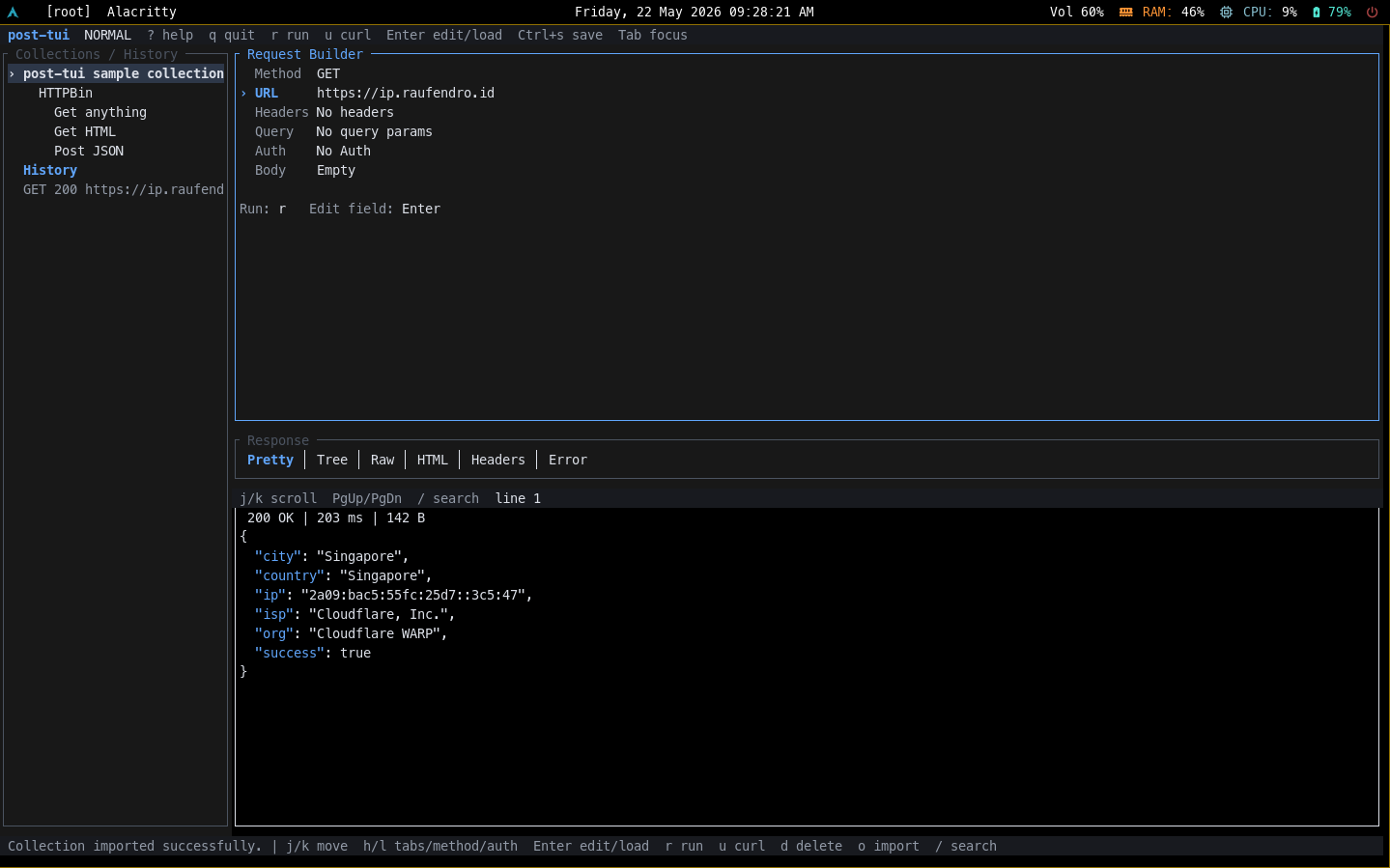
post-tui uses a compact layout:
- Left sidebar: collections, saved requests, and history.
- Top bar: app name, current mode, and shortcut hints.
- Main panel: request builder.
- Bottom panel: response viewer.
- Footer: contextual help and status messages.
- Modal popups: help, about, import, search, cURL, errors, and confirmations.
Keyboard Shortcuts
Press ? inside the app to open the built-in help modal.
| Key | Action |
|---|---|
? |
Open help |
a |
Open about |
q |
Quit |
r / Ctrl+r |
Run current request |
Enter |
Edit focused request field or load selected sidebar request |
Ctrl+s |
Save current request |
n |
Create a new request |
u |
Generate cURL for the current request |
Tab / Shift+Tab |
Switch panels |
j/k or arrow keys |
Navigate sidebar/request fields or scroll response |
h/l or left/right arrows |
Change method, auth mode, or response tab |
PageUp / PageDown |
Scroll response faster |
Home / End |
Jump to start/end of response |
/ |
Search collections/history/sidebar entries |
/ in response panel |
Search within the active response tab |
o |
Import a collection JSON file |
d |
Delete selected sidebar item |
c |
Clear history and local HTML response exports |
b in HTML response tab |
Open HTML response in browser |
Esc |
Cancel edit or close modal |
Editing Requests
Focus the request builder with Tab, move between fields with j/k, then press Enter to edit the selected field.
Supported field formats:
- Headers: one per line,
Header-Name: value - Query params: one per line,
key=value - Bearer auth: token only
- Basic auth:
username:password - API key auth:
header-name: value - Raw body: any text; invalid JSON is allowed and sent as raw text
The input cursor is shown with a blinking block cursor so blank fields are easier to understand.
Running Requests
-
Start the app:
-
Edit the URL field with
Enter. -
Change method with left/right arrows while focused on
Method. -
Press
rto run the request. -
Move to the response panel with
Tab. -
Use
h/lto switch response tabs.
The default request URL is:
https://example.com/api
Response Viewer
Response tabs:
Pretty: pretty JSON when possible, otherwise raw text.Tree: lightweight JSON tree view.Raw: original response body.HTML: HTML converted to readable terminal text.Headers: response headers.Error: request or network errors.
Response controls:
j/kor arrow keys scroll line by line.PageUp/PageDownscroll faster.Home/Endjump to the start/end./searches the active response tab and jumps to the first match.bopens the last HTML response in the system browser from theHTMLtab.
cURL Generation
Press u to generate a cURL command for the current request. The generated command includes:
- HTTP method
- URL with query params
- Enabled headers
- Auth headers or basic auth
- Raw request body
- Content-Type when applicable
Collection Import
Press o, type the path to a Collection v2.1 JSON file, then press Enter.
Example from this repository:
examples/sample-collection.json
Imported requests appear in the sidebar. Select a request with j/k; it loads into the request builder automatically.
Supported import data:
- Collection name
- Nested folders
- Request name
- Request method
- URL as raw string or structured URL object
- Headers
- Query params
- Raw body
Collections, Saved Requests, and History
The sidebar can contain:
- Imported collections
- Nested folders
- Requests inside collections
- Saved local requests
- Request history
Useful shortcuts:
Ctrl+s: save the current request.d: delete the selected sidebar item after confirmation.c: clear request history and delete local HTML response exports after confirmation.
Delete supports:
- Entire imported collections
- Folders inside collections
- Individual collection requests
- Saved requests
- Individual history items
Local Data
post-tui stores app data in the platform data directory reported in the footer.
Files include:
collections.jsonhistory.jsonrequests.jsonconfig.toml*.htmlresponse exports created by the browser view action
Missing or corrupted local files are handled gracefully and recreated when data is saved.
Sample Collection
This repository includes a sample collection:
examples/sample-collection.json
It contains sample JSON and HTML requests that are useful for testing import, response tabs, and browser view.
Current Limitations
- Editing is intentionally compact; multiline values are entered through a simple terminal input buffer.
- Collection import supports common v2.1 structures, but not every vendor-specific feature.
- HTML responses are rendered as readable terminal text, not as a full browser engine.
- Requests currently run through the main app flow rather than a cancellable background task.
- Clipboard support is not enabled yet.
- Environment variables and variable substitution are not implemented yet.
Roadmap
- Full multiline editor for headers and body.
- Environment variables such as
{{base_url}}and{{token}}. - Collection export.
- Background requests with cancellation.
- Clipboard integration for cURL and response bodies.
- Request tabs.
- Config screen for timeout, redirects, default headers, and theme.
Contributing
Contributions, ideas, and collaboration are welcome. If you want to help improve post-tui, discuss features, or contribute to development, contact me on LinkedIn:
https://linkedin.com/in/raufendro
Author
Created by raufendro.