# settle
Settle is a Zettelkasten note manager. All notes are written in Markdown and are
stored locally.
Note that `settle` does not edit the files it handles directly. Therefore,
you're probably going to want to use (or write) a plugin for your favourite
editor, such as [settle.vim](https://github.com/xylous/settle.vim) for Vim and
Neovim.
#### Table of contents
<details><summary>Click to expand</summary>
- [Synopsis](#synopsis)
- [Options](#options)
- [Commands](#commands)
- [the `query` command](#the-query-command)
- [examples](#examples-of-the-query-command)
- [the `sync` command](#the-sync-command)
- [examples](#examples-of-the-sync-command)
- [Configuration](#configuration)
- [Templates](#templates)
- [Template placeholders](#template-placeholders)
- [Setting up shell autocompletion](#shell-autocompletion)
- [bash](#bash)
- [zsh](#zsh)
- [fish](#fish)
- [License and credits](#license-and-credits)
</details>
## Synopsis
```
settle [--help | -h | --version | -v]
settle ls ['tags' | 'projects' | 'ghosts' | 'path']
```
## Options
- `-h`, `--help` - Print usage information
- `-V`, `--version` - Print version information
## Commands
- `help` - print usage information broadly or, if a subcommand is given, usage
information for said subcommand
- `compl <SHELL>` - generate autocompletion file for a certain shell (currently
supported: zsh, bash, fish) (see: [section on shell
autocompletion](#shell-autocompletion))
- `ls <OBJECT>` - list things that don't directly involve notes. Possible
arguments:
- `path` - print the path to the Zettelkasten
- `tags` - print all existing tags
- `projects` - print all existing projects
- `ghosts` - print notes that have links pointed to them, but don't exist
- `query` or `-Q` (described below)
- `sync` or `-S` (described below)
All warnings and errors are printed to `stderr`, so you can suppress them (e.g.
`2>/dev/null`).
##### A short briefing on regular expressions (REGEX)
Regex is a useful tool that `settle` has support for, because it provides
wildcards and patterns which allow matching multiple strings. See [this regular
expression specification](http://www.math.clemson.edu/~warner/M865/RegexBasics.html) for
all supported patterns. But here are a few of the most useful characters you're
going to use:
- `.` - match any single character
- `*` - match the previous character zero or more times
- `+` - match the previous character one or more times
If you wanted to match a literal `.`, `*` or `+`, you'd have to escape them with
a backslash: `\.`, `\*` and `\+` respectively.
Here are some examples:
- `.*` matches *anything*, even empty strings
- `f+` matches the character `f` one or more times
- `.*foo.*` matches any string containing the word `foo`
### The query command
The `query` command is used for getting information related to the notes in the
Zettelkasten - most of the time, by returning those that match a given set of
criteria.
Note that the various options listed here all compound - that is to say, every
option acts as a criteria for querying. `settle query --title "Foo.*" --tag
"bar"` will only return notes whose titles starts with `Foo` AND have the tag
`bar`, not notes whose titles start with `Foo` OR have the tag `bar`. By
default, when no filter parameter is applied (that is to say, `settle query` is
ran without options), all notes are returned.
Here are the query flags:
- `-t | --title <REGEX>` - keep Zettel whose title matches `<REGEX>`
- `-p | --project <REGEX>` - keep Zettel that are in projects that match `<REGEX>`
- `-g | --tag <REGEX>` - keep Zettel that have at least one tag that matches `<REGEX>`
- `-x | --text <REGEX>` - keep Zettel whose text contents match `<REGEX>`. Note
that this unlocks the `%a` format option (see below)
- `-l | --links <REGEX>` - keep Zettel to which the notes whose titles match
`<REGEX>` have links pointing to
- `-b | --backlinks <REGEX>` - keep Zettel which have a link pointing to the
notes whose title match `<REGEX>`
- `-o | --loners` - keep Zettel that have no links pointing to other notes AND
have no links pointing to them.
- `-e | --exact` - disable ALL regular expressions and make every match literal
- `-f | --format <FORMAT>` - print according to `<FORMAT>`, which has the
following flags:
- `%t` - the title of the note
- `%p` - the project [name] of the note
- `%P` - the absolute path to the Zettel
- `%l` - the (forward) links of the Zettel
- `%b` - the backlinks of the Zettel; note that since `settle` only stores
forward links in the database, fetching backlinks is a little bit more
time consuming
- `%a` - the first match that `settle` found while filtering the Zettel with
the `--text` option. This may not be that useful for exact matches, but
it's extremely useful when using regex. Note that, when your query is
enclosed with two `.*` on both ends, such as `".*example.*"`, the entire
matched line is printed; the practical application is giving your
queries a (somewhat limited) context.
- `-s | --link_sep <SEPARATOR>` - specify the separator used between both forward
links and backlinks, when several have to be printed consequently. Default
value is ` | `
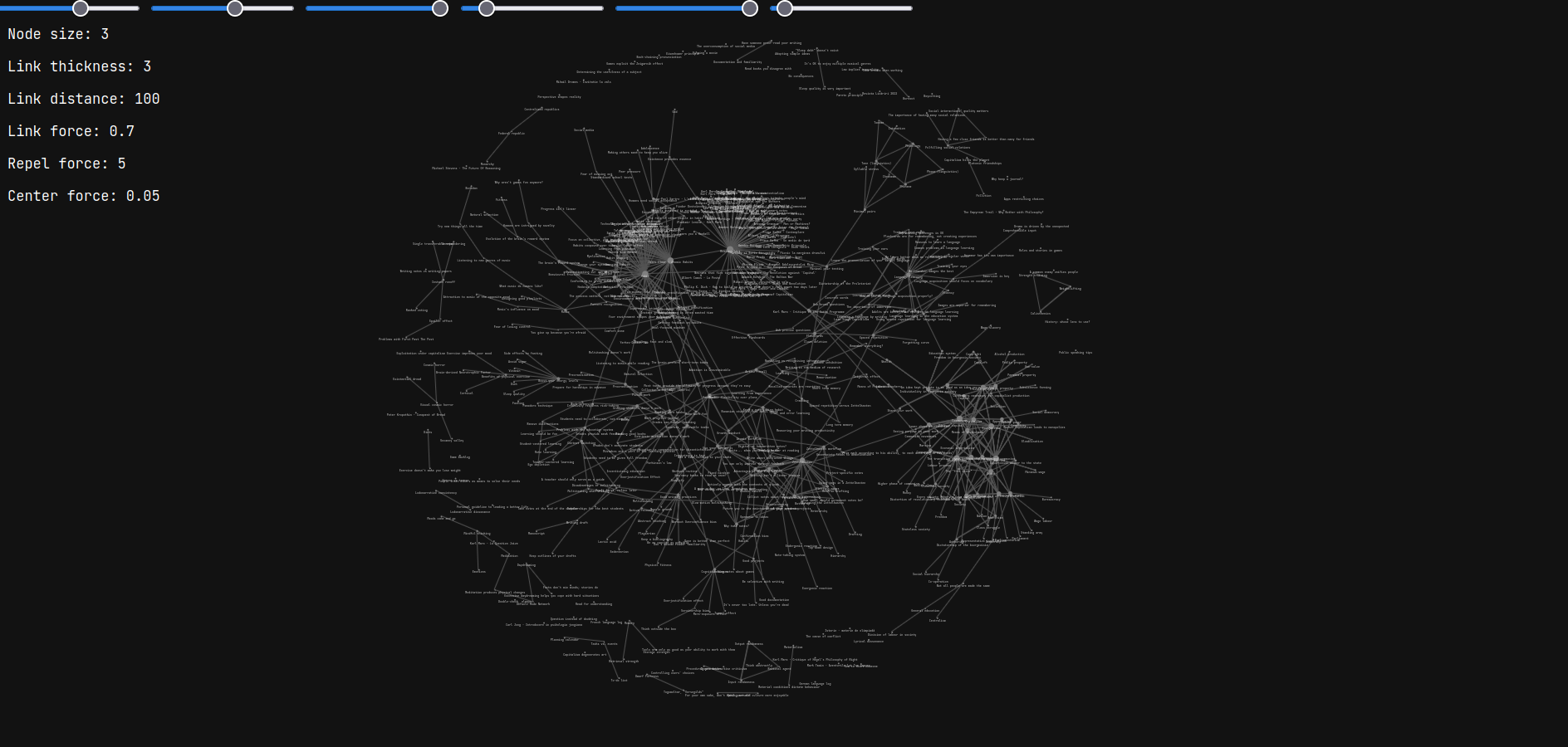
- `--graph` - transform the output into [DOT
format](https://en.wikipedia.org/wiki/DOT_(graph_description_language),
where the nodes are the individual Zettel titles and the edges are links.
You can then run the file through e.g. Graphviz or `xdot` (or anything that
can read DOT for that matter) to render the graph into an image, or, rather,
explore the graph interactively.
NOTE: all direct (immediate) links that the notes in the query results have
*will appear* on the graph.
##### Examples of the query command
- `settle query --text "sample" --loners` returns all notes that contain `sample`
in their text and that aren't linked with any other note in the
Zettelkasten.
- `settle query --project "" --title ".*word.*"` returns all notes that are in
the main Zettelkasten (the empty-string project) and have the word `word`
within their title.
- `settle query --project main --title ".*word.*"` is exactly the same as above,
but uses the project-alias `main`.
- `settle query --formatting "[%p] %t" --link_sep " | "` is the same as the
default format. Note that, since no links are printed, the separator is
actually never used for this format.
- `settle query --tag "literature" --links "Neurons"` returns all notes that
have the `literature` tag and link to a note called *precisely* `Neurons`
(note the absence of regex wildcards)
- `settle query --format "[%P]\t%l" --link_sep "\t" --title "Note.*"` takes
every Zettel whose title starts with `Note` and prints their absolute path
between square brackets, but also their forward links, which are separated
with tabs.
- `settle query --graph 1>graph.gv` prints DOT output of the entire Zettelkasten
to a file called `graph.gv`
- `settle query --graph --tag "neurology"` prints a DOT graph of all Zettel
who have the `neurology` tag.
- `settle query --text ".*search.*" --format "%t (%a)"` not only prints every
Zettel that contains the word `search` in it, but it also prints every line
containing that word.
### The sync command
The `sync` command is used for changing things related to notes - be it creating
new ones, updating their metadata in the database, moving them from a project to
another project, or renaming them.
Note that, unlike the query command, the options that do take arguments here
don't work with regex (except `--move`). Matches here need to be exact, since
we're dealing with more or less precise database changes. Also, unless
specified otherwise, most/all options are mutually exclusive.
Here are the options for this command:
- `-p | --project <PROJECT>` - specify project (NOTE: by itself, this option
doesn't do anything)
- `-c | --create <TITLE>` - create a new Zettel with the provided title. If the
`--project` flag is provided, then make it part of that project; if not,
then add it to the main Zettelkasten project. This operation may only fail
if there is already an entry in the database with the same title.
- `-u | --update <PATH>` - update a note's metadata, given its path (relative or
absolute) on the filesystem. If the file is not part of the Zettelkasten or
doesn't exist, then an error is returned.
- `-g | --generate` - generate the entire database; that is to say, every
Zettel's metadata is updated (or added, if they weren't in the database
already)
- `-m | --move <REGEX>` - move all Zettel whose title matches `<REGEX>` to the
project specified by the `--project` option
- `-n | --rename <FROM> <TO>` - rename `<FROM>` to `<TO>`, preserving the
project and making all the links that pointed to the old title point to the
new one instead. If there is no Zettel with `<FROM>` as title, or if there
already is a note with `<TO>` as a title, then an error is returned.
##### Examples of the sync command
- `settle sync --generate` (re)generates the database from the notes in the
Zettelkasten directory
- `settle sync --create "My super interesting note"` creates a note called `My
super interesting note` inside the main Zettelkasten project
- `settle sync --create "A novel idea" --project "inbox"` creates a note called
`A novel idea` inside the `inbox` project
- assuming that the Zettelkasten directory is at `$HOME/zettelkasten`, then
`settle sync --update "$HOME/zettelkasten/My super interesting note"` updates
the metadata of `My super interesting note` in the database
- `settle sync --move "My super interesting note" --project "inbox"` moves the
note `My super interesting note` to the `inbox` project
- `settle sync --rename "My super interesting note" "My less interesting note"`
renames `My super interesting note` to `My less interesting note`
## Configuration
The location of the configuration file may be influenced by environment
variables:
1. if `$SETTLE_CONFIG` is set: `$SETTLE_CONFIG`
2. if `$XDG_CONFIG_HOME` is set: `$XDG_CONFIG_HOME/settle/settle.yaml`
3. default: `$HOME/.config/settle/settle.yaml`
A generic configuration file is automatically created when `settle` is ran with
any command (except `compl`), if it doesn't already exist.
### Configuration properties
- `zettelkasten` - directory where the notes are stored
If you don't specify an absolute path, e.g. `notes`, it's assumed you want
your Zettelkasten to be at `~/notes`. You can also use paths containing
environment variables or paths starting with a tilde (`~`)
- `template` - path to Zettel template
If empty, or if the path is invalid, then templates won't be used. You can
use paths containing environment variables, or a leading tilde (`~`).
## Templates
Template files are used when creating new Zettel. The text they contain gets put
inside said new note, replacing variables.
### Template placeholders
- `${TITLE}` - replaced with the title of the note
- `${DATE}` - replaced with the output of `date +%Y-%m-%d`
### Example template
```md
# ${TITLE}
### References
- ${DATE}:
```
## Shell autocompletion
Shell completions can be generated by the user at runtime, by using the `compl`
subcommand. In most cases, you'll need to create a directory for user-defined
completions, then add `settle`'s output to it.
If you want XDG compliance, you probably know what you're doing, so just replace
a few things here and there.
### bash
Add the following text to the `~/.bash_completion` file:
```bash
for comp_file in ~/.bash_completion.d/*; do
[[ -f "${comp_file}" ]] && . "${comp_file}"
done
```
And then run the following commands:
```bash
mkdir ~/.bash_completion.d
settle compl bash >~/.bash_completion.d/settle
```
### zsh
In your terminal, run:
```zsh
mkdir ~/.zsh_completion.d
settle compl zsh >~/.zsh_completion.d/_settle
```
Then add this line in your zshrc:
```zsh
fpath=(${HOME}/.zsh_completion.d $fpath)
```
### fish
Run the following commands:
```fish
mkdir -p ~/.config/fish/completions
settle compl fish >~/.config/fish/completions/settle.fish
```
### nushell
From inside nushell, you can generate the completion file by running:
```
## License & Credits
[Licensed under MIT](../LICENSE)
Written by xylous \<xylous.e@gmail.com\>